
Metadata: Add or edit audio track metadata
ReelCrafter uses ID3 tags to manage metadata for your audio files. When you upload audio, ReelCrafter scans for existing metadata and stores it. Anyone who downloads your track will receive the current metadata at the time of download.
Editing metadata requires a Professional plan. Free and Starter plans can view metadata but not edit.
Jump to: Editing a single track · Album art · Bulk editing · Metadata fields · Common questions
Editing a single track
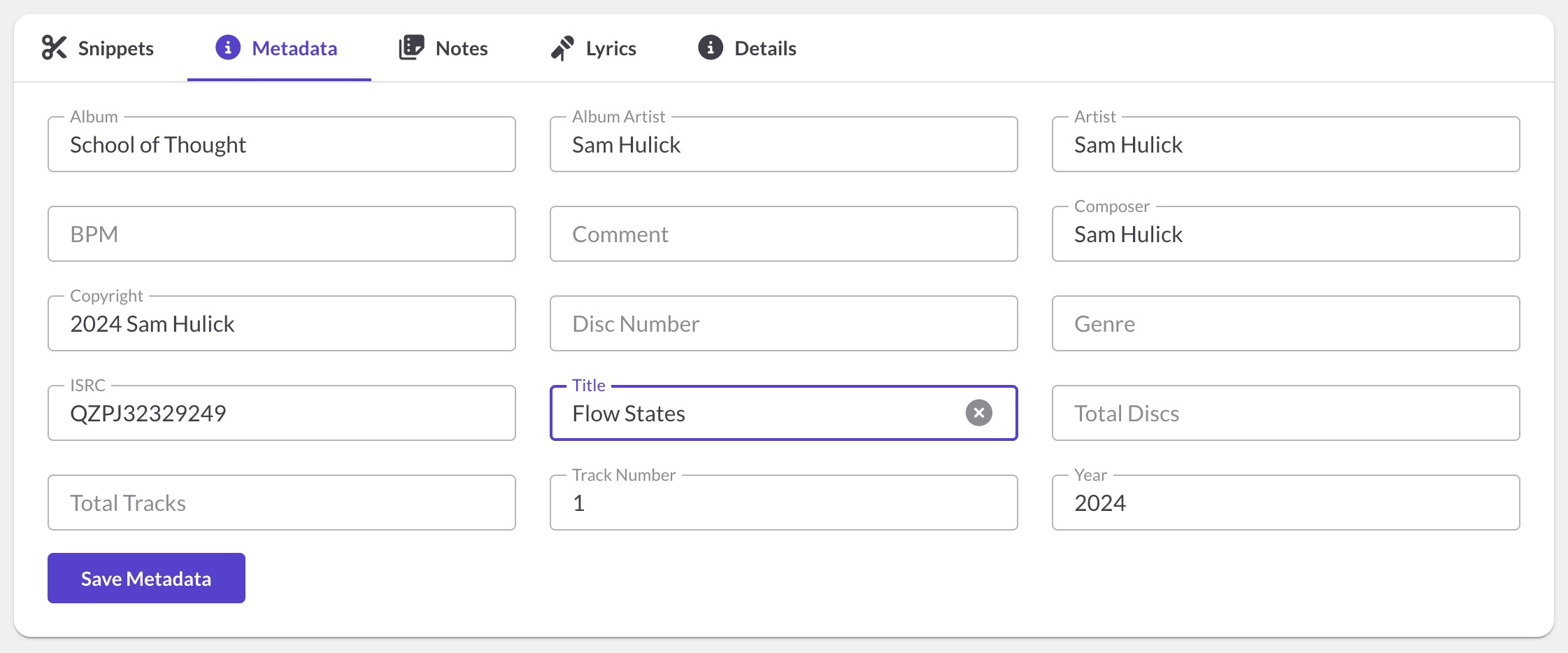
To view or edit metadata for a single track:
- Go to Audio in the left navigation
- Click a track name to open the Audio Details page
- Click the Metadata tab below the waveform
- Make your changes and click Save Metadata
Album art
Album art is managed separately from other metadata fields and can be edited on any plan.
Album art appears next to the waveform at the top of the Audio Details page. If your track doesn't have album art, click Choose album art to add it. If it already has album art, hover over the image and click Replace album art to change it or Remove album art to delete it.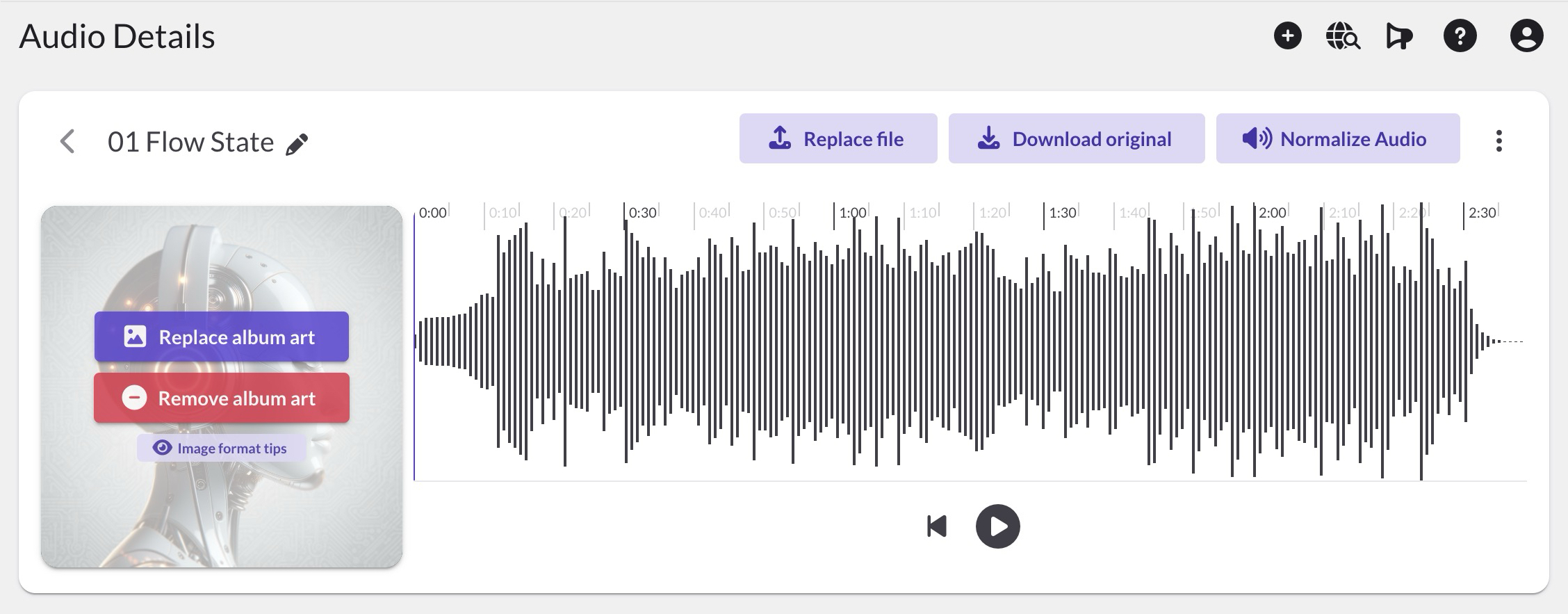
Note: Album art can only be edited one track at a time. Bulk album art editing is not currently available.
Bulk editing
Available on the Professional plan.
The Bulk Metadata Editor lets you edit metadata for multiple tracks at once.
Opening the bulk editor
- Go to Audio in the left navigation
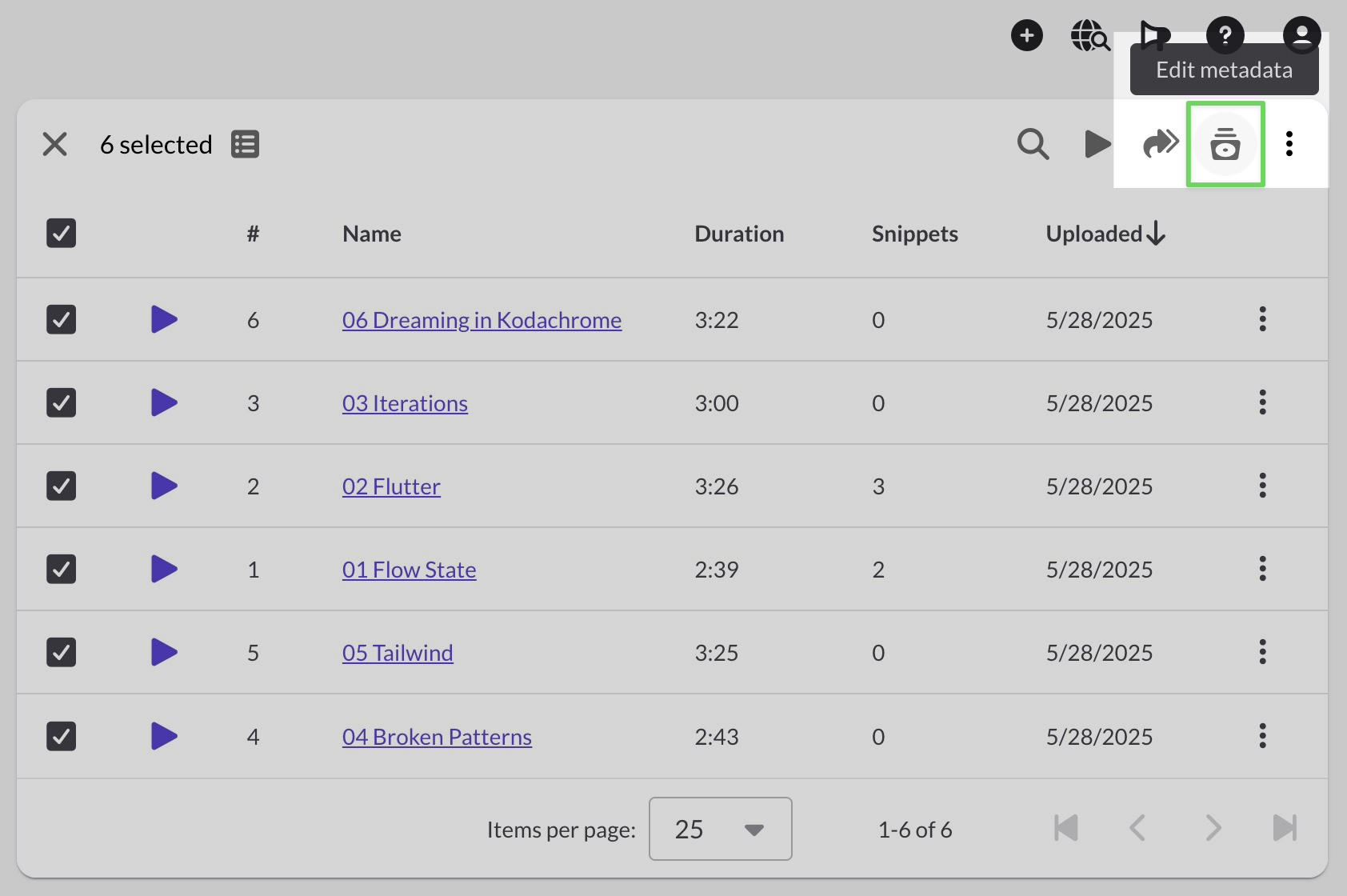
- Select multiple tracks using the checkboxes
- Click the metadata icon in the toolbar
Using the editorThe editor shows a track list on the left and metadata fields on the right.
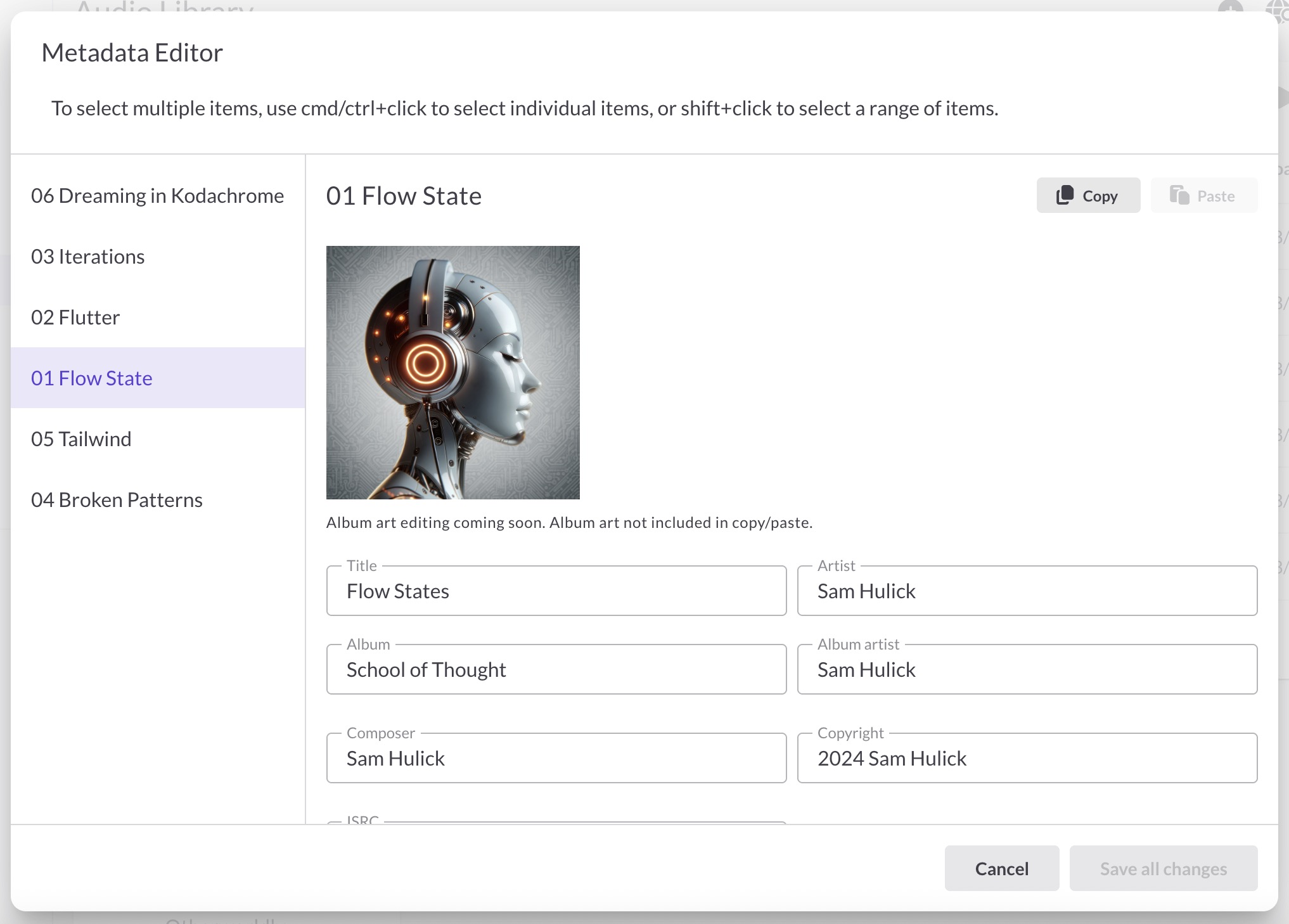
Selecting tracks:
- Click a track name to select it
- Cmd/Ctrl+Click to select multiple individual tracks
- Shift+Click to select a range of tracks
When multiple tracks are selected, editing a field applies the change to all selected tracks. If the selected tracks have different values for a field, it shows "(multiple values)" until you enter a new value.
Copy and paste metadata
To copy all metadata from one track to others:
- Select a single track
- Click Copy (top right)
- Select the tracks you want to update
- Click Paste
This copies all metadata fields at once. Album art is not included in copy/paste.
Undoing changes
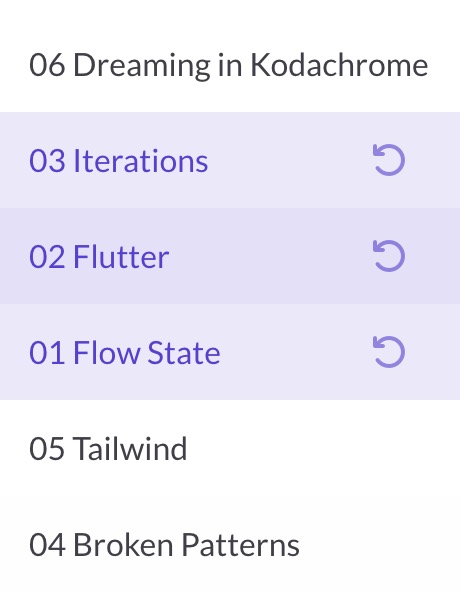
If you make a mistake, click the undo icon next to any modified track in the list to revert that track's metadata to its original values.
Saving changes
Click Save all changes to apply your edits. Changes are saved to ReelCrafter and will be included in any future downloads.
Metadata fields
ReelCrafter supports the following metadata fields:
- Title
- Artist
- Album
- Album Artist
- Composer
- Copyright: Recommended format is "Year Your Name Here" (e.g., "2024 Sam Hulick")
- ISRC: International Standard Recording Code
- Genre
- BPM
- Year
- Track Number and Total Tracks
- Disc Number and Total Discs
- Comment: Note that only the first 255 characters appear in the Apple Music app
Common questions
What plans can edit metadata?
Free and Starter plans can view metadata but not edit it. Professional plans can view and edit metadata, including bulk editing. Album art can be edited on any plan.
When do metadata changes take effect?
Changes are saved immediately when you click Save. Anyone who downloads the track afterward will receive the updated metadata. Downloads are based on the current metadata, not when the reel was created.
Can I bulk edit album art?
Not currently. Album art can only be edited one track at a time from the Audio Details page.
What happens if I edit metadata after sharing a reel?
The downloaded file will include whatever metadata exists at the time of download. If you update metadata after sending a reel, future downloads will include the new metadata.
Does ReelCrafter preserve my original metadata?
Yes. When you upload a track, ReelCrafter reads and stores any existing metadata. You can then view or edit it within ReelCrafter.