
Smart Folders: Automatically organize your library
Smart Folders let you organize items without moving files around. Set a simple rule (a search term and/or a tag) and the folder populates automatically. Smart Folders exist in each library (Audio, Video, Images, and Reels) and update as your content changes.
All plans include a default "All" Smart Folder in each library. Creating custom Smart Folders is available on the Professional plan.
Jump to: Creating a Smart Folder · Editing a Smart Folder · Removing a Smart Folder · How Smart Folders differ from regular folders · Common questions
Creating a Smart Folder
You can create Smart Folders in any library (Reels, Audio, Videos, Images).
- Open the library where you want the Smart Folder
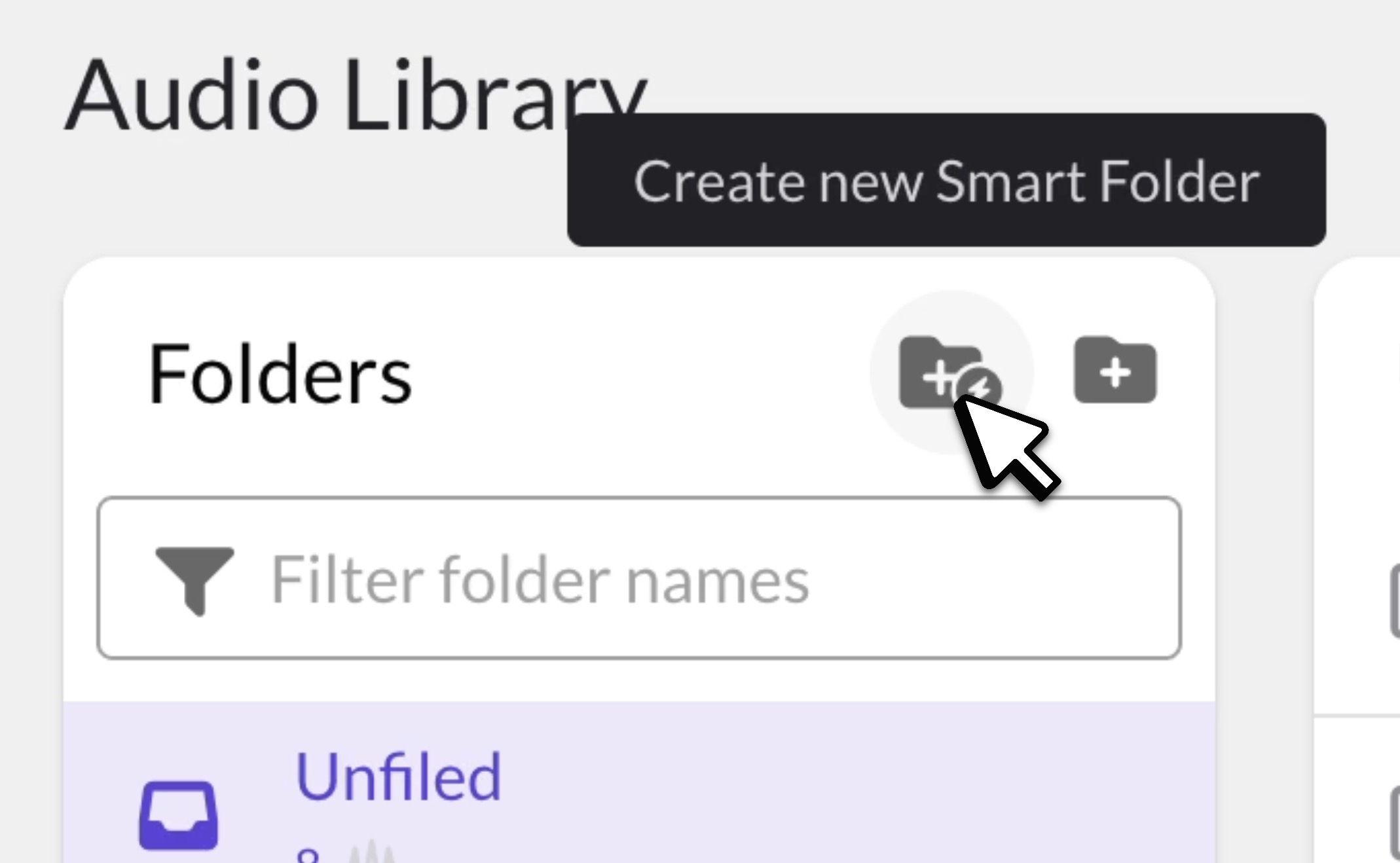
- In the Folders toolbar, click Create new Smart Folder
- In the dialog, enter:
- New folder name: A name for your folder (e.g., "Dance Remix")
- Search keywords (optional): One or more words to match (e.g., "remix")
- Tags (optional): One or more tags to match
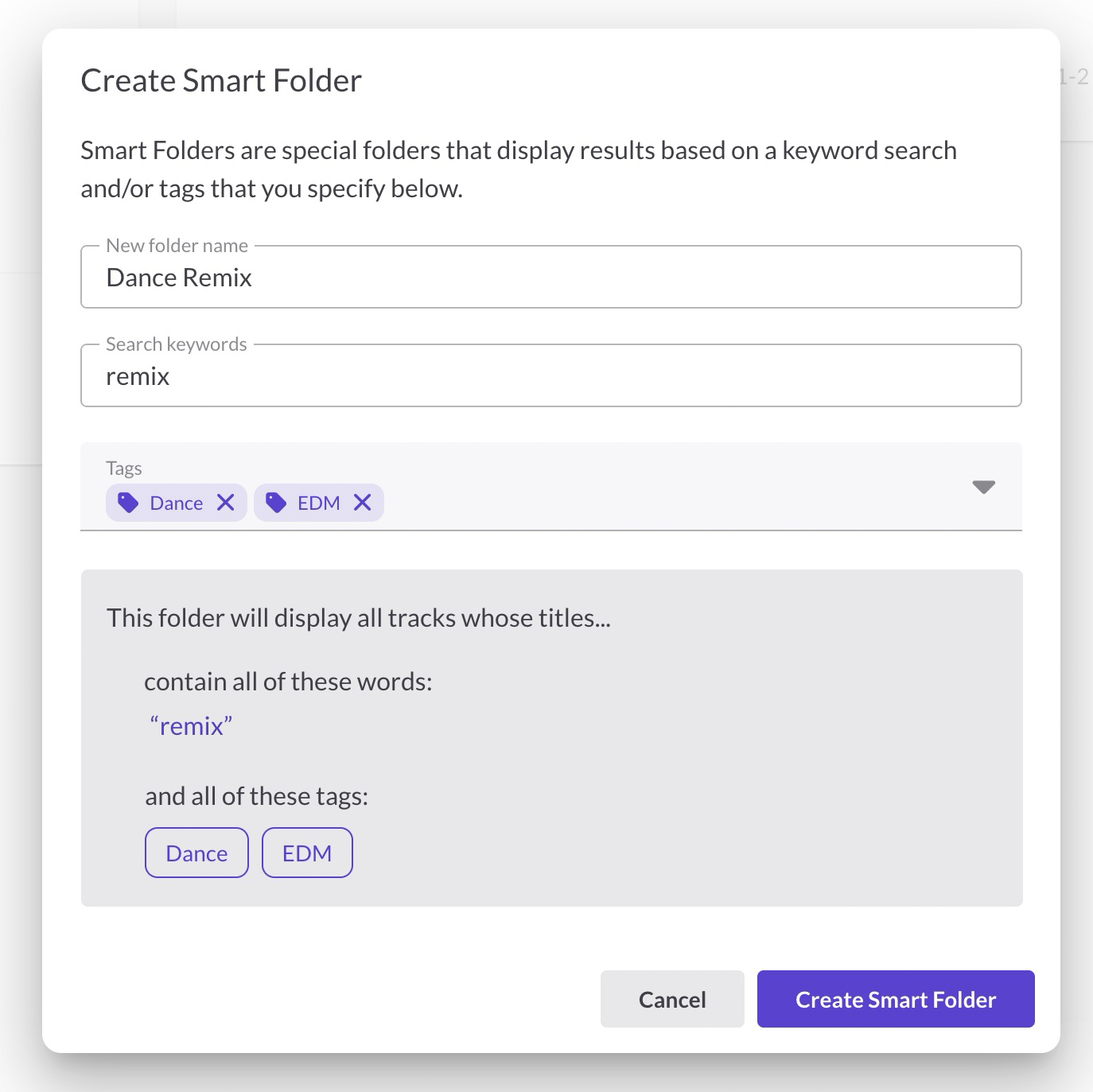
- Review the preview panel to see what will match. In the Audio Library, keywords also search track metadata.
- Click Create Smart Folder. The folder appears under Smart Folders in the sidebar and populates automatically.
Logic and matching
Smart Folders use AND logic between fields. If you set both search keywords and tags, items must match both. If you set only one, items matching that single rule appear.
Smart Folders are library-specific. Create them separately in Reels, Audio, Videos, or Images if you want mirrored views.
Editing a Smart Folder
- Hover over the Smart Folder and open the 3-dot menu
- Choose Edit smart folder
- Update the search term or tag, then click Save
Items are added or removed instantly based on your changes.
Removing a Smart Folder
- Hover over the Smart Folder and open the 3-dot menu
- Choose Delete, then confirm
Deleting a Smart Folder does not delete any items. It only removes the rule.
How Smart Folders differ from regular folders
- Smart Folder: A rule that shows matching items. Nothing is physically moved.
- Regular folder: You manually place items there.
- The same item can appear in multiple Smart Folders if it matches multiple rules.
Common questions
Why is my Smart Folder empty?
Check your AND logic: if you set both a search term and a tag, the item must match both. Also confirm you're in the right library, and verify spelling in your search term.
Can Smart Folders pull from multiple libraries at once?
No. Create the Smart Folder separately in each library if you want mirrored views.
Do Smart Folders change my files or folder structure?
No. They're dynamic views. Your original folders and items stay put.
Can an item appear in multiple Smart Folders?
Yes. If an item matches the rules for multiple Smart Folders, it appears in all of them.
What happens if I delete a Smart Folder?
Only the rule is removed. Your items are not affected.
What Smart Folders do I get on the Free or Starter plan?
Every library includes a default "All" Smart Folder that shows everything in that library. To create your own Smart Folders with custom rules, you'll need the Professional plan.