
Using templates
Templates let you save a reel's structure and settings so you can reuse them when creating new reels. They're useful if you have different personas, represent multiple people, or like to brand reels differently for different projects.
Jump to: Creating a template · What gets saved · Starting from a template · Setting a default · Deleting a template · Common questions
Creating a template
To save a reel as a template:
- Open the reel in the Reel Builder
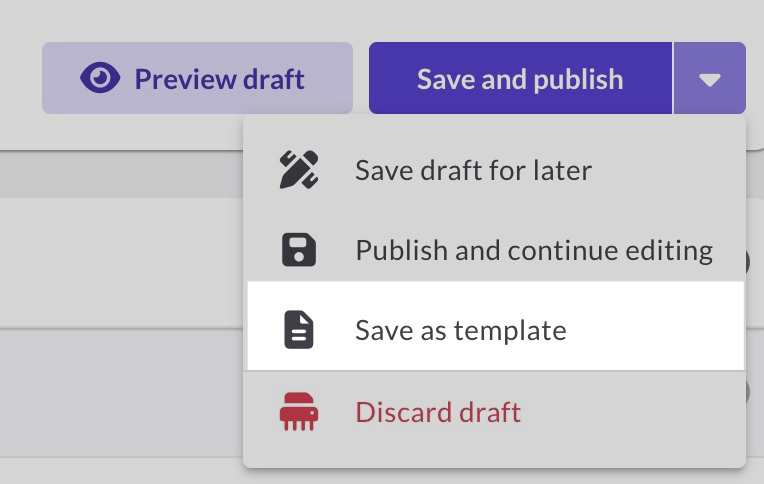
- Click the Save and Publish dropdown
- Select Save as template
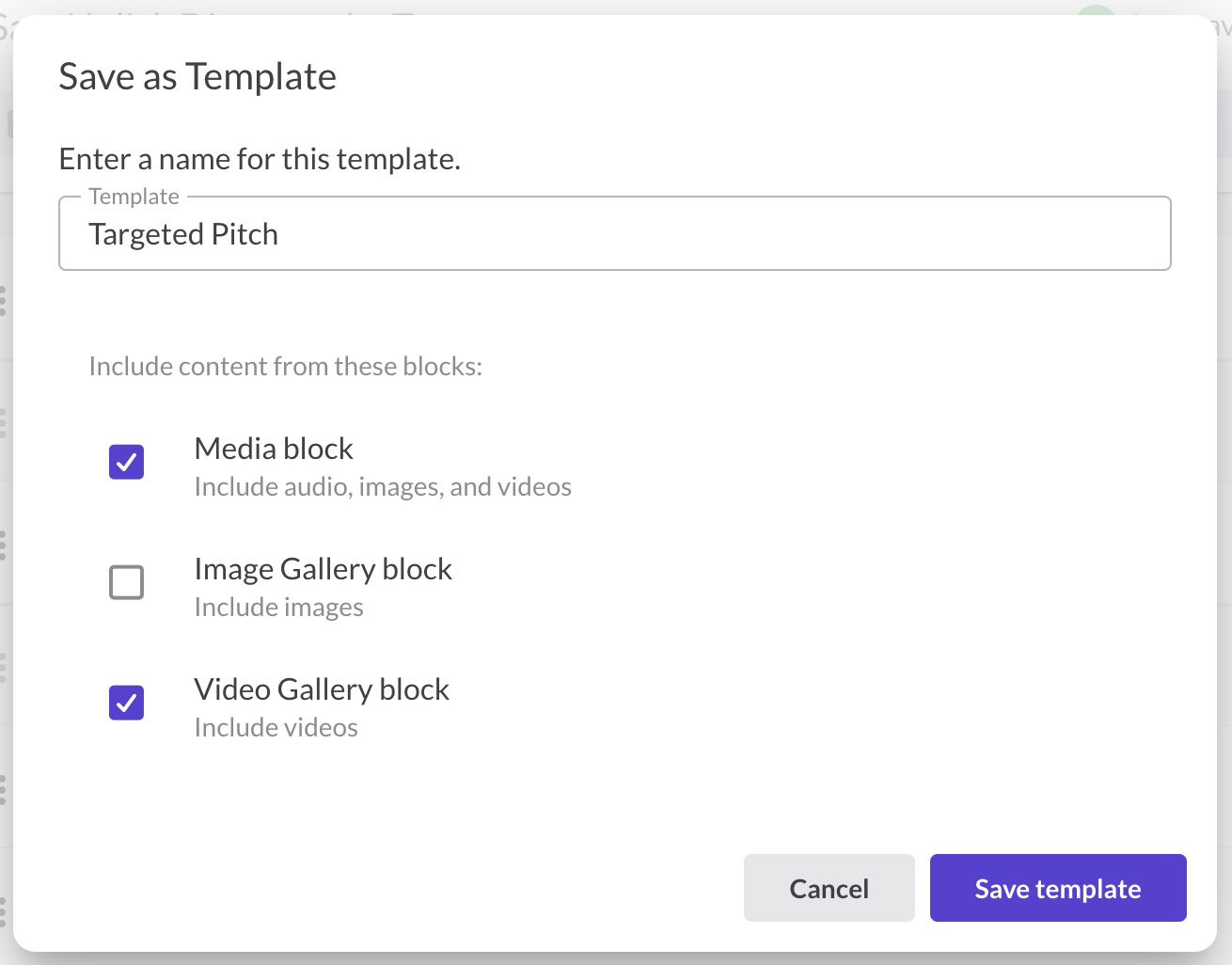
- Enter a name for the template
- Choose whether to include your media (audio, images, videos) or just the block structure and settings
- Click Save template
What gets saved in a template?
Templates always save:
- Theme settings: Colors and waveform style
- Block structure: Which blocks you have and their order
- Block settings: Visibility, layout options (headshot on left/right, etc.)
- Images: Logo, banner, headshot (including any overrides)
- Text: Title, text blocks, contact info, biography (including any overrides)
You can optionally include your actual media content (audio tracks, images in galleries, videos). If you don't, the new reel will have the same blocks but they'll be empty, waiting for you to add content.
Starting a new reel from a template
When you create a new reel:
- Click the + button to create a new reel
- Enter a reel name
- Use the Template dropdown to select a template (or "No template")
- Click Create and edit
The new reel opens in the Reel Builder with all the structure and settings from your template.
If you've set a default template, it will be pre-selected (indicated by a star icon), but you can choose a different template or "No template" before continuing. 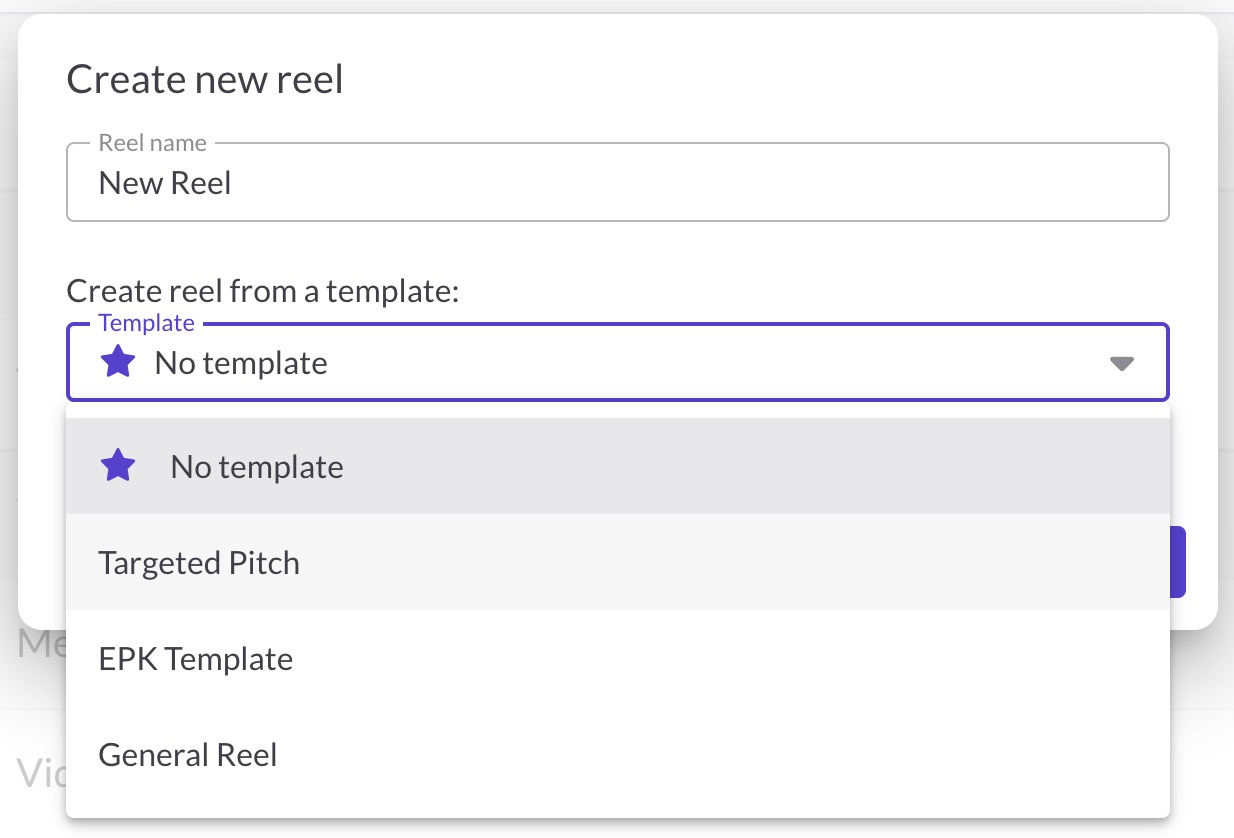
Setting a default template
If you usually start from the same template, set it as your default:
- Go to Reel Settings → Design Defaults
- Under Default Template, click the template you want to use
New reels will automatically start with this template selected. You can still change it in the Create new reel dialog.
Note: When you set a default template, some Design Defaults settings (like colors) become inactive since the template controls them.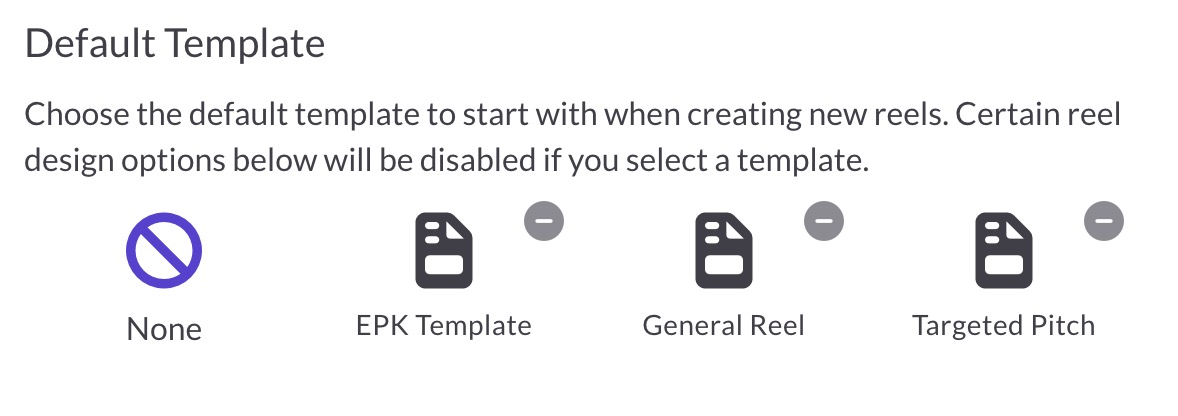
Deleting a template
To delete a template:
- Go to Reel Settings → Design Defaults
- Click the − icon on the template you want to delete
Deleting a template doesn't affect any reels you've already created from it.
Common questions
How do I edit a template?
You can't edit a template directly. To update one:
- Create a new reel using the template
- Make your changes in the Reel Builder
- Save it as a new template (with the same name or a new one)
- Delete the old template if you no longer need it
Can I apply a template to an existing reel?
No. Templates can only be used when starting a new reel. If you want to restructure an existing reel, you'll need to edit it manually in the Reel Builder.
Does ReelCrafter have premade templates?
No. Your template library starts empty. You create templates by building a reel the way you like it and saving it as a template.
Is there a limit on how many templates I can have?
No. Create as many templates as you need.
Where can I see all my templates?
Templates appear in two places:
- The Template dropdown when creating a new reel
- Reel Settings → Design Defaults where you can set a default or delete templates
Can I rename a template?
Not directly. Save a new template with the name you want, then delete the old one.
What happens if I create a reel without a template?
Reels created without a template start with one copy of each basic block and use all of your default settings from Reel Settings.