
Snippets: Create custom audio clips
Snippets let you extract and save specific portions of your audio tracks for use in reels and playlists. Instead of sharing a full 5-minute track, you can showcase just the best 30 seconds—with smooth fade-ins and fade-outs.
Snippets are non-destructive: your original track is never modified. Each snippet becomes its own audio file that you can reuse across multiple reels and playlists. And if you ever need to adjust a snippet, your changes automatically update everywhere that snippet is used.
Jump to: Create a snippet · The Snippet Editor · Manage your snippets · Use snippets in playlists and reels · Common questions
How do I create a snippet?
There are two ways to create a snippet:
From the Audio Library
- Go to Audio in the left navigation
- Click any track to open Track Details
- Select the Snippets tab
- Click Create new snippet
 From a playlist or reel
- Click the scissors icon on any track
- In the Snippet Picker, click Create new snippet
 Both methods open the full-screen Snippet Editor.
The Snippet EditorThe Snippet Editor is a full-screen waveform editor where you select the portion of the track you want to use.
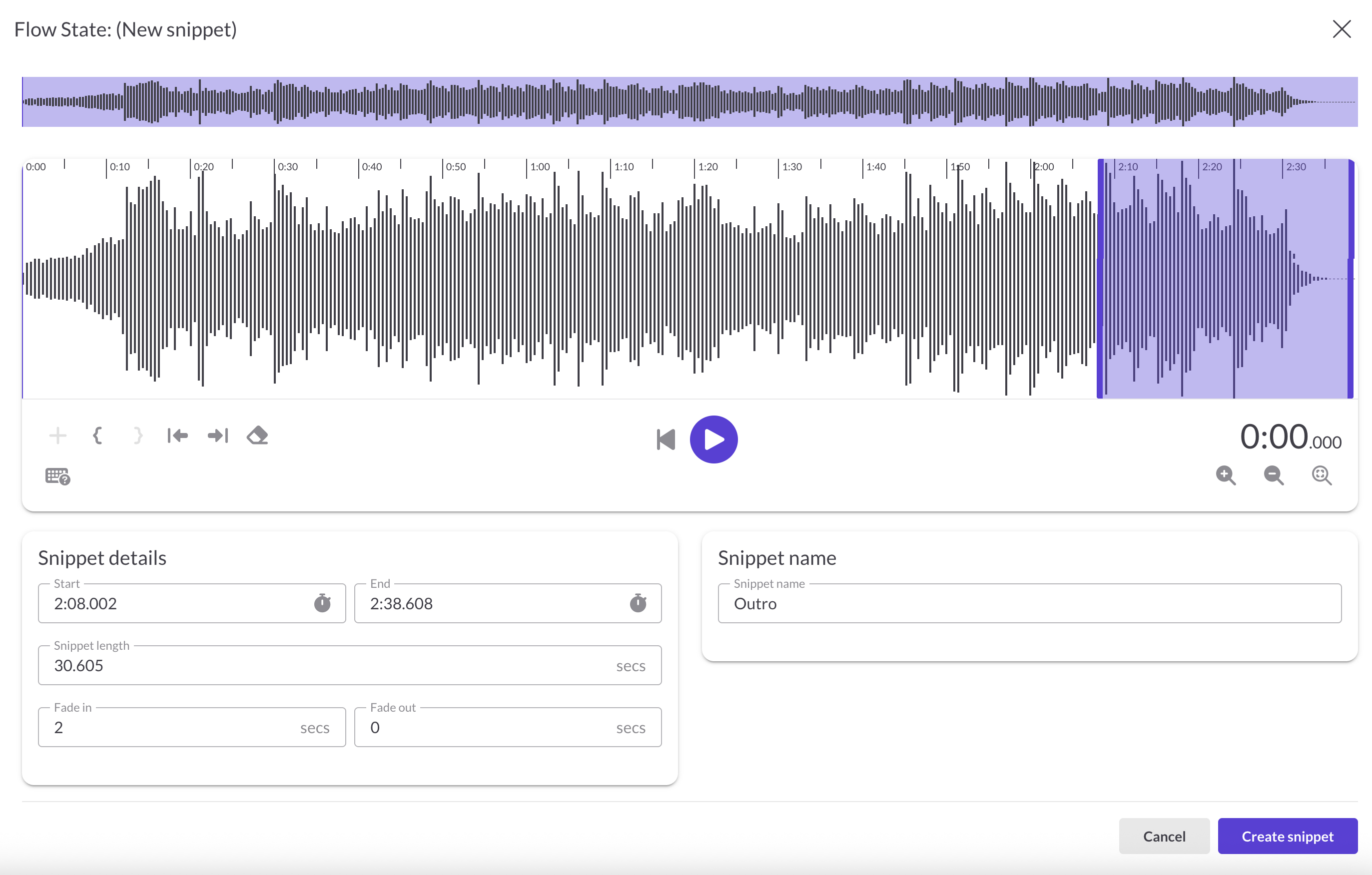
Selecting your region
Drag across the waveform to select a region. The selected area highlights in your theme color. You can:
- Drag the edges to resize the selection
- Use the minimap at the top to navigate long tracks
- Click Add Region to create a 60-second selection at the current playhead
Playback controls
Use the center controls to preview your selection:
- Play/Pause — plays only the selected region, then stops
- Rewind — jump to the beginning
- Time display — shows current playhead position
Region tools
Fine-tune your selection with these tools (or keyboard shortcuts):
- Mark In (I) — set region start to current playhead
- Mark Out (O) — set region end to current playhead
- Start to Beginning ([) — extend region start to 0:00
- End to End (]) — extend region end to track end
- Clear Region (Delete) — remove the selection
Zoom controls
- Zoom In/Out — magnify or shrink the waveform
- Zoom to Fit — show the entire track
- Zoom to Selection — center view on your selected region
Snippet details
In the details panel, configure:
- Start / End — precise start and end times (editable)
- Snippet length — duration in seconds
- Fade In — seconds of fade-in at the start (default: 2 seconds)
- Fade Out — seconds of fade-out at the end (default: 2 seconds)
- Name — a unique name for this snippet (required)
Note: Your combined fade in and fade out times can't exceed the snippet length. Each snippet name must be unique within that track's snippets.
When you're ready, click Create snippet. The snippet is processed on our servers and added to your Snippet Library.
Keyboard shortcuts
| Space | Play/Pause |
| I | Mark In (set start point) |
| O | Mark Out (set end point) |
| [ | Extend start to beginning of track |
| ] | Extend end to end of track |
| Delete | Clear region |
Managing your snippets
The Snippet Library
Each track has its own Snippet Library showing all snippets created from that track. To access it, open Track Details and go to the Snippets tab.
Each snippet card shows:
- Name and duration
- Time range (start and end times)
- Fade in/out indicators
- Mini waveform preview
Sort your snippets by region start time, creation time, or name. 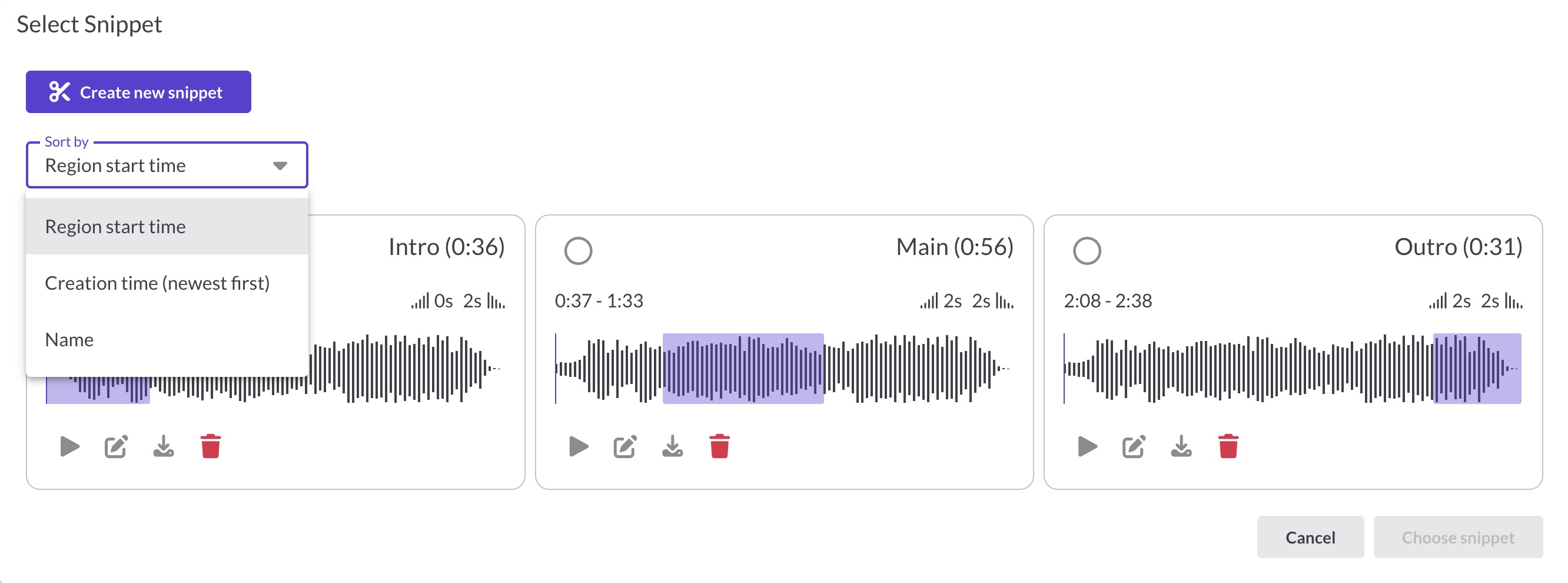
Editing a snippet
Click the pencil icon on any snippet to reopen it in the Snippet Editor. You can adjust the region, fade times, or name, then click Save changes.
When you change the region or fade times, the snippet is recut and automatically updated everywhere it's used. You'll see a confirmation before saving. If you'd rather keep the original intact, click Save as new snippet instead.
Other actions
- Play — preview the snippet
- Download — download as MP3
- Delete — permanently remove the snippet
Using snippets in playlists and reels
Selecting a snippet
- In a playlist or reel, click the scissors icon on any track
- The Snippet Picker shows all available snippets for that track
- Select a snippet and click Choose snippet
When a snippet is active, you'll see the snippet name displayed next to the track name in your playlist or reel, along with a highlighted scissors icon.

Recipients won't know they're hearing a snippet; they just see the track name (or your override name if you've set one). There's no snippet indicator on the published reel or playlist.
Changing or removing a snippet
To change which snippet is used, click the scissors icon again and select a different one.
To remove the snippet and use the full track instead, click the Revert to full track icon on the track.
Common questions
Are snippets available on all plans?
Yes. Snippets are available on all plans with no limits on how many you can create.
Can I cut out the middle of a track and join the beginning and end?
No. Snippets are single continuous regions—you can't remove a section from the middle or splice multiple parts together. Each snippet is one uninterrupted clip from your track. For more complex edits like removing sections or combining parts, you'll need to edit the audio in a DAW and upload the result as a new track.
Do snippets count against my storage quota?
No. Snippets don't count against your storage limits.
What happens if I delete the original track?
Deleting a track removes it from all reels and playlists, including any snippets created from that track.
What happens if I replace the original track?
When you replace a track with a new version, all snippets are automatically recut using the new audio file. If the timing of your new version is identical to the original, your snippets will sound the same. But if the timing has shifted—even slightly—your snippets may start or end at the wrong points. After replacing a track, preview your snippets and adjust any that no longer align correctly.
Can I use the same snippet in multiple reels?
Yes. Once created, a snippet can be used in any reel or playlist that includes the source track.
Can I create multiple snippets from the same track?
Yes. Each track can have unlimited snippets. Create as many as you need for different use cases—a 15-second teaser, a 60-second highlight, a full chorus, etc.
Why is my snippet stuck processing?
Snippets typically process in a few seconds. If processing takes longer than 2 minutes, delete the snippet and try creating it again.
Can I edit a snippet after creating it?
Yes. Click the pencil icon to reopen the Snippet Editor. You can adjust the region, fades, or name anytime. When you save changes to the region or fades, the snippet is automatically updated everywhere it's used—no need to update each reel or playlist individually.
What audio format are snippets?
Snippets are processed as streaming-optimized audio. When you download a snippet, it exports as MP3.
What do listeners download when a track has a snippet?
If you enable downloads on a share link and a track has a snippet selected, listeners download the snippet as an MP3—not the full track. This lets you control exactly what portion of your audio recipients can access.