
Replace audio file: Swap files without losing your work
Replace an audio file with a new version while keeping your snippets, tags, notes, and reel placements intact. Useful when you have a new mix, updated master, or corrected version of a track.
Jump to: When to use replace · How to replace a file · What happens to your data · Common questions
When to use replace
Use replace when you have a new version of the same track and want to keep everything connected to it:
- You received a new mix or master from your engineer
- You fixed an audio issue (click, pop, noise)
- You need to swap a watermarked version for a clean version
- You updated the track and want all your reels to use the new version
If you're uploading a completely different track, just upload it as a new file instead.
How to replace a file
- Open your Audio library
- Click the three-dot menu on the track you want to replace
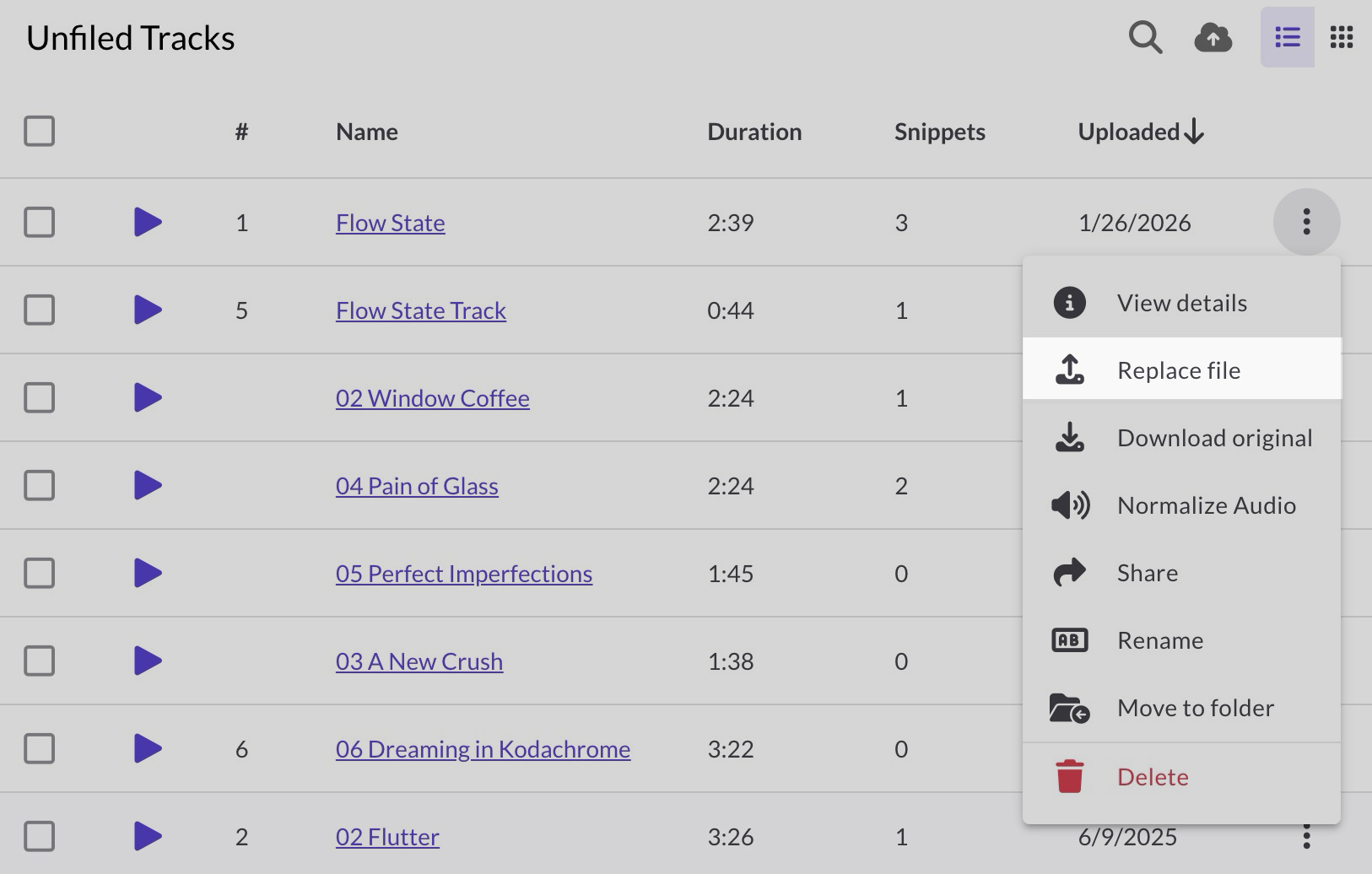
- Select Replace file
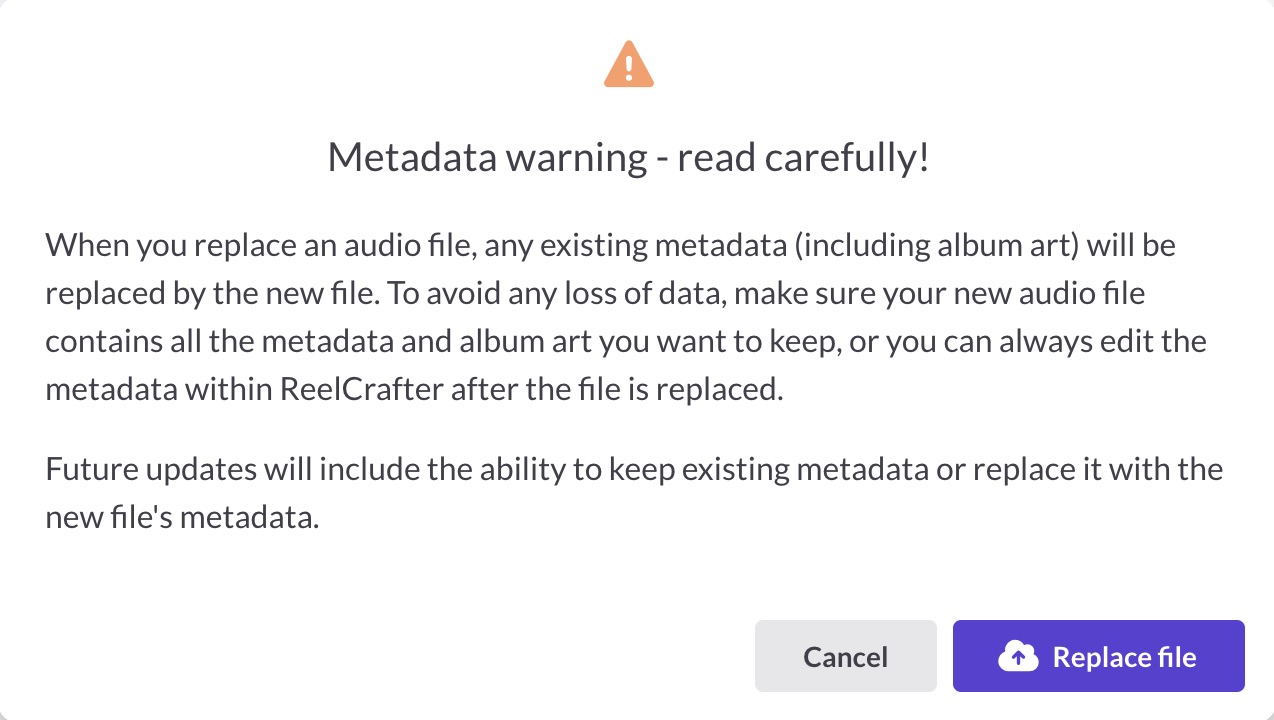
- Read the metadata warning, then click Replace file
- Choose your new audio file
The new file will upload and process. Once complete, all reels containing this track will automatically use the new version.
What happens to your data
When you replace a file:
- Kept: Snippets, tags, notes, lyrics, folder location, and all reel placements
- Replaced: Metadata and album art (from the new file)
If your new file doesn't have metadata or album art embedded, that information will be cleared. You can always edit metadata and add album art again after replacing.
Tip: Before replacing, make sure your new file has the metadata and album art you want, or be prepared to re-enter it in ReelCrafter.
Common questions
Will my snippets still work?
Yes. Your snippets will use the new audio file. However, if the new file has a different duration or structure, snippet timings may not line up the way you expect. Listen to each snippet after replacing to make sure they still sound right.
Will this update all my reels?
Yes. Every reel that includes this track will automatically use the new file. You don't need to update each reel individually.
Can I undo a file replacement?
No. If you need to go back to the original, you'll need to replace the file again with the original version.
Why did my metadata disappear?
Metadata is replaced by whatever is embedded in the new file. If your new file doesn't have metadata, those fields will be empty. You can edit metadata on the track detail page after replacing.