
Generate theme colors from an image
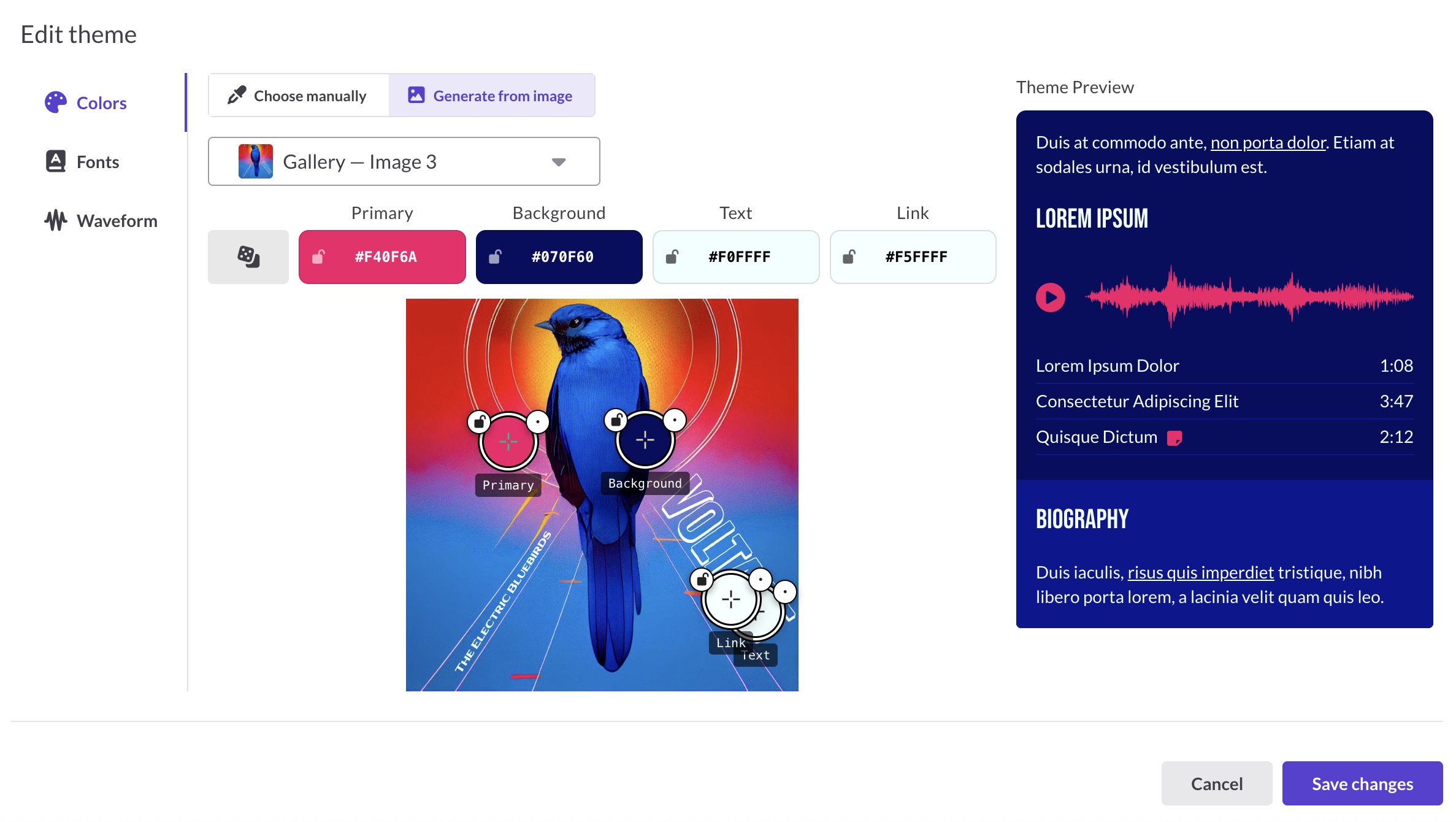
Generate colors from image allows you to create a reel theme that matches one of your images. Hit Randomize to roll through different palettes, or drag the color samplers to set them yourself.
Jump to: How to use it · The four colors · Lock and randomize · Switching modes · Save a generated palette as a preset · Common questions
How to use it
To build a theme from one of your images:
- Open a reel in the Reel Builder and click the theme icon to open the Edit theme dialog.
- In the Colors tab, click Generate from image.
- Pick an image from the dropdown. If your reel only has one image, it's selected for you.
- A starting palette appears on the image automatically.
- Click Randomize (the dice icon) to roll a new combination. Keep clicking until something catches your eye. The palettes vary a lot, so it's worth experimenting before you settle.
- Want more control? Drag any of the four color samplers to a different spot on the image to set that color yourself.
- The Theme Preview on the right updates live as you go. Click Save changes when it looks right.
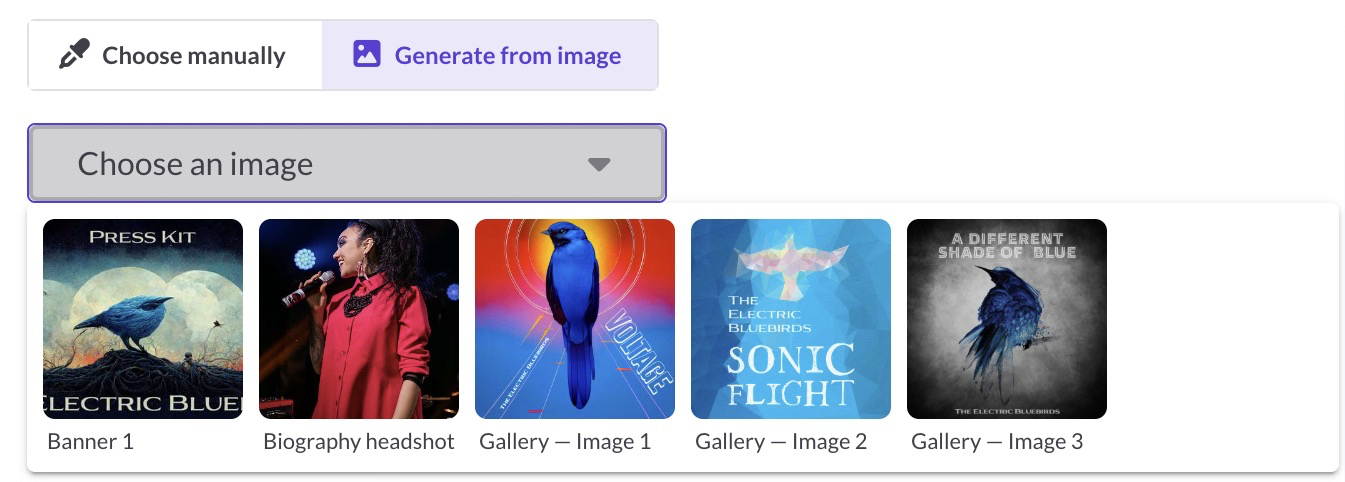
If your reel doesn't have any images yet, you'll see "Add an image to this reel to generate colors from it." Add an image block, banner, or profile photo first, then come back to this tab.
The four colors
Each color sampler controls one part of your reel theme:
- Primary: buttons, icons, and the waveform
- Background: the page and canvas color
- Text: body text
- Link: clickable links
 The hex code chips above the image are clickable. Click one to copy that color.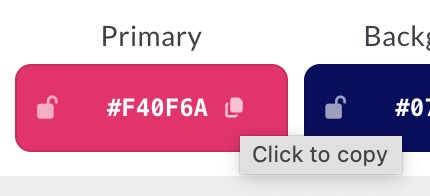
Lock and randomize
Click the lock icon on a color sampler (or on its hex chip above) to keep that color in place. Locked colors stay put when you randomize.
Click Randomize (the dice icon) to re-roll all unlocked colors. ReelCrafter picks readable color combos automatically, so your text stays legible against the background.
 If Randomize can't find a high-contrast combination on your image, you'll see "Couldn't create a high-contrast palette. Try again or adjust color samplers manually." When that happens, try a different image with more variation in light and dark areas, or move the samplers yourself to spots with stronger contrast.
Switching modes
The Colors tab has two modes:
- Choose manually: tap each color swatch to pick from a color wheel or paste in a hex code
- Generate from image: drag color samplers over one of your images
 Each mode remembers its own palette, so you can switch back and forth without losing work. When you save, the theme uses whichever mode is active.
Save a generated palette as a preset
Color presets aren't directly available in Generate from image yet. If you've built a palette you want to reuse on other reels, save it through Choose manually instead:
- Apply the generated palette by clicking Save changes on the Edit theme dialog.
- Open Edit theme again. It opens in Choose manually by default, with your generated colors already loaded.
- Open the Color presets dropdown and click Save current colors.
- Give the preset a name. It's now available on any reel.
 This is also the move if you want to tweak one or two colors after generating. Apply the generated palette, reopen Edit theme, and adjust the individual colors in Choose manually.
Common questions
What if my reel doesn't have an image?
You'll need to add at least one image first. That can be a banner, profile photo, gallery image, or image block. Until then, use Choose manually to set your theme.
Can I save a generated palette as a preset?
Not directly from Generate from image, but there's a quick workaround. See Save a generated palette as a preset.
Does it work on video frames?
The image picker pulls from your reel's banner, profile photo, gallery images, and image blocks. Video thumbnails and frames aren't sampled.
Can I undo a randomize?
There's no undo on Randomize. Click it again for a fresh set, or drag the samplers to specific spots on the image to get the look you want. Lock the colors you like first so they don't change.
What images can I generate colors from?
Any image on the reel, including your banner, profile photo, gallery images, and image blocks. If the reel has more than one, you'll get a dropdown to choose from.