
Save to ReelCrafter: Let listeners save tracks to their library
Save to ReelCrafter lets someone you've shared a reel with copy your audio tracks straight into their own ReelCrafter library. You control which share links allow it, and they pick the tracks they want to save.
Jump to: For reel owners · For recipients · Good to know · Common questions
For reel owners: turn on saving
Saving is off by default on every share link. You decide which links allow it.
To enable saving on a share link:
- Open the reel and go to Share Link settings
- Scroll to the Downloads area
- Turn on Allow ReelCrafter users to save to their library
 The toggle is per share link, so the same reel can have one link that allows saving and another that doesn't. Saving is only available on reel share links, not on playlist share links.
When someone saves your tracks
You'll see a save event in your reel's Recent Activity alongside plays and other engagement, and you'll get an email notification letting you know which tracks were saved.
For recipients: save tracks to your library
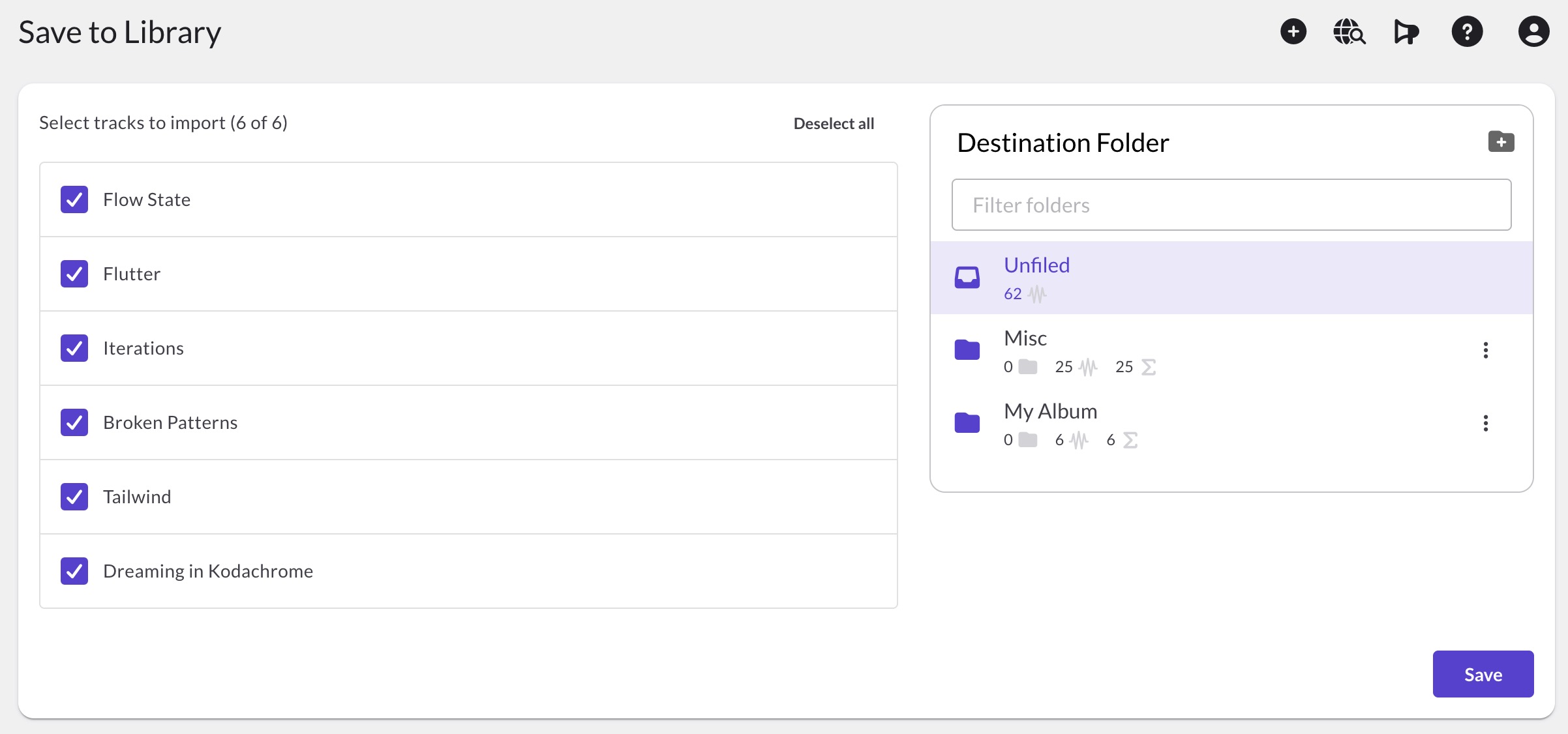
When you open a share link that has saving enabled, you'll land on a page titled Save to Library. Tracks save to your own library, so you need to be signed in to a ReelCrafter account. If you're not signed in, you'll be taken to a log in screen first.
The flow:
- The page opens and shows Loading reel… while it pulls in the tracks.
- Every audio track from the reel appears in a list, grouped by playlist if there's more than one. All tracks are pre-selected. The header reads Select tracks to import (X of Y) with a Select all / Deselect all toggle. Uncheck individual tracks or whole playlists if you don't want them.
- Optionally, pick a Destination Folder on the right. If you skip this, the tracks save to your Unfiled folder.
- Click Save. The button activates once at least one track is selected.
- You'll see Saving X track(s)… while the import runs.
- When it finishes, you'll see X track(s) saved to your library with a Go to audio library button that opens the folder where the tracks landed.
If some tracks fail to save
If the import partly succeeds, you'll see an Import Results screen reading X track(s) saved successfully. Y track(s) failed. Each track shows whether it succeeded or failed. The Retry failed tracks (X) button runs the import again on just the failed ones, and Go to library takes you to the tracks that did save.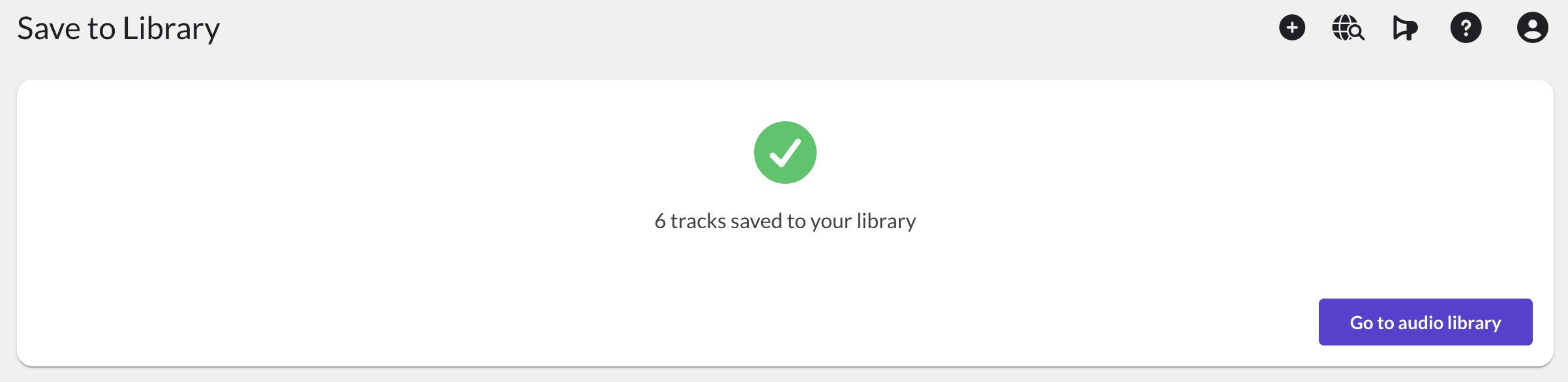
Good to know
- Audio only: Only audio tracks are imported. Video, text, and other reel content stay where they are.
- Account required: The recipient needs a ReelCrafter account and needs to be signed in. Tracks save to their library, not yours.
- Per share link: Saving has to be enabled on the specific link the recipient is using.
- Reels only: The toggle doesn't appear on playlist share links.
Messages you might see
- "Select at least one track to import": No tracks are currently checked. Select at least one to enable the Save button.
- "The owner of this reel has not enabled saving.": The reel owner turned saving off after you opened the page. Ask them to enable it again.
Common questions
Do I need a ReelCrafter account to save tracks?
Yes. Tracks save to your ReelCrafter library, so you need an account and you need to be signed in. If you're not signed in when you open the link, you'll be taken to a login screen first and brought back to the save page afterward.
Will the reel owner know I saved their tracks?
Yes. The owner sees a save event in their reel's Recent Activity and gets an email notification with the list of tracks you saved.
Can I save tracks from a playlist share link?
No. Saving is only available on reel share links. If the link you received is a playlist share link, ask the owner to send you a reel share link instead.
Where do my saved tracks end up?
If you picked a Destination Folder, your tracks land there. If you didn't, they go to your Unfiled folder. Either way, the Go to audio library button opens the folder so you can find them right away.
Can I save just some of the tracks from a reel?
Yes. All tracks are checked by default, but you can uncheck individual tracks or whole playlists before you click Save. Only the tracks that are checked will import.
Can someone save my tracks without my permission?
When saving is enabled on a share link, anyone who has that link can save the tracks, not just the person you originally sent it to. Share links get forwarded, so if you only want specific people to be able to save, lock the link down: add a password or set an expiry date. You can also turn saving off at any time, and since the toggle is per share link, you can keep saving on for trusted contacts and off elsewhere.