
Dashboard: Understanding Recent Activity
Recent Activity on your Dashboard shows how people engage with your reels and playlists. Every time someone opens a share link, ReelCrafter creates a session and tracks what they do: what they play, how long they stay, and what they click or download.
This article covers Recent Activity in detail. For the Dashboard's other cards, see Dashboard Overview and Dashboard: Reel Analytics.
Jump to: What you see depends on your plan · Understanding the layout · Reading engagement data · Troubleshooting your analytics · Common questions
What you see depends on your plan
Start here, because the level of detail in Recent Activity changes a lot from plan to plan.
- Professional: Full analytics including detailed engagement data (plays, pauses, seeks, link clicks, downloads, saves), the engagement heatmap, complete event-by-event timeline, date range filters, and the Hide sessions with no activity toggle.
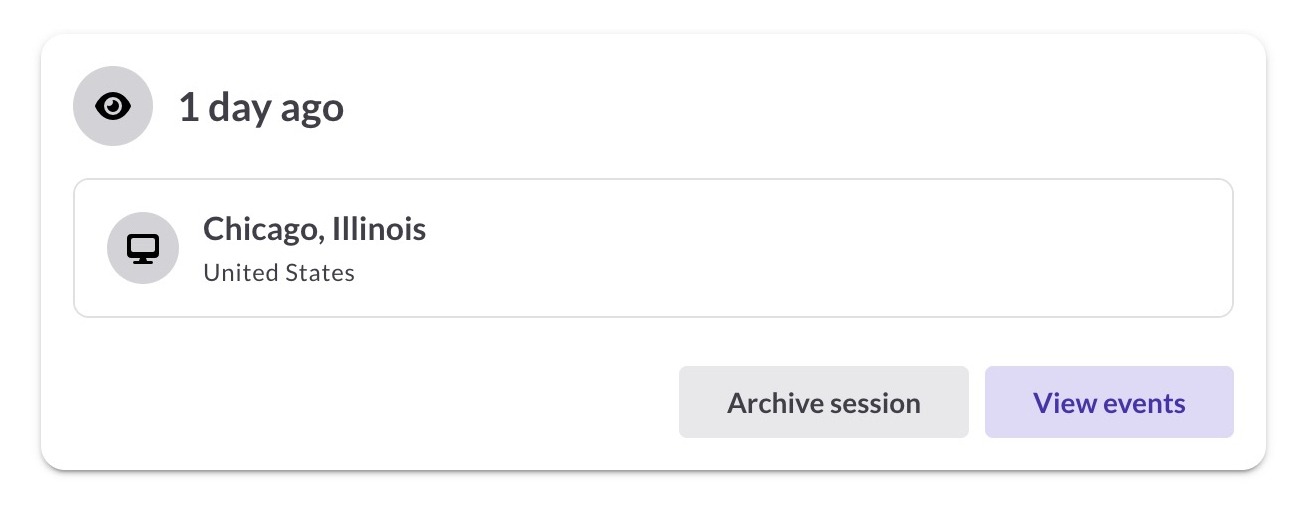
- Starter: Basic session information: when links were opened, approximate location, and device type. Session cards show "Reel opened" rather than event counts. You can filter by date range, but since Starter doesn't record what someone did inside a session, the Hide sessions with no activity toggle doesn't appear.
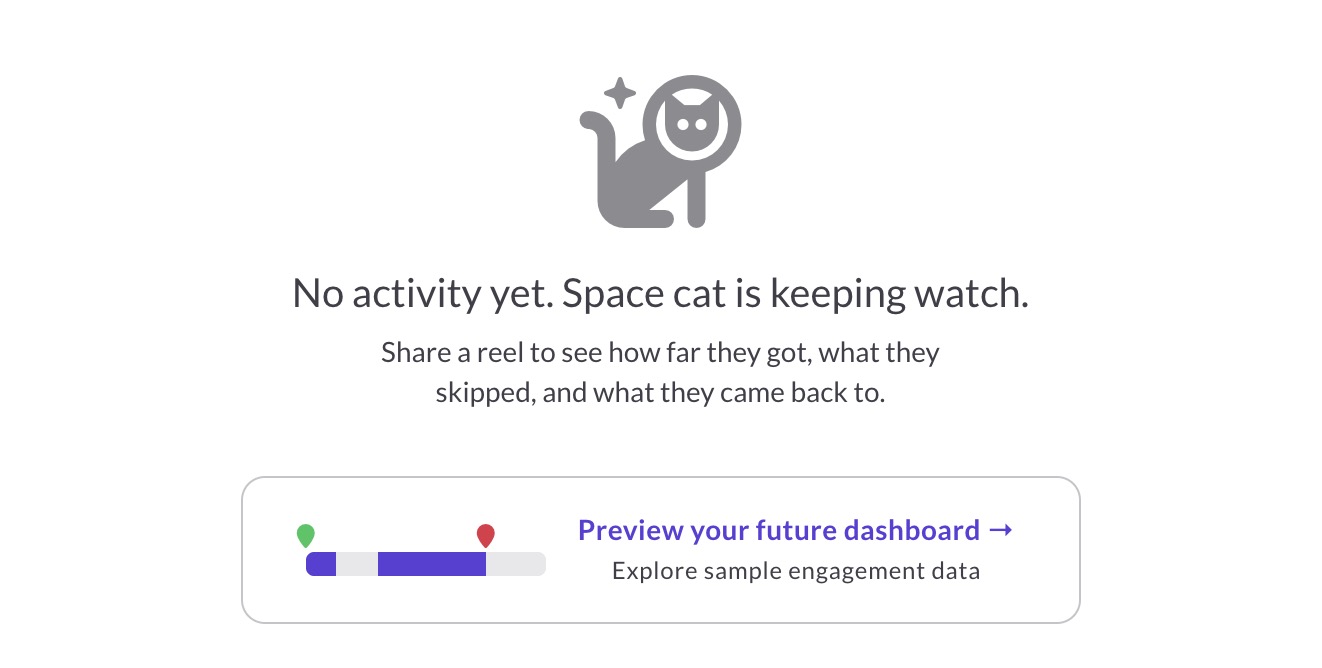
- Free: The Dashboard layout appears, but Recent Activity is empty. You can click Preview your future dashboard to explore sample engagement data. Space cat keeps you company until you're ready to upgrade.
What happens if you change plans?
Your data stays in your account. Whether you upgrade or downgrade, you'll see both past activity and activity going forward at your current plan's level of detail. On Starter that means opens only, and on Free you won't see activity at all.
Understanding the layout
How is Recent Activity organized?
The Dashboard is the first screen you see when you log in. Recent Activity appears on the left, showing every reel or playlist that's been opened.
Sessions are organized in a hierarchy you can expand:
- Reels or Playlists tab: choose which you want to view
- Reel or playlist name: each one shows when it was last opened (green if within 24 hours)
- Expand a reel or playlist: see each share link and how many sessions it has
- Expand a share link: see individual session cards
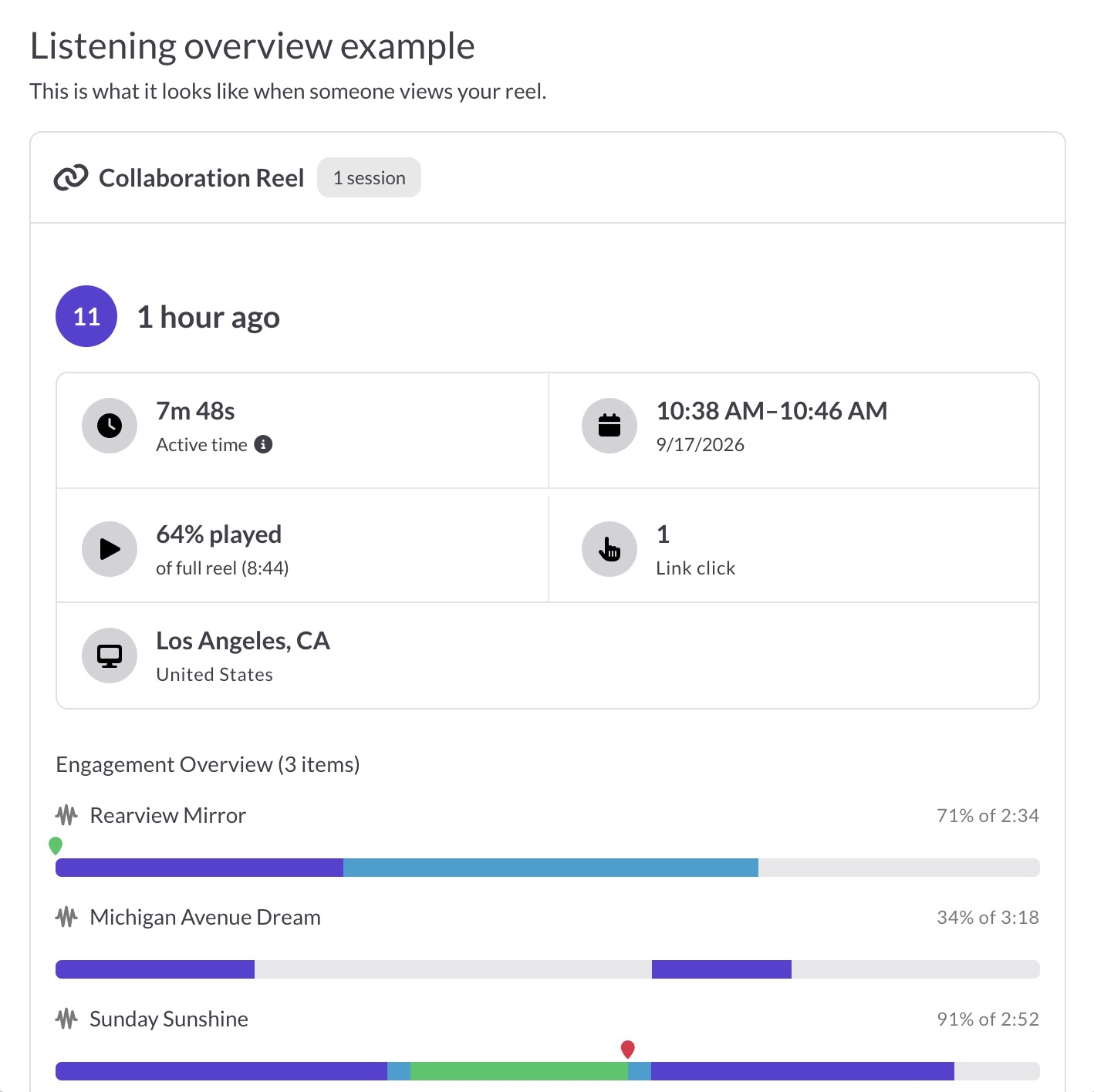
- Session card: shows event count, timing, played percentage, link clicks, location, and device for one visitor, plus an engagement heatmap of what they played.
- View events: see every action the visitor took in detail
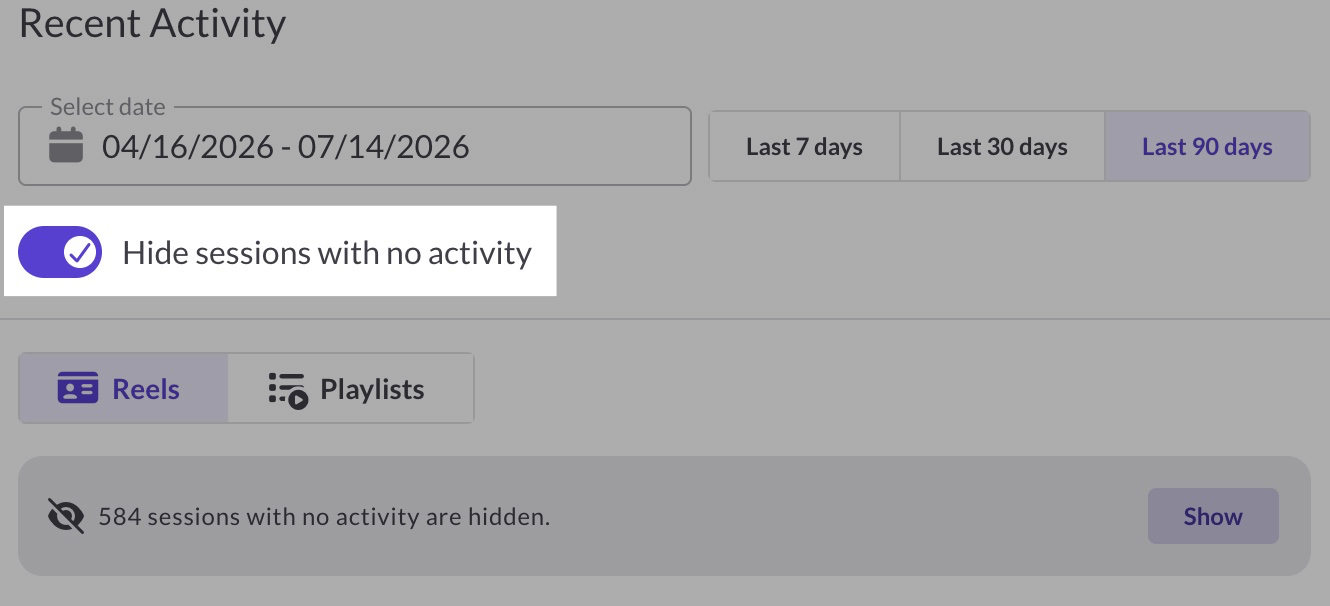
You can filter by date range using the date-range picker: choose the last 7, 30, or 90 days, or set a custom range. On the Professional plan, you can also use Hide sessions with no activity to focus on sessions where someone actually interacted. When the toggle is on, you'll see how many sessions are hidden, and you can click Show to reveal them.
If someone opens your reel while you're looking at your Dashboard, a "Just opened!" banner appears on that session in real time, and you can watch their activity come in live.
What information is on a session card?

Each session card gives you a quick snapshot of one visitor's activity:
- Event count: the number in the circle shows how many actions they took (plays, pauses, seeks, clicks, downloads)
- When it happened: shown as relative time, like "15 minutes ago." Hover over it for the exact date and time, which also appears in the session time below.
- Active time: how long your reel was actively visible in the visitor's browser
- Session time: when the session started and ended, with the date
- Played percentage: how much of the reel they played, measured against the combined runtime of all audio and video on it (e.g., "17% played of full reel (21:25)")
- Link clicks: how many links they clicked
- Location and device: city and country from a general IP-to-location lookup (not always precise), with an icon showing desktop or mobile
Below these details, the card shows which tracks and videos were played, each with an engagement heatmap.
Playlist sessions use the same card, with two exceptions: Active time and Link clicks are available on reel sessions only.
From a session card, you can also:
- Click View events: see every action in detail
- Click Archive session: remove it from your Dashboard (you can recover it later from your Archive)
Understanding session timing
Session cards show two timing metrics that help you understand how long someone actually spent with your work.
Session end time is when the visitor closed your reel or navigated away. In most cases this is precise. If the session closes abnormally, like a browser crash, it times out after 10 minutes instead, so the end time is approximate.
Active time measures how long your reel was visible in the visitor's browser. The timer runs whenever your reel is the active tab. If they switch to another browser tab, the timer pauses. If they keep your reel's tab open but switch to a different application on their computer, the timer keeps running, since browsers don't report when they're no longer the frontmost app. In some instances, active time can't be calculated and will be shown as "Unknown" on the session card.
Together, these give you a much clearer picture of engagement. A session with 45 minutes of active time tells a very different story than one where someone opened your reel and left the tab sitting in the background.
No activity yet?
If no one has opened your links yet, click Preview your future dashboard to explore sample engagement data. It shows how sessions and analytics will look once people start engaging with your work.
Reading engagement data
Available on the Professional plan.
A session represents one visitor opening your share link. Events are the individual actions they take within that session: plays, pauses, seeks, downloads, and link clicks.
The session card gives you a summary of what someone played, and View events is the raw activity log showing every action they took.
What did they play?
Each session card shows which tracks and videos the listener engaged with during the session.
For each item, you'll see:
- Media type icon: waveform for audio, video icon for video
- Title: the track or video name (truncated if long)
- Percentage and duration: how much they heard/watched (e.g., "13% of 3:26")
- Engagement heatmap: a visual map of which portions were played, and how often
Reading the engagement heatmap
Each item's progress bar is a heatmap. The color shows how many times each section was played: purple for once, then blue, green, gold, orange, coral, and red for seven or more. That makes it easy to spot the exact moments people keep coming back to.

Two pins mark the boundaries of the session:
- Session entry point (green): where playback started. This might be the beginning of the first track, or somewhere in the middle if they jumped ahead.
- Session exit point (red): where they stopped playing.
If the pins are on different items, the listener moved between multiple items during the session.

View events: The full play-by-play
Click View events to open a sidebar showing every action the listener took, in order. While the session card summarizes what was played, View events shows each individual action as it happened.
Each event shows:
- Action type: Play, Pause, Seek, Stop, Link Click, Download, etc.
- Media name: which track or video
- Position: where in the track (e.g., "from 0:00" or "from 1:50 to 2:10" for seeks)
- Total time spent on reel: how long they'd been on the page when this action occurred
Use the Sort by dropdown to switch between:
- Most recent (default): latest actions first
- Chronological order: follow their journey from start to finish

What actions are tracked?
ReelCrafter tracks these user-initiated actions in View events:
- Audio: Play, Pause, Seek, Stop
- Video: Video Play, Video Pause, Video Seek, Video Stop
- Downloads: Track downloads (shows format, e.g., "Single track, mp3 format"), video downloads (MP4), and full reel ZIP downloads

- Link clicks: Contact info links and links in Text blocks
- Saved to ReelCrafter: when a viewer saves your content to their own ReelCrafter account
Not currently tracked: Image downloads or clicks on image-linked URLs.
Troubleshooting your analytics
Identifying your own test sessions
Sessions from your IP address show a special icon and tooltip: "This session was created by you, or someone with the same IP address as one of your recent logins."

To keep your Dashboard focused on real listeners:
- Archive individual sessions: Click Archive session on any session card to remove it from your Dashboard. You can recover archived sessions later from your Archive.

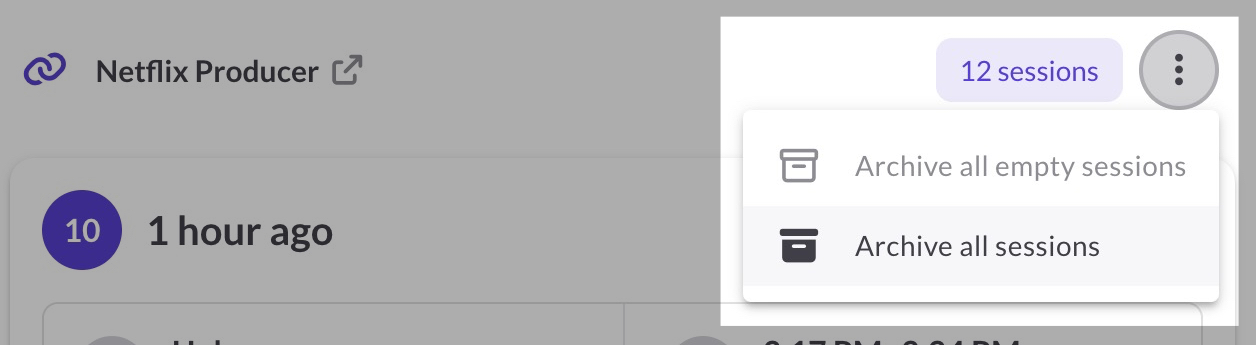
- Archive sessions in bulk: Click the three-dot menu next to a share link's session count, then choose Archive all empty sessions or Archive all sessions for that link. You can recover archived sessions later from your Archive.
- Hide all inactive sessions (Professional): Use the Hide sessions with no activity toggle to filter out opens where no one pressed play or interacted. This toggle only appears on Professional, since it needs activity data to filter on.
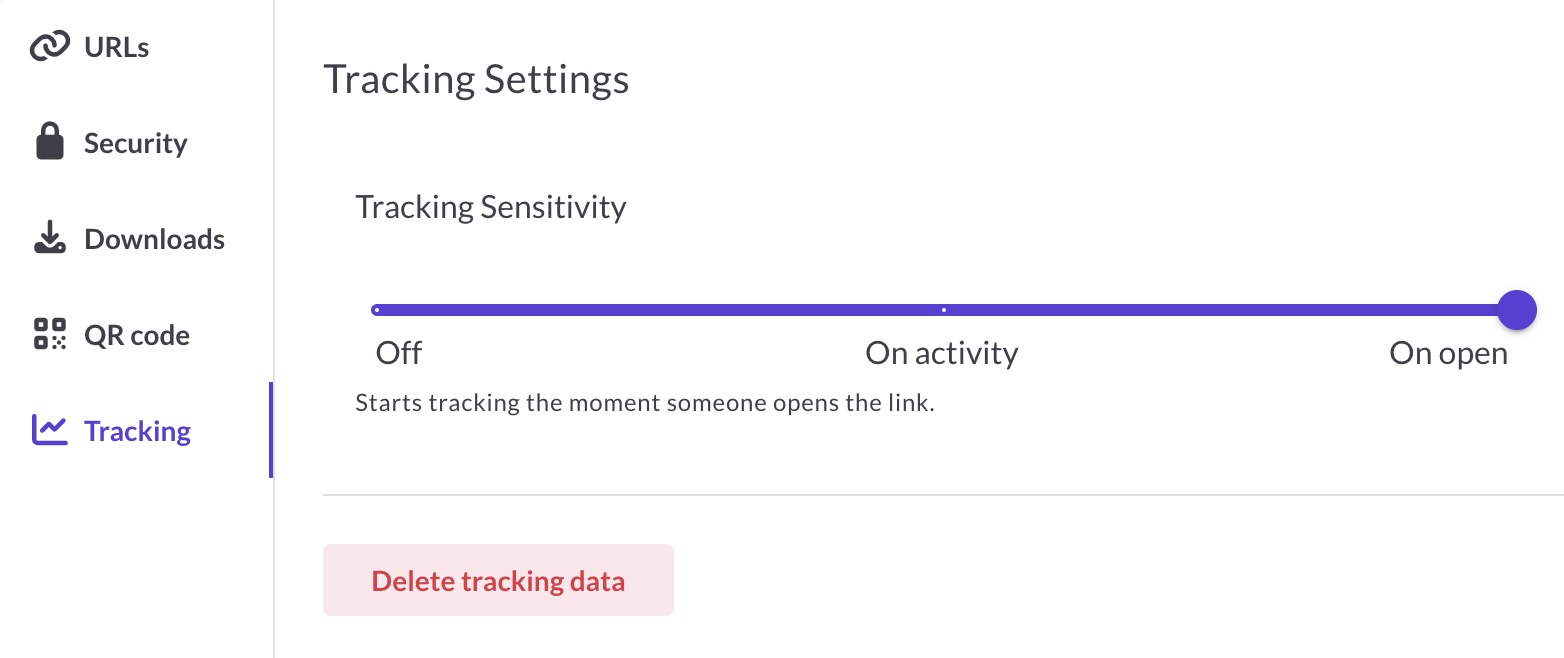
- Adjust Tracking Sensitivity on a link (Starter and above): Expand the share link, go to Tracking, and set the Tracking Sensitivity slider. On open starts tracking the moment someone opens the link. On activity only records a session once someone actually interacts, so empty opens never appear. Off disables tracking entirely, useful for links posted publicly on your website. See Tracking Sensitivity for details.
Understanding high event counts
The number in the circle shows how many user-initiated actions occurred during the session: plays, pauses, seeks, link clicks, downloads, etc.

A high event count means the visitor took many actions during the session. This could include playing and pausing media, seeking to different positions, clicking links, or downloading files. It tells you how much they did, not how long they listened.
To get a real read on engagement, look at the heatmap and open View events. If there are a lot of events but the heatmap is sparse or empty, they were doing things on your reel other than playing media.
Sessions with no activity
A session with no activity or events means someone opened your reel but didn't press play or interact with anything. Common causes:
- They opened on mobile and plan to listen later on desktop
- A browser tab refreshed in the background
- They left the reel open in a tab, causing repeated empty sessions
- They glanced at the page but got distracted
- An email security scanner automatically opened the link. Corporate email systems (like Mimecast, Proofpoint, and Barracuda) scan links to check for malware before delivering emails. These often appear from data center locations like Ashburn, Virginia or Boardman, Oregon. ReelCrafter filters out known automated scrapers (like link previews from LinkedIn or Slack), but some may slip through.
On Professional, use the Hide sessions with no activity toggle to filter these out and focus on real engagement.

On Starter and Professional, you can also stop empty sessions from being recorded at all by setting the share link's Tracking Sensitivity to On activity.
Location data limitations
Location is derived from IP addresses and isn't always accurate. Common reasons for unexpected locations:
- ISP routing: Internet providers sometimes route traffic through different cities
- VPN usage: The location will show wherever the VPN is based, not the actual listener
- Travel: Someone might open on a different network than usual
- Mobile networks: Can report inconsistent locations
Think of location as a general indicator, not precise data. If you're expecting someone in New York and the session shows Chicago, they might still be your contact.
Common questions
Why can't I see detailed events anymore?
Detailed event tracking (plays, pauses, seeks, downloads) requires the Professional plan. If you recently downgraded, your old detailed data is still in your account, but it isn't visible, since that level of detail isn't part of your plan anymore.
Why don't I see the "Hide sessions with no activity" toggle?
It's a Professional feature, because it filters on activity data that only Professional records. On Starter, set the share link's Tracking Sensitivity to On activity instead, so empty sessions are never recorded.
What does "Just opened!" mean?
If someone opens your reel while you're viewing your Dashboard, that session appears highlighted with a "Just opened!" banner. You can watch their activity appear in real time.
Can I see who specifically listened to my reel?
ReelCrafter shows you session data (location, device, time, behavior) but not names or email addresses. Sessions are organized by share link, so if you create a unique link for each person, you'll know who opened it. Keep in mind that anyone with a link can share it with others.
How long is session data retained?
Starter plans retain 90 days of session data. Professional plans retain up to 12 months.
Can I get notified when someone opens my reel?
Email notifications are available on the Professional plan. Expand the share link, go to Tracking, and turn on Email notifications. You'll receive an email when that link is opened. You can also set this as the default for all new share links in Reel Settings.
Can I delete tracking data for a share link?
To delete tracking data for a share link, expand the share link on the reel detail page, go to Tracking, and click Delete tracking data. This removes all session history for that link.