
Playlists: Share audio collections quickly
Playlists let you share a collection of audio tracks quickly, with full tracking to see who listened and what they played. Unlike reels, playlists don't include your branding. They're designed for fast, focused sharing when you don't need a fully designed page.
Playlists currently support audio only. To share video, use a reel instead.
Jump to: Create a playlist · Add and manage tracks · Share your playlist · Link settings · Playlist analytics · Organize your playlists · Common questions
How do I create a playlist?
There are two ways to create a playlist:
From the Audio Library (fastest method)
- Go to Audio in the left navigation
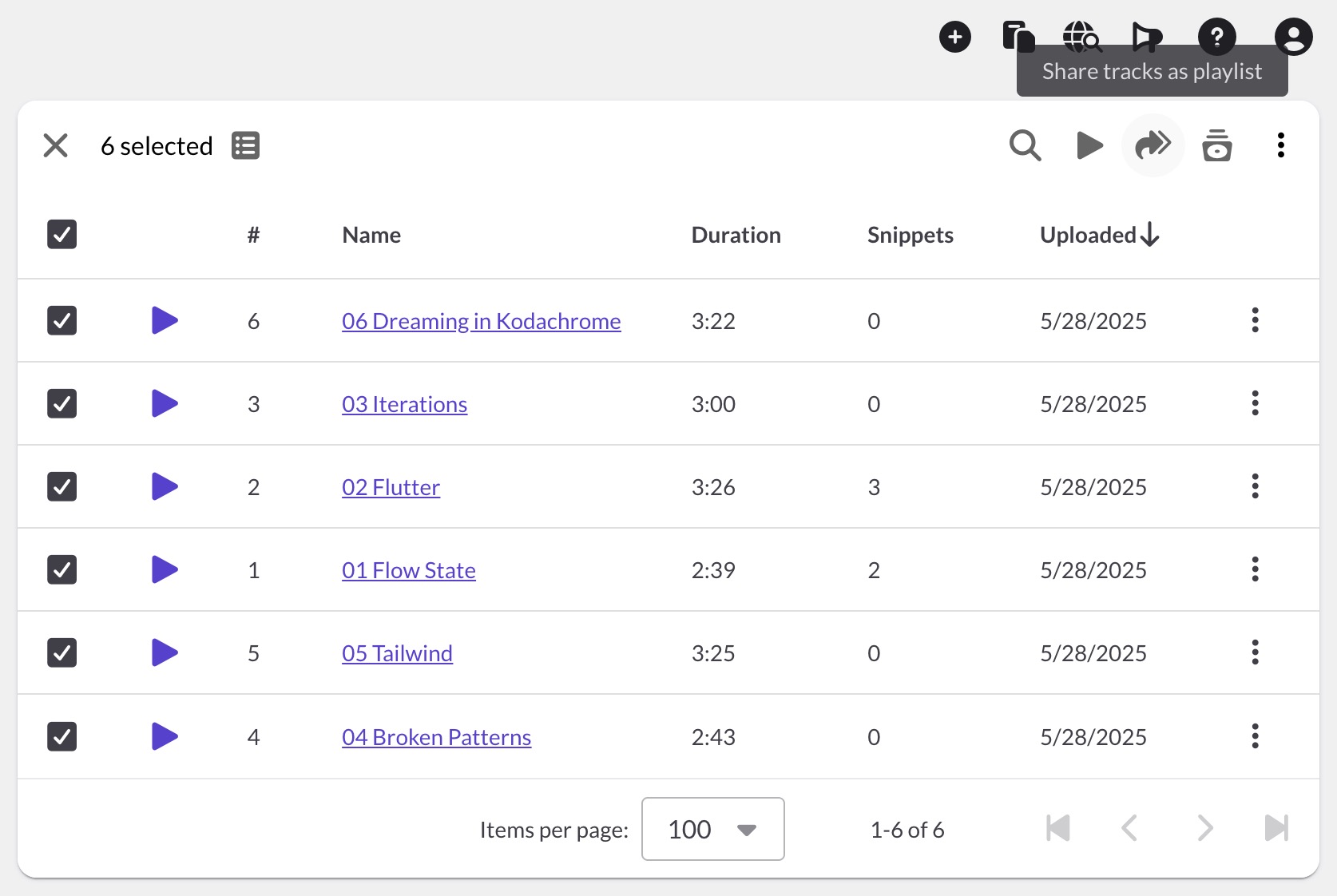
- Select tracks using the checkboxes. You can select across multiple folders.
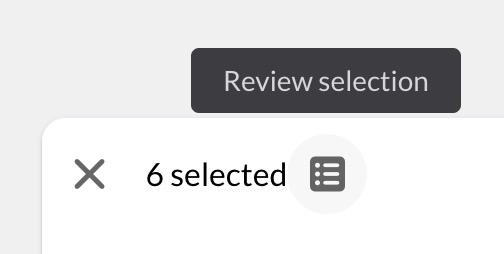
- Click Review selection to see all selected tracks, then click OK
- Click the Share tracks as playlist icon in the toolbar
- Name your playlist and playlist link, then click Create playlist
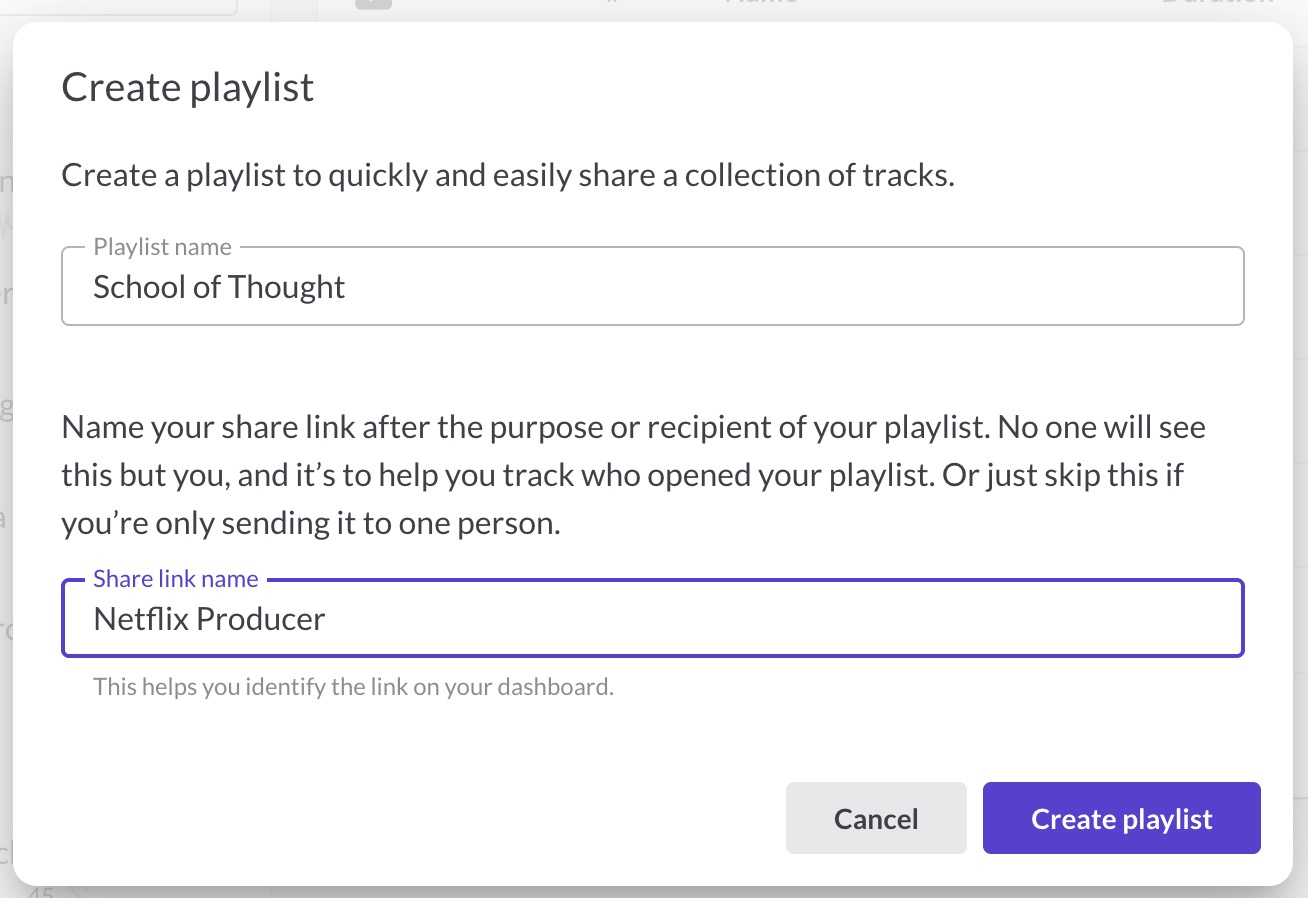
This method creates the playlist, adds your selected tracks, and generates a playlist link, all in one step. You'll see the link URL immediately and can copy it to send.
From the Playlist Library
- Go to Playlists in the left navigation
- Click Create playlist (button in the upper right or in an empty folder)
- Name your playlist and click OK

You'll land on the Playlist Details page with an empty playlist builder (similar to the Media block in the Reel Builder). From here:
- Click Add tracks to select audio from your library
- Click Save and publish to save your changes
- Go to the Links tab and click + Create playlist link
- Name your link and copy the URL to share

How do I add and manage tracks?
Open a playlist and go to the Playlist tab. You'll see your track list with these controls:
- + Add tracks: Select more tracks from your Audio library
- Drag handle: Reorder tracks by dragging
- Position number: Type a number to move a track to that position
- Scissors icon: Choose or create a snippet for this track
- Edit icon: Override the track name or notes for this playlist only
- Minus icon: Remove the track from this playlist
The total runtime and track count appear above the track list.
Changes you make on the Playlist tab (adding, removing, reordering tracks, editing settings) won't appear to recipients until you click Save and publish. To undo your changes, click the dropdown arrow next to the button and select Discard changes.

If you try to navigate away with unsaved changes, you'll see a confirmation prompt.

Playlist settings
- Expand track notes by default: When enabled, public notes appear expanded on the playlist page
- Show playlist title: Displays the playlist name at the top of the shared page
These settings won't take effect until you click Save and publish.
Overriding track details
Click the edit icon on any track to change its name or public notes for this playlist only. Your original track in the Audio library stays unchanged. Tracks with overrides show a revert arrow to restore the original. Remember to click Save and publish when you're done editing.
How do I share a playlist?
If you created your playlist from the Audio Library, you'll see the playlist link immediately after creation. Copy it from the confirmation modal.
For all other cases, or to copy the link again later, go to the Links tab on the Playlist Details page and click the copy icon in the Copy Link column.
Plan note: Free and Starter plans can create one link per playlist. Professional plans can create unlimited links.
If you created your playlist from the Playlist Library (without a link), you'll need to create one first:
- Open your playlist and go to the Links tab
- Click + Create playlist link
- Name your link (only you see this, it helps you track who you sent it to)
- Click the copy icon to copy the URL
⚠️ Don't confuse the copy icons: The copy icon in the Playlist & Options card copies the playlist to your clipboard for pasting into other playlists or Media blocks, it's not your playlist link. To copy the playlist link, use the copy icon in the Links tab. See Copy and paste blocks or playlists for details.
 Tip: Name links after the recipient or purpose (e.g., "Netflix Music Supervisor" or "Agency Demo Request"). This makes your analytics much easier to read.
What recipients see
Recipients see a clean, focused player with your playlist title (if enabled), album art, a waveform player, and your track list. The page is ReelCrafter-branded: your logo and colors don't appear on playlists.

Link settings
Expand any link in the Links tab to see its settings. Each link has three panels:
URLs
Copy the standard URL to share your playlist. Unlike reels, playlists don't support personalized URLs.
Downloads
Control whether recipients can download audio from this link:
- Allow audio downloads: Master toggle for all download options
- Download single tracks: Let recipients download individual MP3s
- Download original: Let recipients download original full-quality files
You can also set a custom filename for downloaded files.
Plan note: Download settings require the Professional plan. Free and Starter users see these options with an upgrade prompt.

Tracking
- Enable tracking: Track opens and listening activity on this link
- Delete tracking data: Permanently remove all session data for this link
Plan note: Tracking settings require the Professional plan. Free and Starter users see these options with an upgrade prompt.
Managing links
Use the three-dot menu on any link to rename it or delete it. Toggle the Active switch to temporarily disable a link without deleting it.
Playlist analytics
Playlist analytics work the same as reel analytics. You can view them in two places:
On your Dashboard
Go to Dashboard and click the Playlists tab in Recent Activity. You'll see sessions grouped by playlist, then by link. Expand any session to see the Engagement Overview showing which tracks were played.
On the Playlist Details page
The Metrics section at the bottom of the Playlist Details page shows a graph of sessions across all links over time.
See Dashboard: Understanding Recent Activity for details on reading Engagement Overview and Events.
How do I organize my playlists?
The Playlist Library works like your other libraries:
- Folders: Create folders to organize playlists by project, client, or purpose
- Smart Folders: "All Playlists" shows every playlist regardless of folder (Professional plan users can create custom smart folders)
- List or Grid view: Toggle between views using the icons in the upper right
- Move to folder: Use the three-dot menu or the button in Playlist Details
Common questions
How many links can I create per playlist?
Free and Starter plans can create one link per playlist. Professional plans can create unlimited links with individual download and tracking settings for each.
What's the difference between playlists and reels?
Playlists are streamlined for quick audio sharing and file delivery. Reels are for branded presentations with your logo, colors, bio, videos, images, and more. Use playlists when speed matters or when you just need to get audio to someone; use reels when you want to make an impression.
Do my changes appear immediately?
Changes to your playlist (tracks, order, settings) won't appear to recipients until you click Save and publish. Once you publish, the updates are live the next time someone opens the link.
Can I add video to a playlist?
No, playlists currently support audio only. To share video, create a reel instead.
Can I add the same track to multiple playlists?
Yes. Each playlist maintains its own track order and any name/note overrides. Changes to one playlist don't affect others.
Can I use snippets in playlists?
Yes. Click the scissors icon on any track to select an existing snippet or create a new one.
Why can't I change download or tracking settings?
Download and tracking controls require the Professional plan. Free and Starter users can see these settings but will see an upgrade prompt when trying to change them.
Can I add a playlist to a reel?
Not directly. Playlists in the Playlist Library are separate from playlists in the Reel Builder's Media block. To include the same tracks in a reel, add them to a Media block playlist.
What happens if I delete a playlist?
The playlist is moved to the trash, where it stays for 30 days before being permanently deleted. All active share links stop working immediately when a playlist is deleted.