
Working with blocks
Blocks are the building blocks of your reel. Each block holds a different type of content: text, media, contact info, and more. Here's how to add, arrange, and manage them.
Jump to: Adding blocks · Copying blocks · Reordering blocks · Expanding and collapsing · Showing and hiding · Block types · Common questions
Adding blocks
To add a new block:
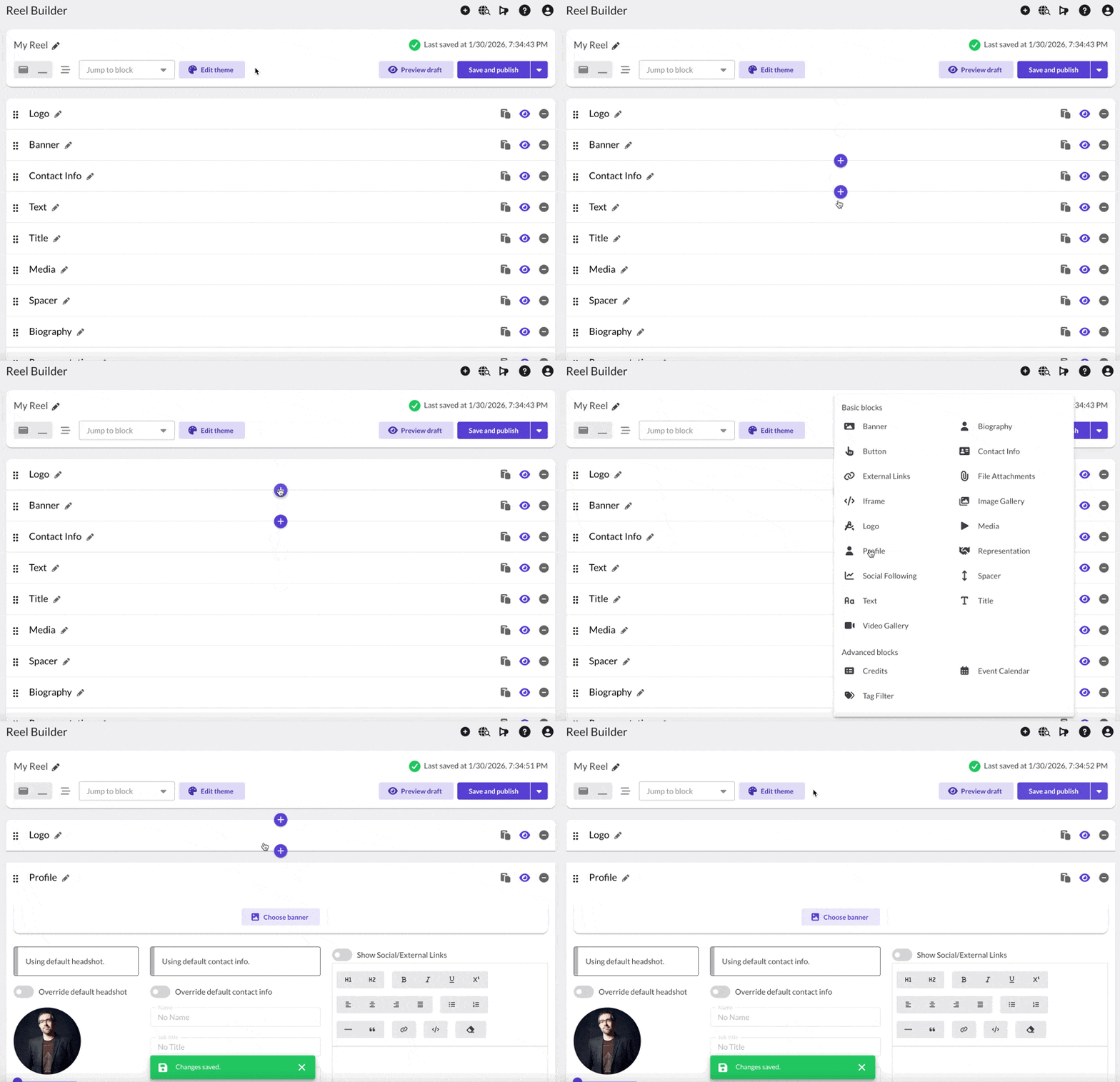
- Position your cursor between two existing blocks
- Click the + icon that appears
- Select the block type from the menu
The new block appears exactly where you clicked the + icon. You can reorder it later if needed.
Copying blocks
You can copy blocks and paste them into the same reel or a different reel. The copy button is on each block, next to the eye icon. To paste, hover between blocks to reveal the paste button (next to the + icon).
Your clipboard persists across sessions, so you can copy a block, close the browser, and paste it later.
Learn more about copying and pasting blocks →
Reordering blocks
There are two ways to reorder blocks:
- Drag and drop: Use the drag handle (six dots icon) on any block to drag it to a new position
- Reorder dialog: Click the reorder button (grid icon) in the Action Bar to open a dialog where you can drag blocks to rearrange them
Expanding and collapsing blocks
Click a block's header bar to expand it and access its settings. Click again to collapse it when you're done.
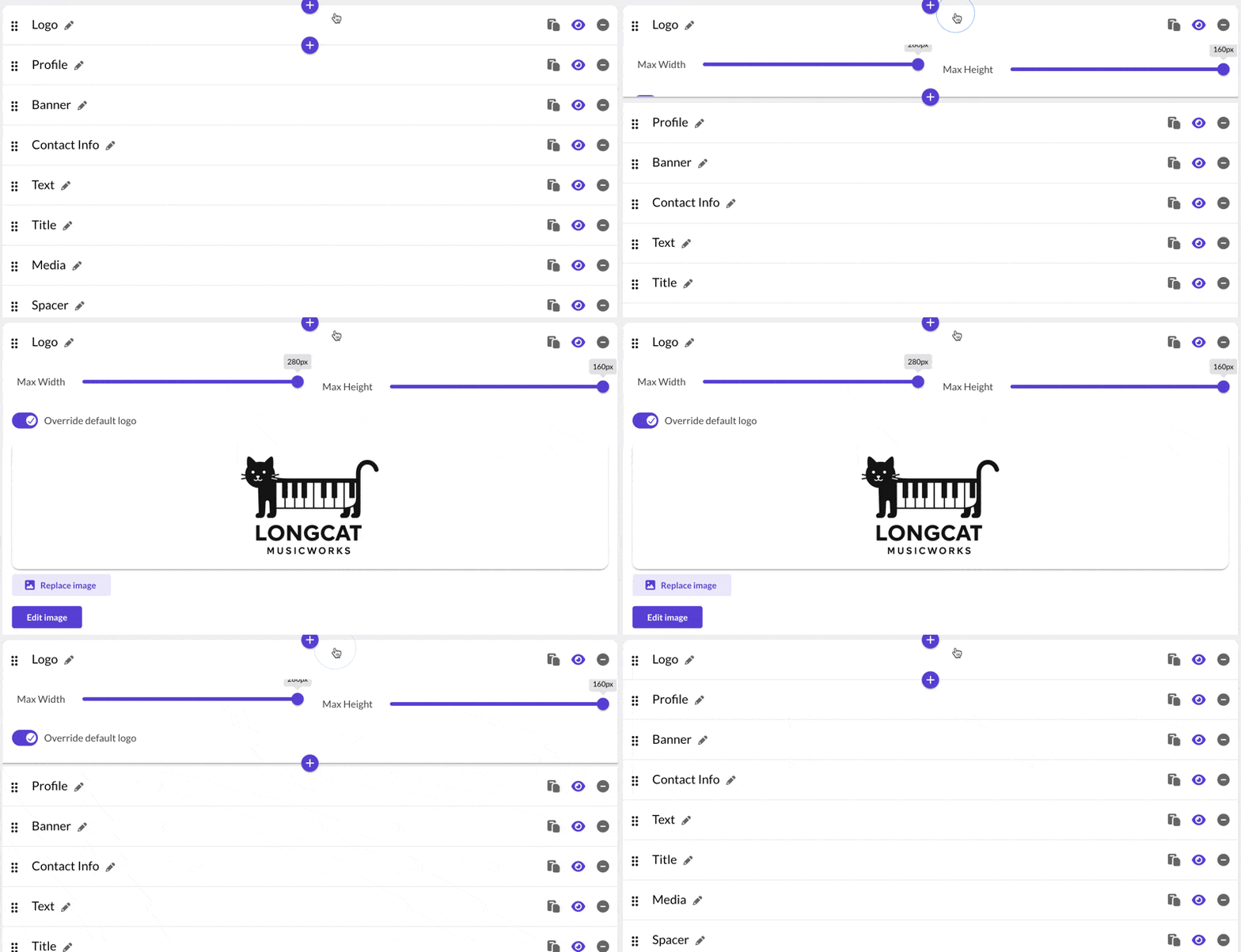
Tip: Collapse blocks after editing them to keep track of what still needs your attention.
Expand or collapse all at once
Use the expand/collapse buttons on the left side of the Action Bar to open or close all blocks at once.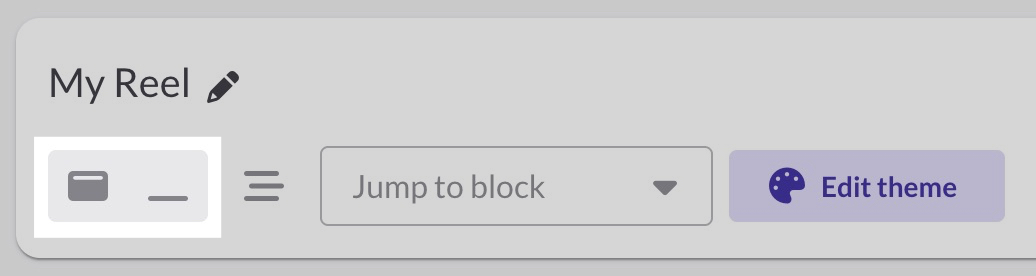
Jump to a specific block
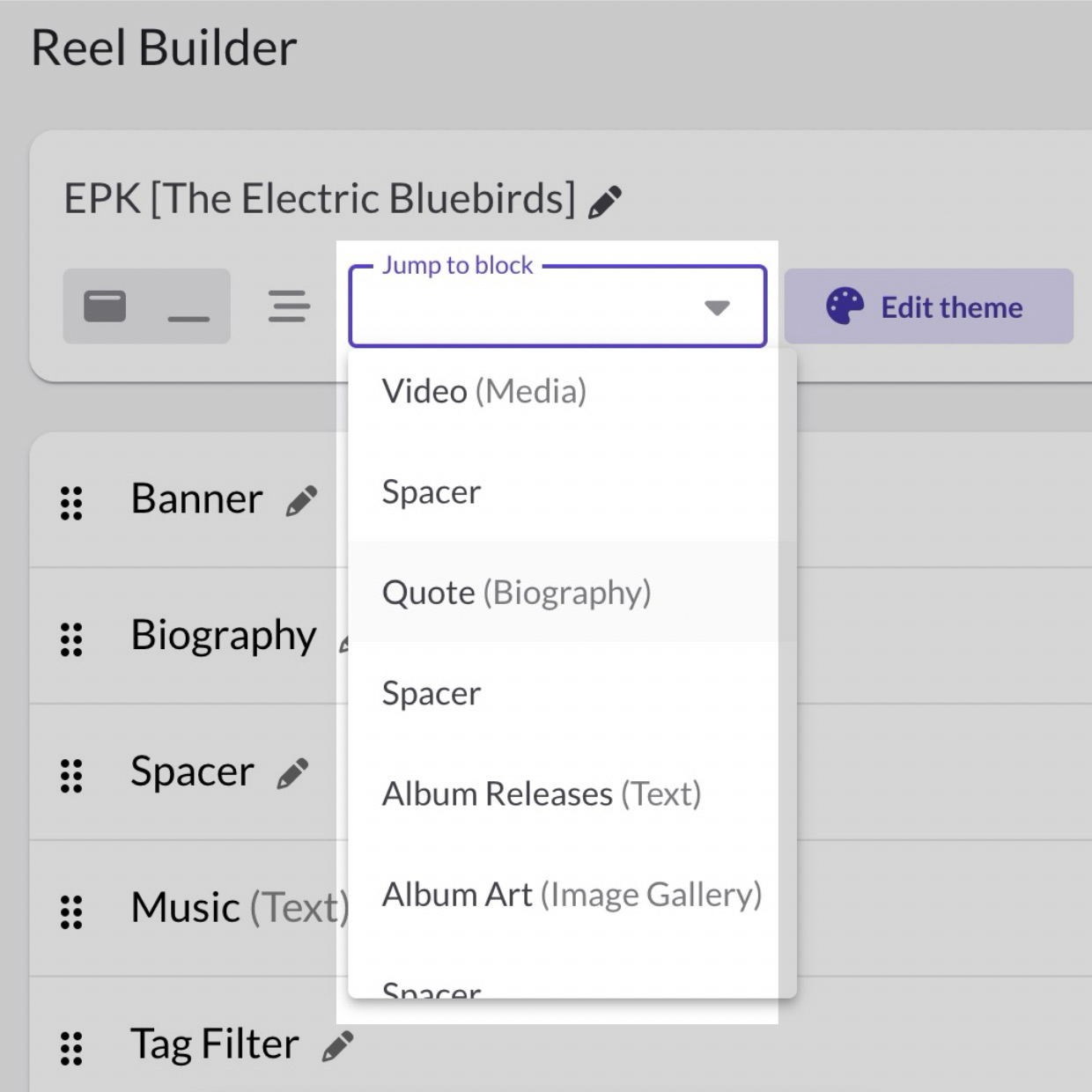
Use the "Jump to block" dropdown in the Action Bar to navigate directly to any block. This is especially helpful in reels with many blocks.
Showing and hiding blocks
You can hide any block so it doesn't appear on your published reel. This lets you keep content ready without showing it.
To toggle visibility, click the eye icon in the upper right corner of the block:
- Purple/aqua eye: visible on published reel
- Gray eye with slash: hidden from published reel
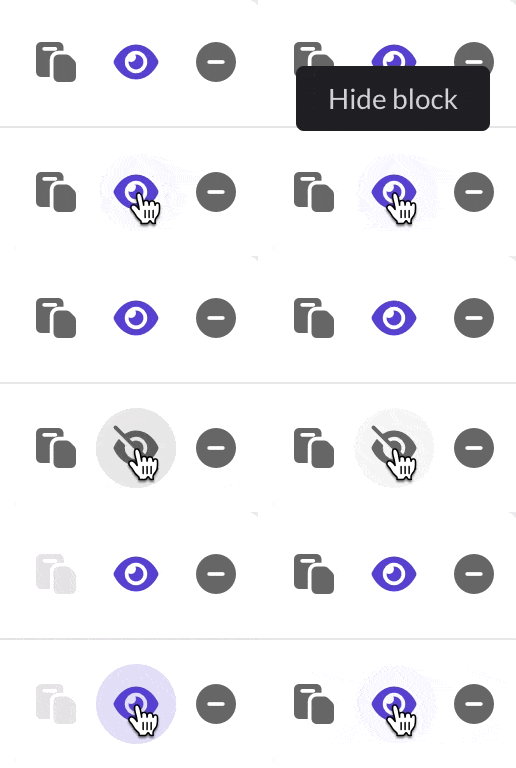
You can change visibility at any time. Save and publish to apply changes to the live reel.
Block types
Basic blocks (all plans)
- Banner: Wide image at the top of your reel
- Biography: Your bio text and headshot
- Button: A clickable button linking anywhere
- Contact Info: Your name, title, email, phone, website (one per reel)
- External Links: Social media and other links as icons
- File Attachments: Downloadable files (PDFs, docs, etc.)
- Iframe: Embed external content via iframe
- Image Gallery: Multiple images in a grid
- Logo: Your logo image
- Media: Audio tracks, videos, and images
- Profile: Combines contact info, headshot, and bio in one block (one per reel)
- Representation: Agent, manager, or team contacts
- Spacer: Adds vertical space between blocks
- Text: Freeform text content
- Title: The reel's title (one per reel)
- Video Gallery: Multiple videos in a grid
Advanced blocks (Professional)
- Credits: Film/TV style credits with roles and names
- Event Calendar: Upcoming events or appearances
- Tag Filter: Let recipients filter audio by tags
Common questions
Why can't I find certain blocks in the menu?
Advanced blocks (Credits, Event Calendar, Tag Filter) require the Professional plan. If you're on Free or Starter, you'll only see Basic blocks.
Can I add multiple copies of the same block?
Yes, for most blocks. Title, Contact Info, and Profile are limited to one per reel.
Can I delete a block?
Yes. Expand the block and look for the delete option. Some blocks (like Title) can be hidden but not deleted.
Can I duplicate a block?
Yes. Click the copy button on the block, then paste it wherever you need it, in the same reel or a different one.
Can I copy blocks between reels?
Yes. Copy a block from one reel, open another reel, and hover between blocks to reveal the paste button. Your clipboard persists across sessions. Learn more →
What happens to Advanced blocks if I downgrade?
Advanced blocks will be hidden from your reels, but not deleted. If you upgrade again, they'll reappear.
What's the difference between hiding a block and deleting it?
Hiding keeps the block and its content, it just won't appear on the published reel. Deleting removes the block entirely.
How do I reorder blocks?
Drag and drop using the handle (six dots icon) on any block, or click the reorder button (grid icon) in the Action Bar.