
Audio Player: Preview tracks in your library
The popup audio player lets you preview tracks without leaving your current view. Play a single track, queue up multiple tracks, or listen through an entire folder. The player floats over your workspace so you can keep working while you listen.
Jump to: Opening the player · Playing multiple tracks · Player controls · Mini mode · In the Reel Builder · Common questions
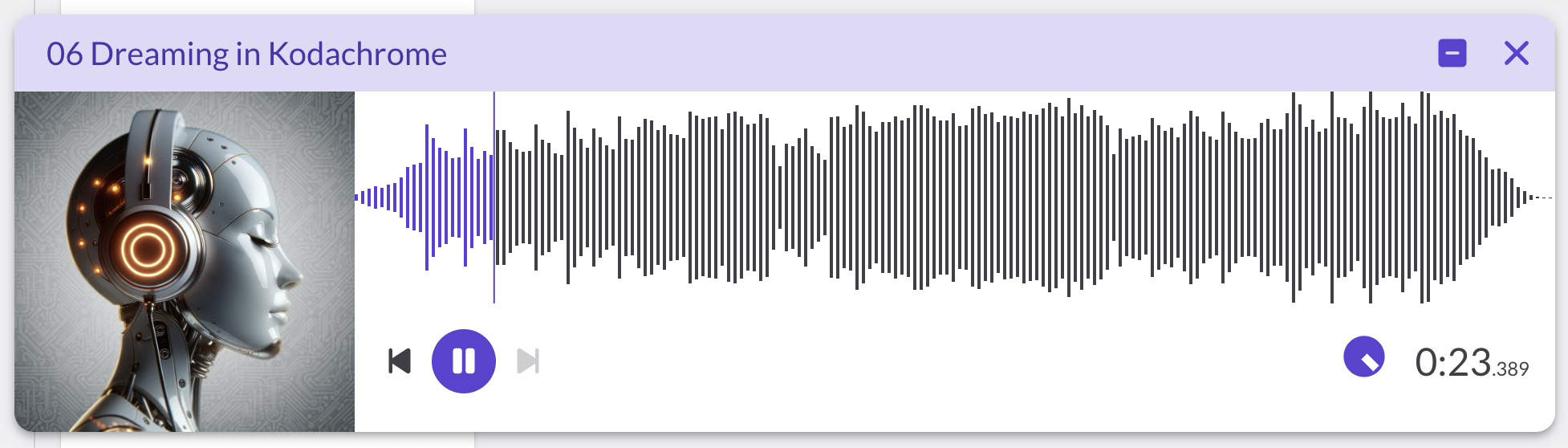
Opening the player
There are several ways to start playback:
- Play button on a track row: Click the play icon next to any track in your library to start playing that track
- Play All: Select multiple tracks (or a folder) and click Play All in the action bar to queue them up
- Double-click a track: Opens the track detail page, where you can also play the track
When you start playback, the popup player appears at the bottom of your screen.
Playing multiple tracks
The player supports queuing multiple tracks for continuous playback:
- Select tracks in your library using the checkboxes
- Click Play All in the action bar
- The player opens and begins playing the first track
- When a track ends, the next track starts automatically
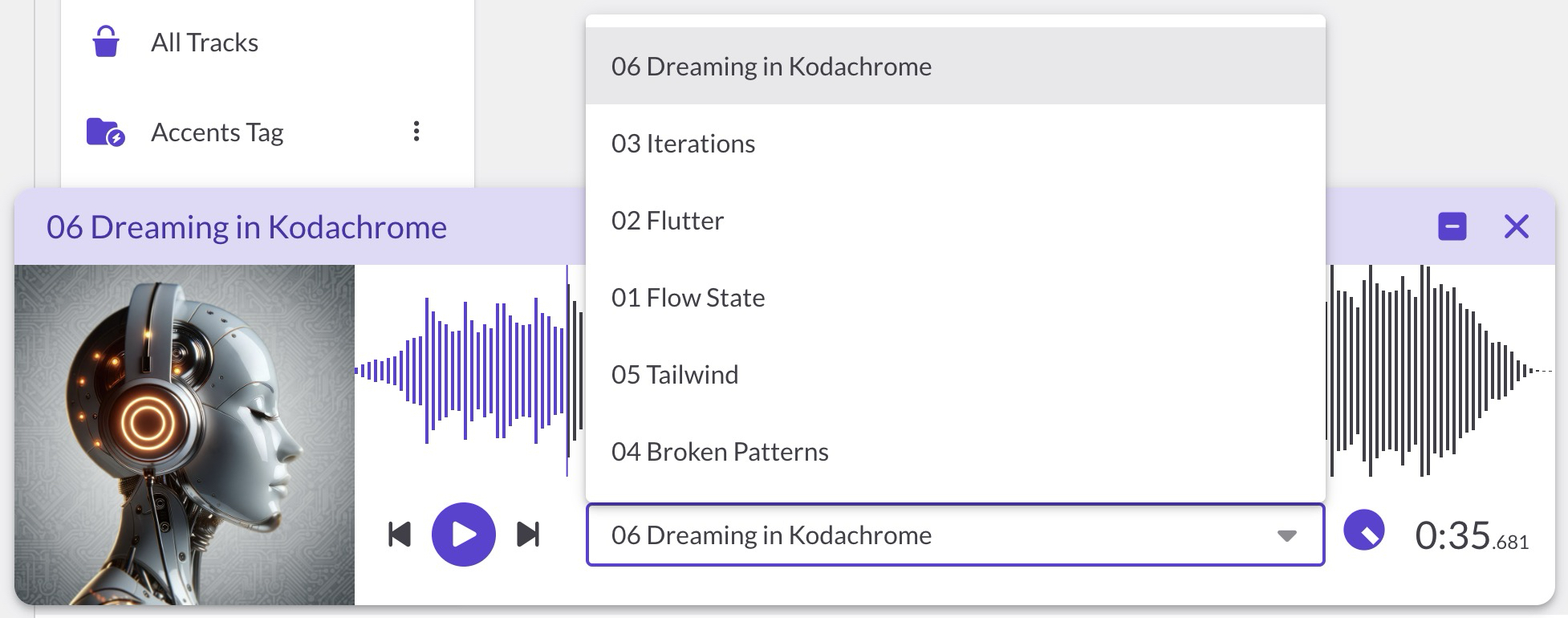
When multiple tracks are queued, a track selector dropdown appears in the player. Use it to jump to any track in the queue, or use the previous/next buttons to navigate.
Tip: To preview all tracks in a folder, click the folder to view its contents, select all tracks, then click Play All.
Player controls
The player shows a waveform visualization of the current track, along with playback controls:
- Play/Pause: Start or pause playback
- Previous track: Go to the previous track in the queue, or restart the current track if you're more than 3 seconds in
- Next track: Skip to the next track in the queue (disabled if you're on the last track)
- Track selector: When multiple tracks are queued, a dropdown appears so you can jump to any track
- Volume control: Adjust playback volume
- Time display: Shows current position with millisecond precision
- Waveform: Click anywhere on the waveform to seek to that position
Keyboard shortcut
Press Space to play or pause when the player is open.
Mini mode and positioning
The player is designed to stay out of your way while you work:
- Drag to move: Grab the title bar to drag the player anywhere on screen
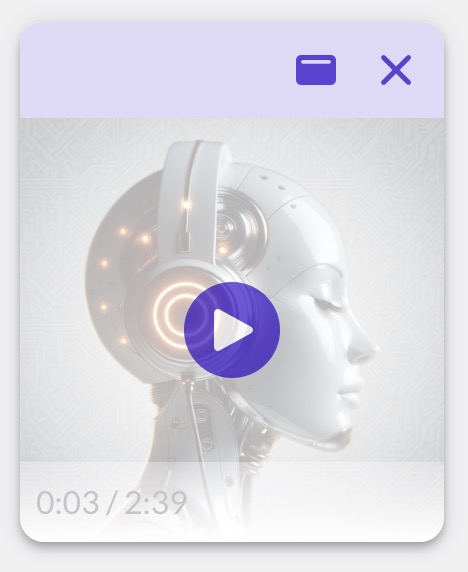
- Mini mode: Click the minimize icon to collapse the player to a compact view showing just the album art (or waveform icon) and time. Hover over it to reveal play/pause controls.
- Dock to bottom: If you've moved the player, click the dock icon to snap it back to the bottom center of your screen
- Close: Click the X to stop playback and close the player
In the Reel Builder
The popup player also works in the Reel Builder. When editing a Media block, you can preview tracks directly:
- Click the play button next to any track in your playlist
- Use Play All to preview the entire playlist in order
- The player floats over the Reel Builder so you can continue editing while listening
This is helpful for checking the flow of your playlist or verifying you've added the right tracks before publishing.
Common questions
Does the player remember my queue if I navigate away?
Yes. The player keeps playing as you navigate between pages in ReelCrafter. Your queue and playback position are preserved until you close the player or close the browser tab.
Can I add more tracks to an existing queue?
Not currently. Starting a new Play All action replaces the current queue. To play additional tracks, you'll need to select all the tracks you want and start a new queue.
Why doesn't the player show album art?
Album art only appears if your track has embedded album art or if you've added album art in ReelCrafter. See Album art on your tracks for details.
Can I adjust playback speed?
Not currently. The player plays at normal speed only.
Is there a way to shuffle or repeat?
Not currently. Tracks play in the order they were queued, and playback stops after the last track.
Does the player work on mobile?
Yes. The player adapts to smaller screens, though some features like drag-to-move work best on desktop.