
Files Library: Managing your files
The Files library stores documents and file attachments that you can add to your reels using the File Attachments block. Upload PDFs, documents, or other files that recipients can download directly from your reel.
Jump to: Navigating your library · Single file actions · Bulk actions · Common questions
Navigating your library
Access your files from the sidebar by clicking Files. Your files are organized into folders, which you can create and manage from the folder panel on the left.
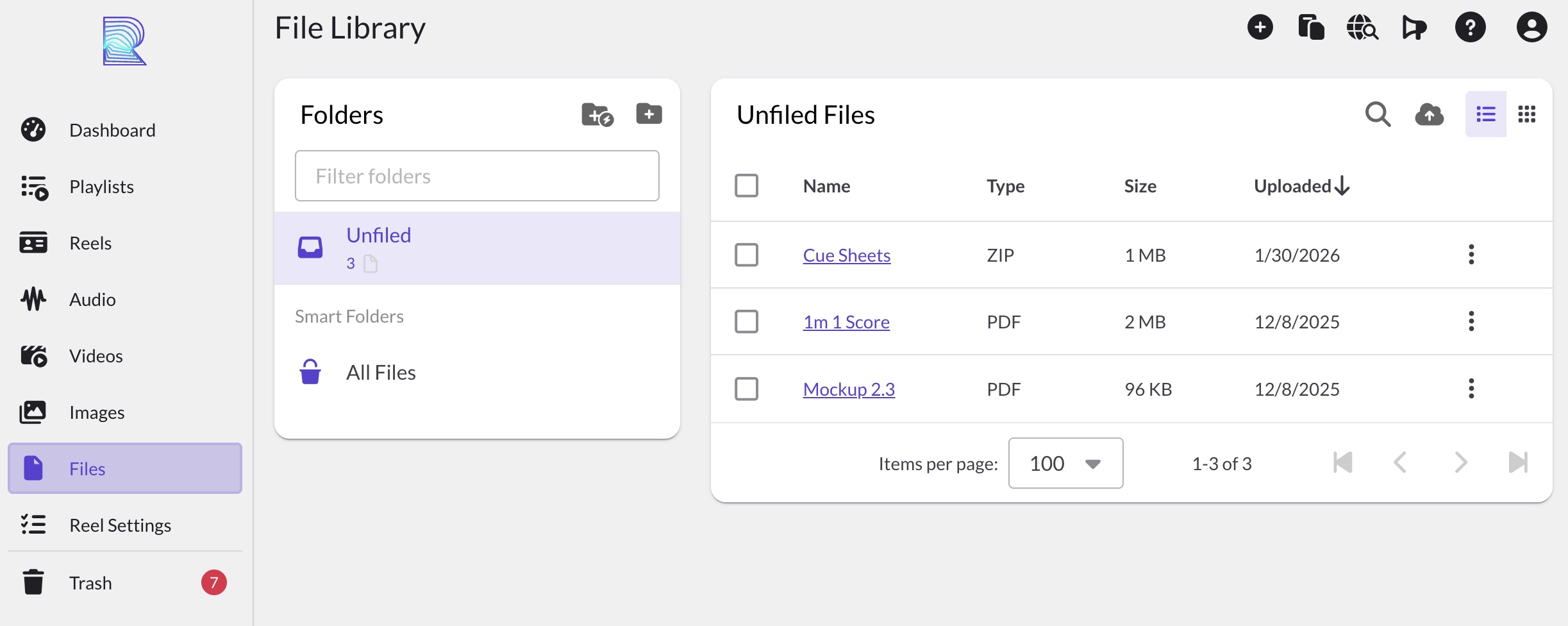
Use the search bar to find files by name. You can also filter by tags if you've tagged your files.
Supported file types
The Files library accepts the following formats:
- Documents: PDF, Word (.doc, .docx), Text (.txt)
- Spreadsheets: Excel (.xls, .xlsx), CSV
- Archives: ZIP
- Audio: MIDI (.mid, .midi)
Individual files can be up to 2GB in size.
Single file actions
Hover over any file to reveal the action menu, or click the three-dot menu icon. Available actions:
- View: Opens the file details page where you can see file information and which reels use this file
- Rename: Change the file's display name
- Download: Download the original file to your computer
- Move: Move the file to a different folder
- Delete: Remove the file from your library

Bulk actions
Select multiple files by clicking the checkbox on each file card, or use the selection tools in the toolbar. Once you've selected files, the bulk action bar appears with these options:
- Edit Tags: Add or remove tags from all selected files at once
- Move: Move all selected files to a different folder
- Delete: Remove all selected files from your library

To select files across multiple folders, navigate to each folder and add files to your selection. Your selection persists as you move between folders. Click Review selection in the toolbar to see all selected files in one view.
Common questions
What file types can I upload?
The Files library accepts PDF, Word documents (.doc, .docx), Excel spreadsheets (.xls, .xlsx), CSV, plain text (.txt), ZIP archives, and MIDI files (.mid, .midi). Each file can be up to 2GB.
How do I add a file to my reel?
In the Reel Builder, add a File Attachments block. You can then select files from your library to include in the block. Recipients will see download buttons for each file.
What happens if I delete a file that's used in a reel?
The file will be removed from any reels that use it. Recipients will no longer be able to download that file. Consider checking the file's details page to see which reels use it before deleting.
Where can I see which reels use a file?
Click on any file to open its details page. The Used in section shows all reels that include this file.
Can I upload audio, video, or image files here?
Audio, video, and image files should be uploaded to their respective libraries (Audio, Video, Images) where they can be displayed and played back in your reels. The Files library is for downloadable attachments only. MIDI files are an exception since they're not playable in the browser.