
Adaptive Audio (FMOD): Let listeners play your game audio
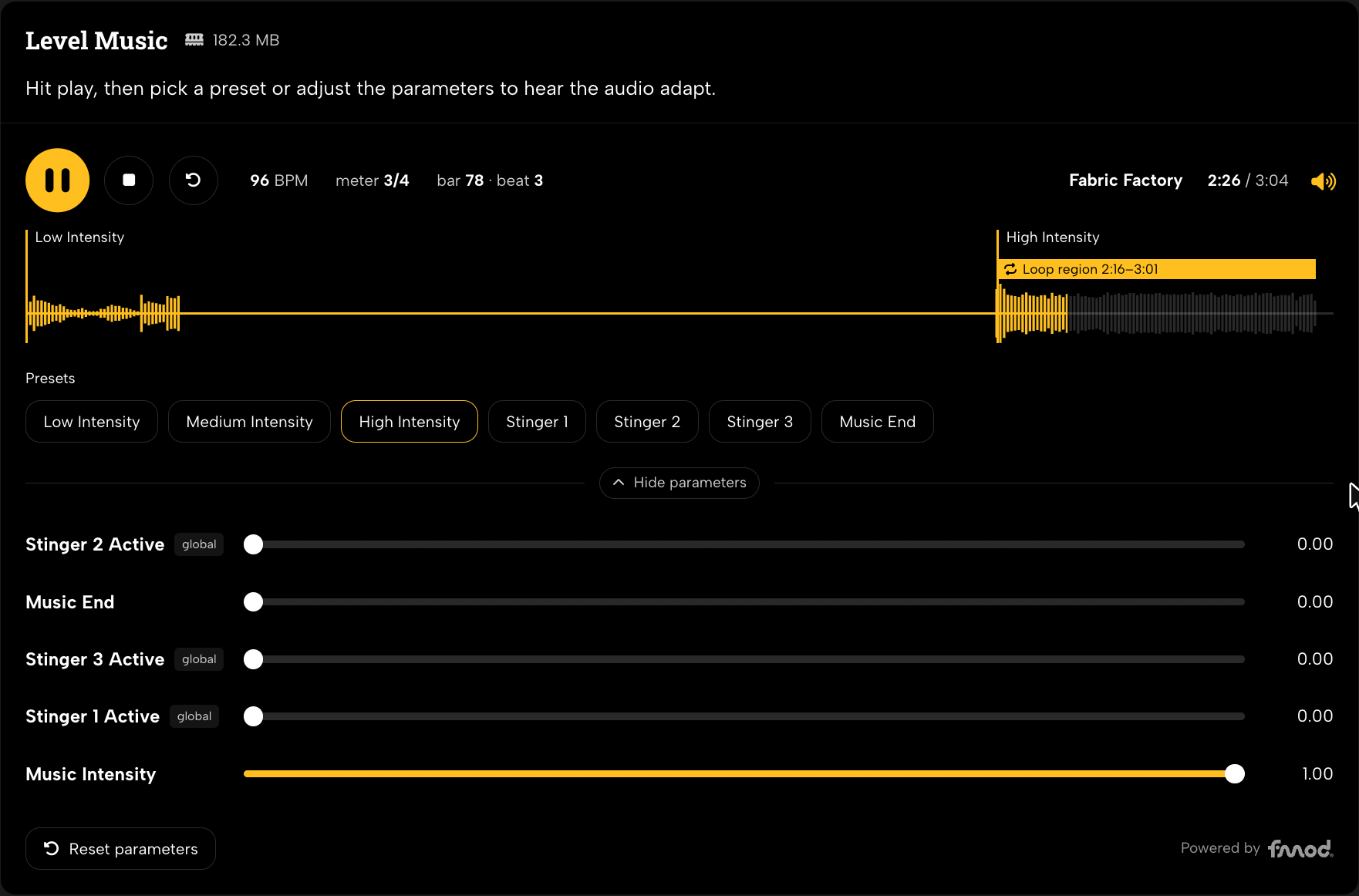
The Adaptive Audio (FMOD) block lets you show off your game audio the way players actually hear it. Upload the .bank files from your FMOD Studio project, choose the events you want to feature, and anyone who opens your reel can play them and move the parameters right in their browser to hear the music and sound design react.
Adaptive Audio is available on the Professional plan.
Jump to: Before you start · Adding the block · Choosing your banks · Choosing events · Parameters and presets · What listeners see · Analytics · Troubleshooting · Common questions
Before you start
You’ll need a build of your FMOD Studio project made with the latest version of FMOD Studio. Banks built with beta versions may not work properly.
Tip: Make a folder before you upload. FMOD names the master bank and strings bank the same way in every project, so it’s easy to get files from different projects mixed up. Create a folder in your Files library for each project before you start uploading, and you’ll save yourself a headache later.
Upload these files from your build to your Files library:
- Your master bank and strings bank (required). They don’t need to keep their default names.
- The bank that holds your events, if they aren’t in the master bank
- Any .assets.bank files, if FMOD Studio built your sounds into separate files
They’ll show up in your library as FMOD Bank files.
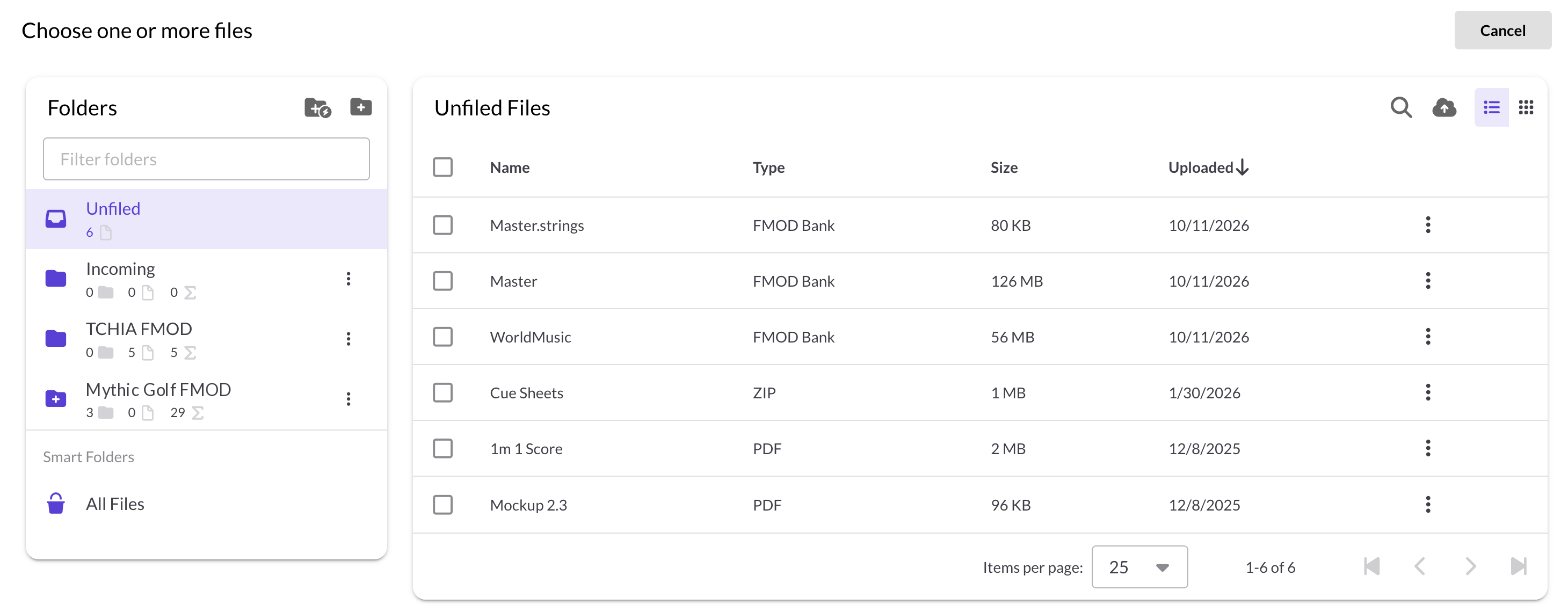
Making changes to your FMOD project: If you make changes to your FMOD project, you’ll need to re-upload your master bank, your master strings bank, and any other banks you changed. To keep your block set up the way it is, don’t upload them as new files. Instead, find each bank in your Files library, open its three-dot menu, and choose Replace file. If your changes removed a parameter that one of your presets used, that preset will show a warning icon in the event editor. Check a different parameter or delete the preset, and you’ll be able to save again.
Adding the block
In the Reel Builder, click Add block and choose Adaptive Audio (FMOD) under Basic blocks.
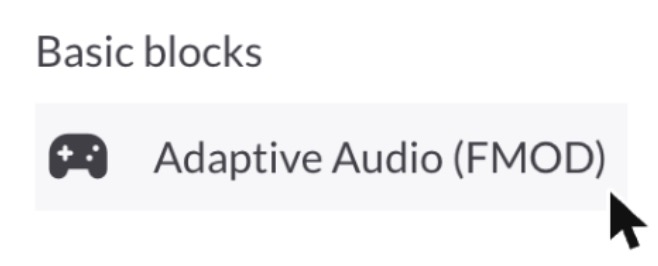
If you’re on the Free or Starter plan, you’ll see a lock icon next to Adaptive Audio, and clicking it gives you the option to upgrade.
Title and description
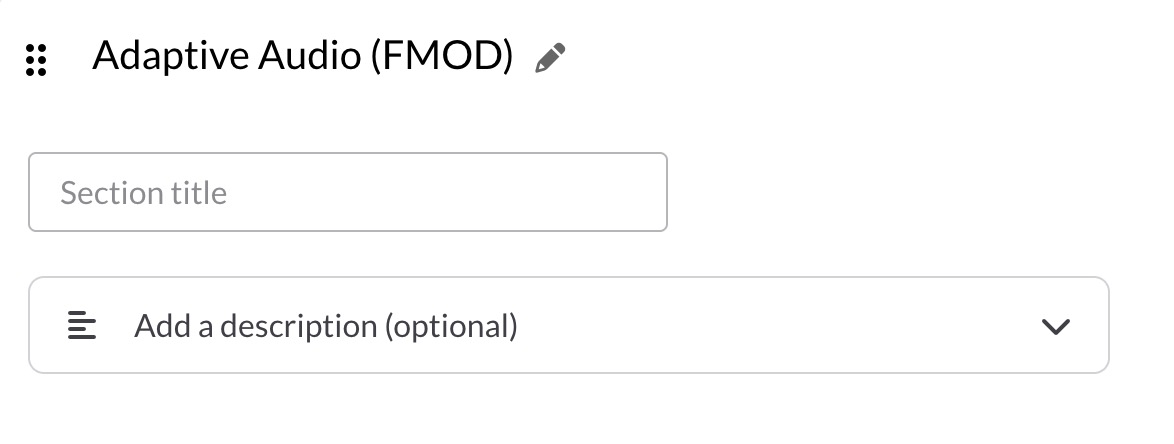
At the top of the block, you can add a section title and description that will appear above the player. Both are optional. If you leave the title blank and add an extra bank later, we’ll fill it in with that bank’s name. To add a short intro, click Add a description (optional).
Choosing your banks
Master banks (required)
Click Choose master banks and select your master bank and strings bank together. We’ll check that they’re a matching pair, then show their combined size underneath. Since listeners download your banks in full before anything plays, smaller banks mean a shorter wait.
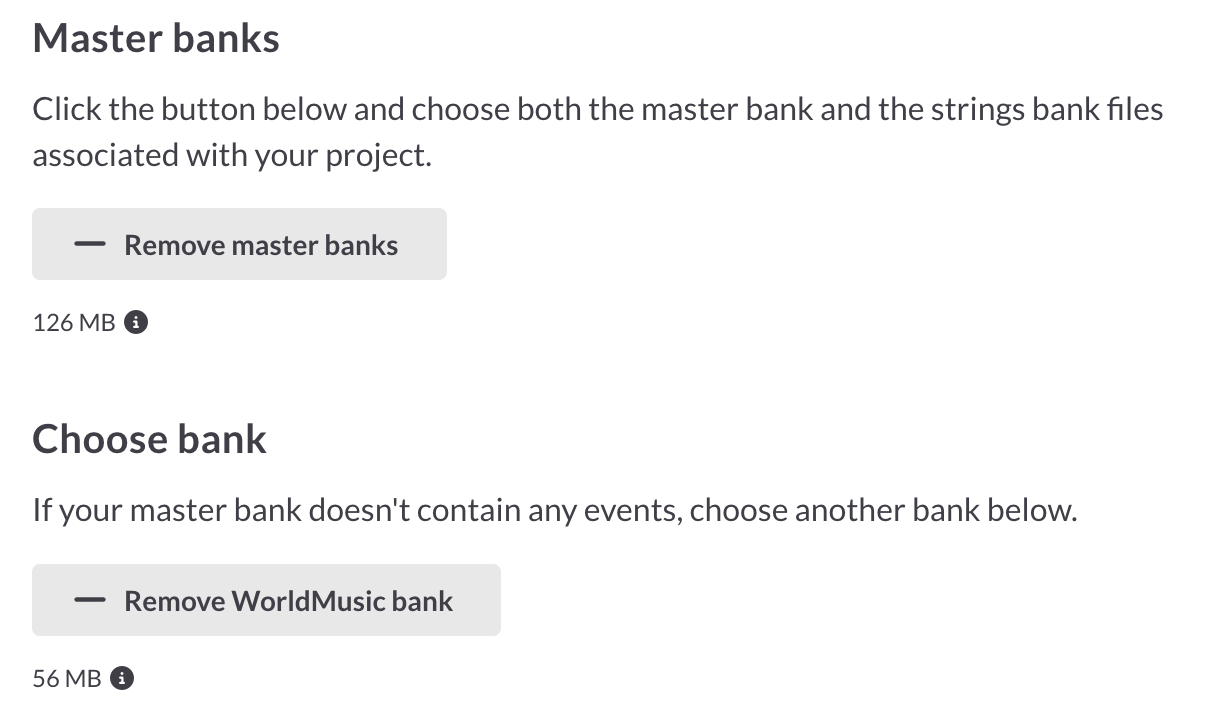
Heads up: Remove master banks clears out the whole block, including your events, presets, and everything you’ve set up. There’s no confirmation, so only use it if you want to start over.
Choose bank (only if you need it)
If your events aren’t in your master bank, click Choose bank and pick the bank that holds them. It has to come from the same FMOD project as your master banks.
Assets banks (only if FMOD Studio built them)
If FMOD Studio built a bank’s sounds into a separate .assets.bank file, you’ll see a warning asking you to add it. Click Add assets bank and choose the file it names. Without it, your events will play with no sound.
Choosing events
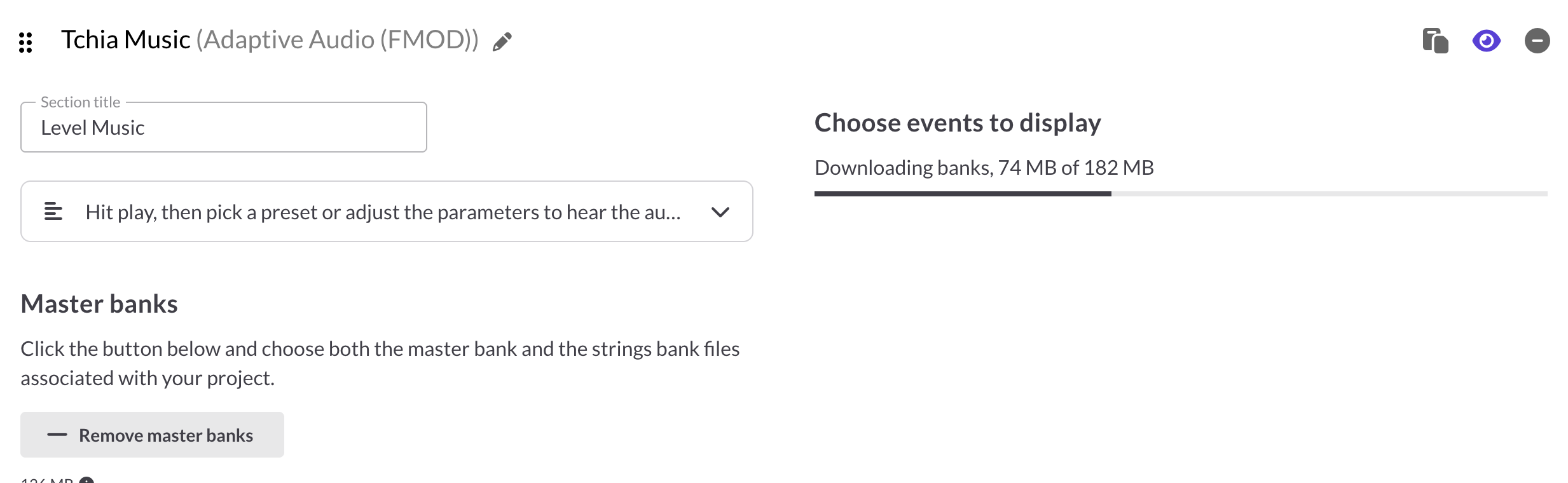
Once your banks are set, they’ll load in your browser so you can see the events inside. Bigger banks take a little longer.
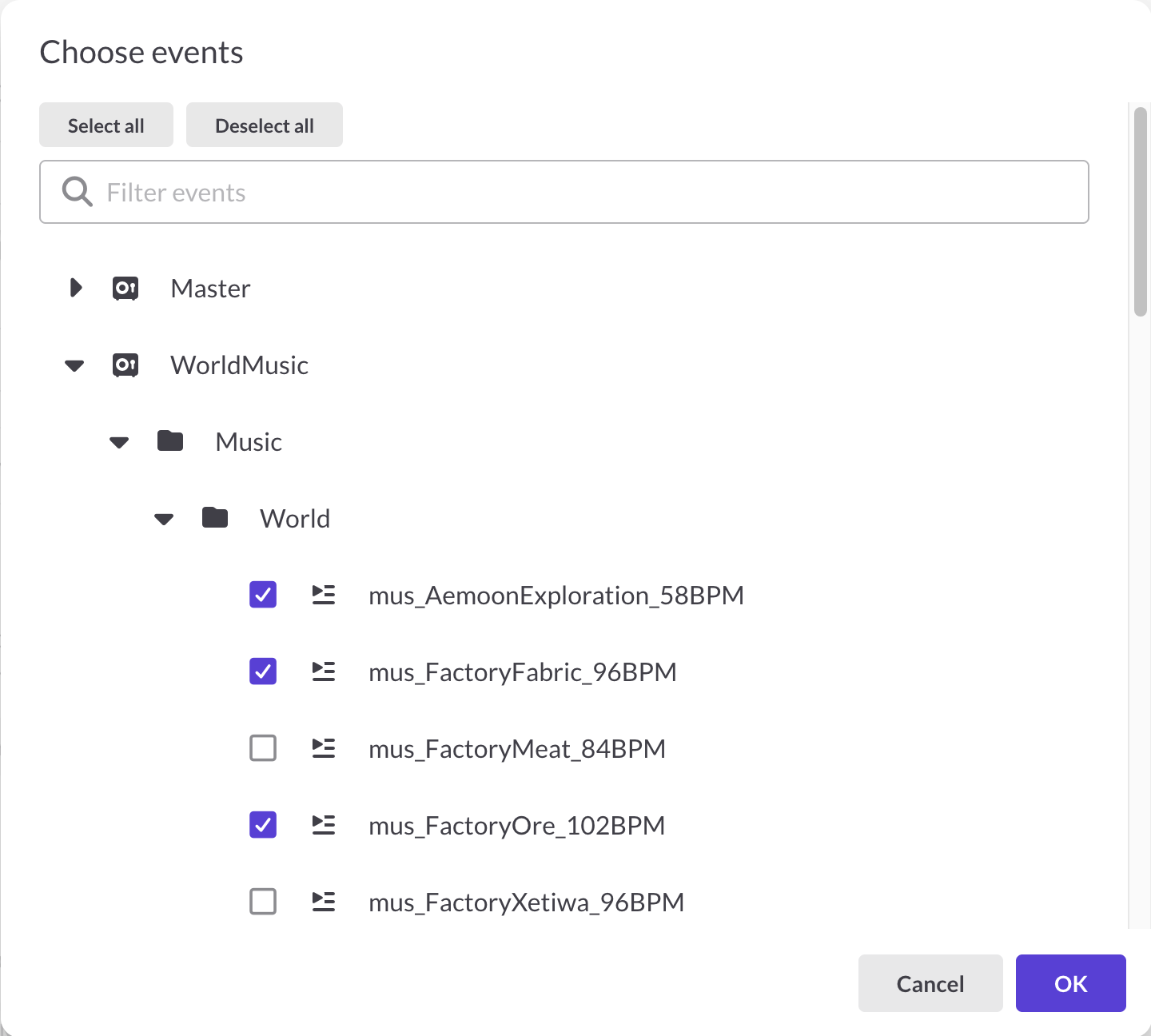
Click Choose events, check the events you want listeners to play, and click OK. They’re organized by bank and by the folders you set up in FMOD Studio, and you can type in Filter events to find one by name. Snapshots aren’t included.
If you’re picking a lot of events, you can save some time. Shift+click to check a whole range at once, or click Select all and uncheck the ones you don’t need.
Managing your event list
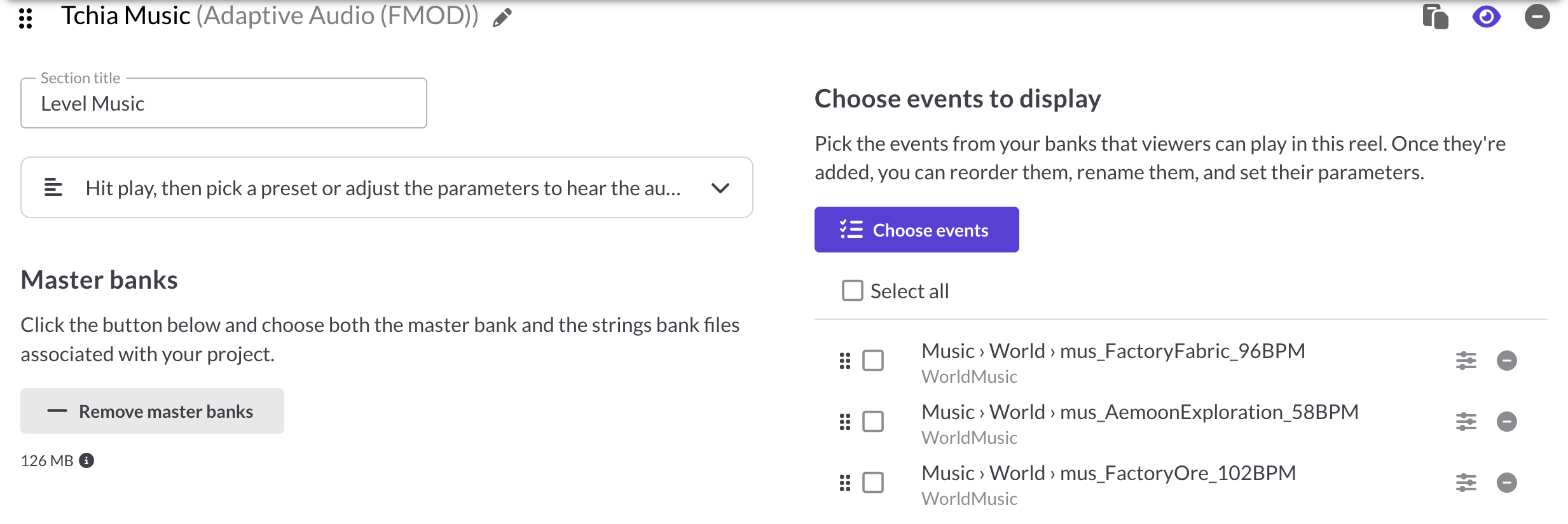
Your chosen events appear in a list. Drag them into the order you want listeners to see them, click the sliders icon to set up parameters and presets, or click the minus icon to remove one. If you remove an event and add it back later, your settings for it come back too.
Parameters and presets
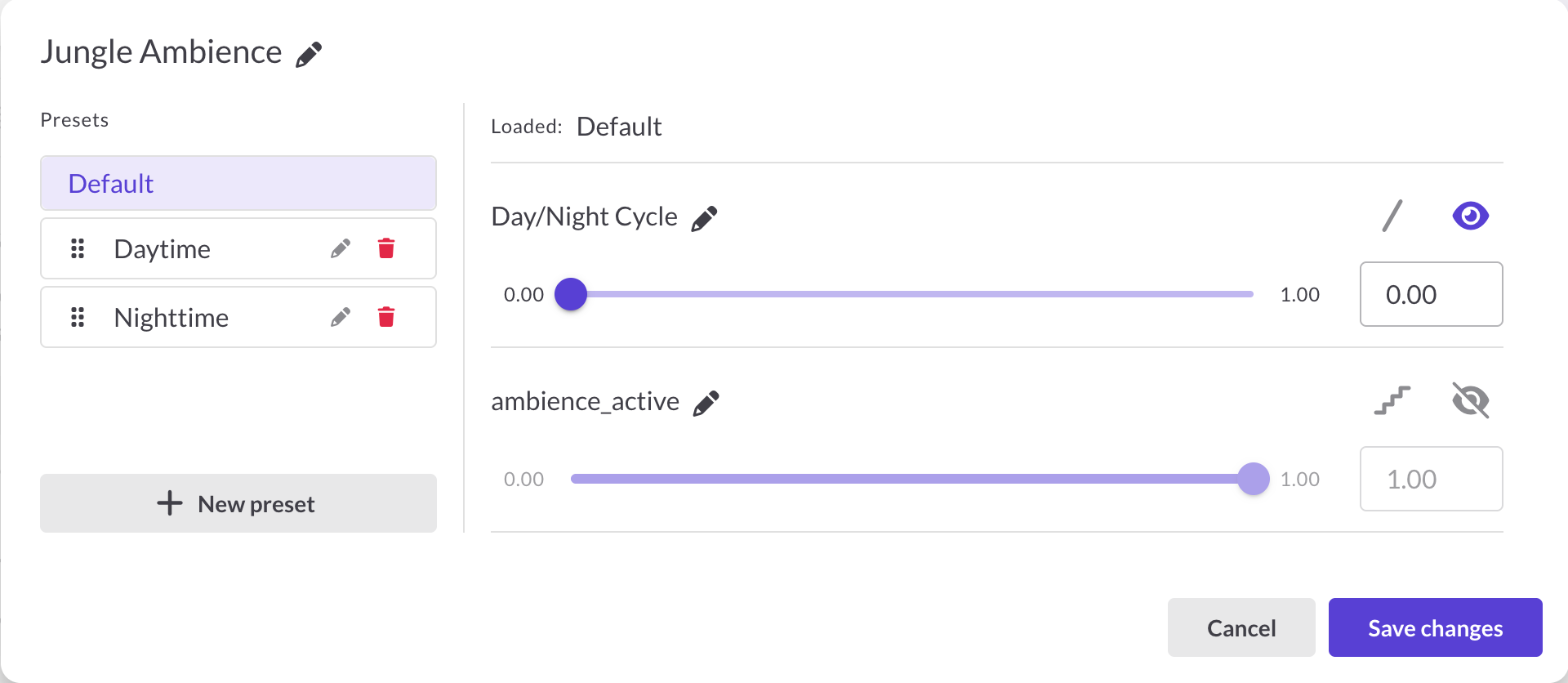
Click an event’s sliders icon to open the event editor. This is where you choose what listeners can adjust and set up presets they can switch between, like “Exploration” and “Boss fight.”
Renaming the event
Click the event’s name at the top of the editor to give it a friendlier name for your reel. If an event doesn’t have any adjustable parameters, the sliders icon just opens a box to rename it.
Parameters
Your event’s parameters are listed on the right, starting at their default values from FMOD. Number parameters get a slider, and labeled parameters get a row of buttons. Automatic parameters, like ones driven by 3D position, aren’t shown. For each parameter, you can:
- Rename it by clicking its name.
- Hide it from listeners with the eye icon.
- Choose ramp or jump (sliders only) to decide whether presets move the value gradually or instantly. It’s set to jump by default.
Presets
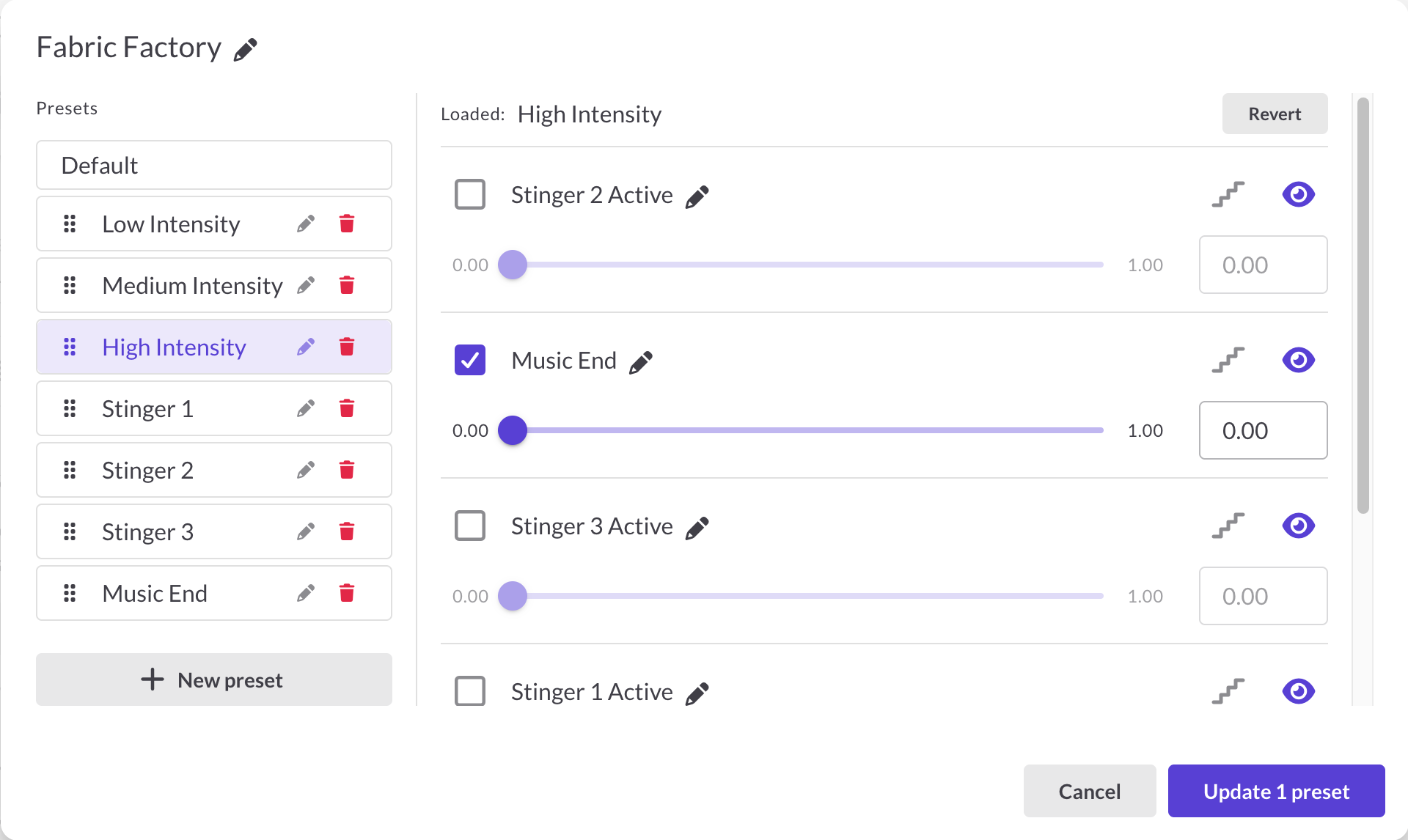
Presets let listeners switch between different versions of an event with one click. Click New preset to add one. It starts as a copy of Default, so you can adjust it from there. Default always comes first and holds the event’s starting values, and you can rename, reorder, or delete any of the others.
A preset doesn’t have to change every parameter. When you’re editing a preset, check only the parameters you want it to control (at least one), and the rest will stay wherever the listener left them.
Saving your changes
Nothing in the editor is saved until you click the button at the bottom. If you added or edited presets, it reads Update 1 preset (or however many you changed). If you only changed other things, like renaming the event or a parameter, hiding a parameter, or switching ramp or jump, it reads Save changes. Cancel throws out your changes. Your block saves with the rest of your reel, and listeners will see your changes once you click Save and publish.
What listeners see
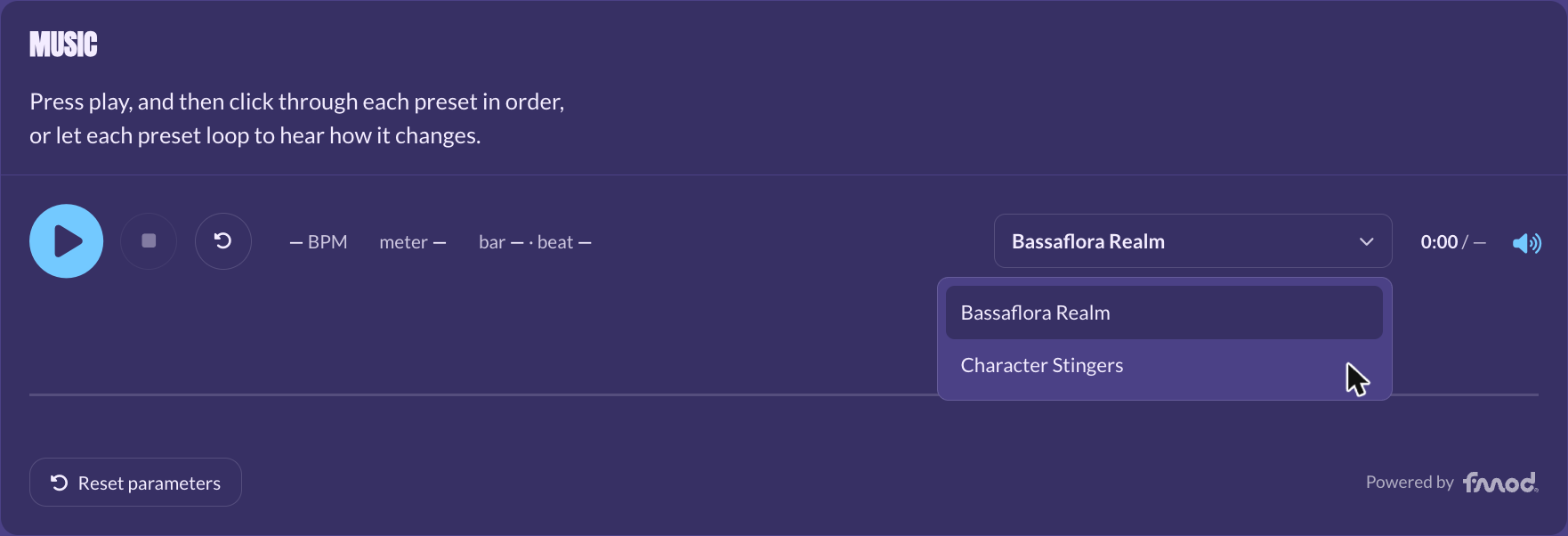
On your published reel, listeners see your title and description above an FMOD player that matches your reel’s theme. Nothing downloads until someone presses play, and then a progress bar shows while your banks load.
Once it’s loaded, listeners can:
- Play, pause, stop, and restart each event. Restart is great for events that change each time, like randomized voice lines.
- Switch between events from a dropdown, if you added more than one.
- Watch it play on a live waveform that shows your timeline markers and loop regions, along with the tempo and current bar and beat.
- Pick a preset or adjust the parameters themselves.
- Reset parameters to start over.
Tip: Use your description to tell listeners what to try, like “Hit play, then pick a preset to hear the music change.” It gives people who’ve never heard adaptive audio an easy place to start.
Analytics
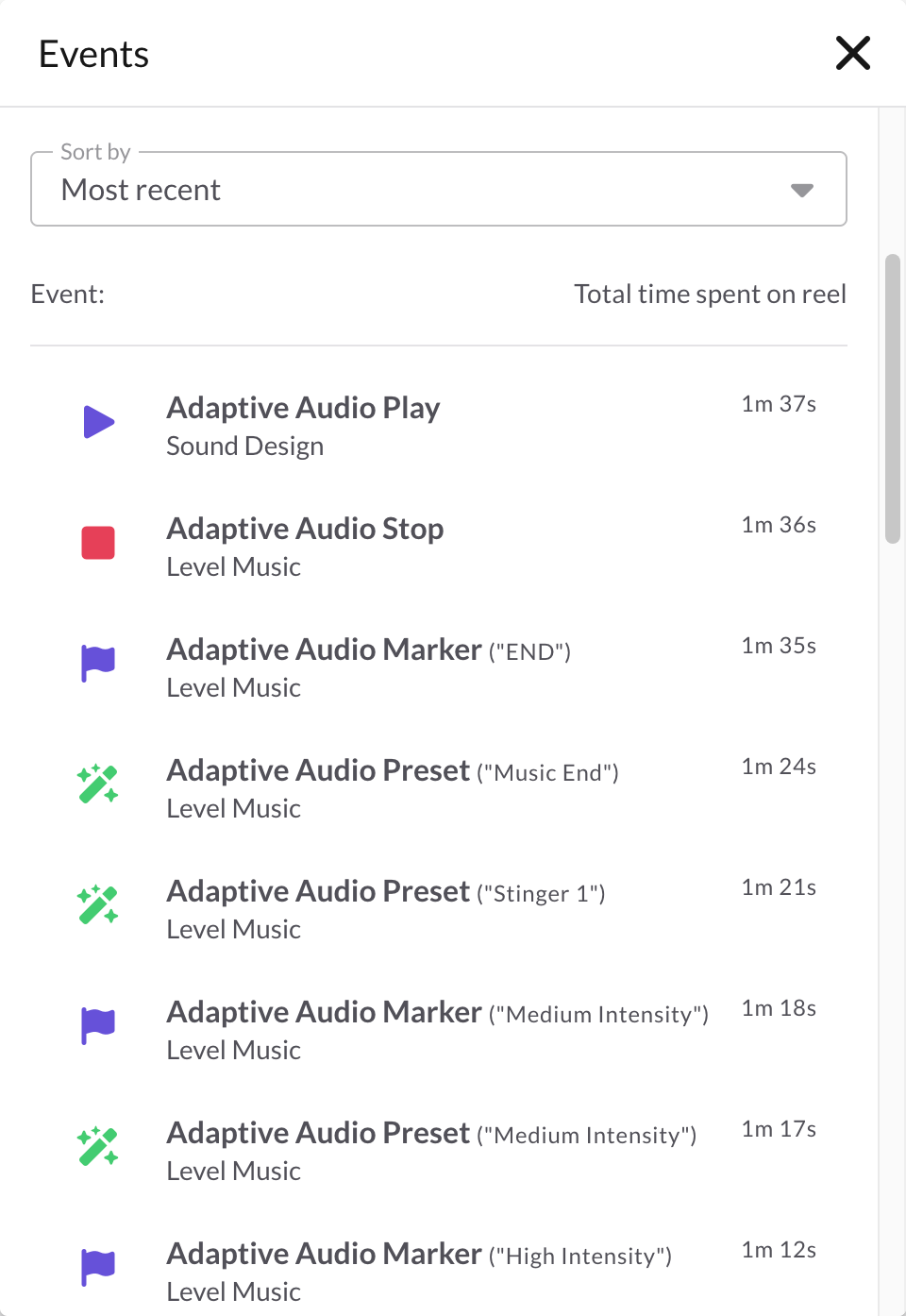
You can see how people explored your adaptive audio in the Dashboard, in each session’s activity list. It shows when listeners played, paused, stopped, restarted, or finished an event, changed or reset parameters, applied a preset, or reached one of your timeline markers. For example, Adaptive Audio Preset (“Boss fight”) means a listener applied your Boss fight preset.
Troubleshooting
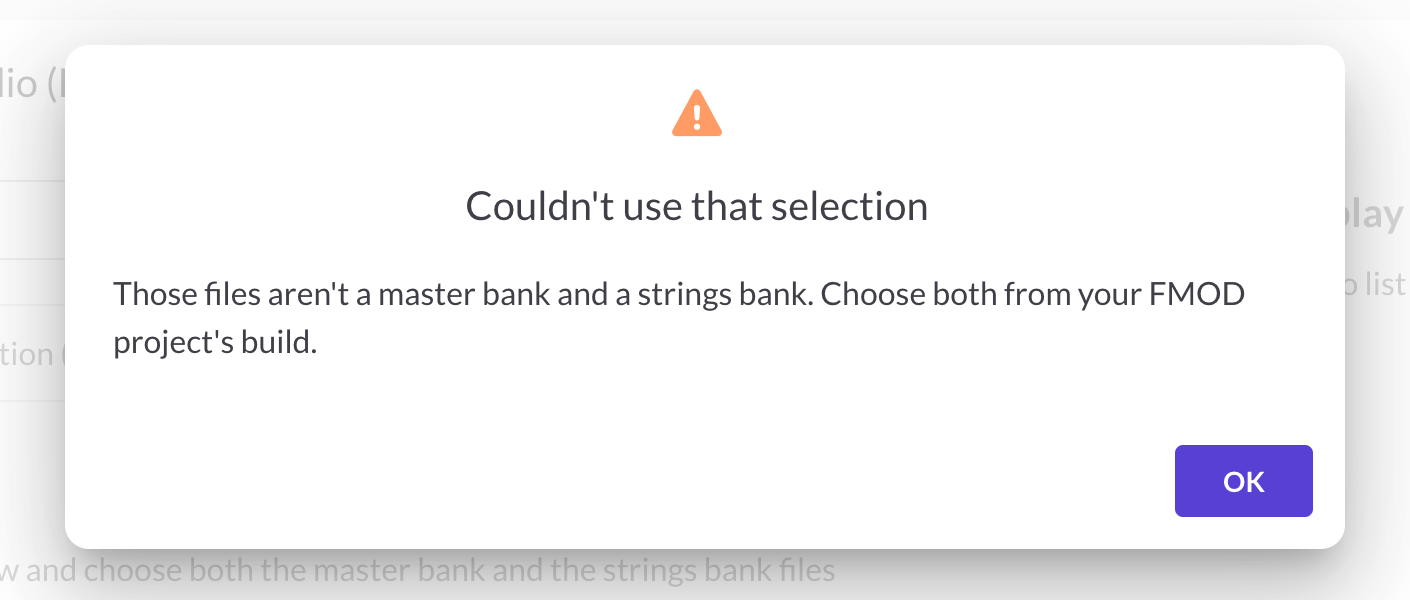
If something’s wrong with your banks, you’ll see a Couldn’t use that selection message. Here’s what the most common ones mean.
“Choose two .bank files, your master bank and your strings bank.”
Select your master bank and strings bank at the same time.
“Those files aren’t a master bank and a strings bank.”
Make sure you’ve picked one master bank and one strings bank from the same build.
“Those master banks come from two different FMOD projects.” / “...is from a different FMOD project than your master banks.”
All of your banks need to come from the same project build. Use Replace file in your Files library to update any older ones.
“...was built with a version of FMOD Studio that ReelCrafter doesn’t support.”
Rebuild your banks in a more recent version of FMOD Studio, then use Replace file to update them in your Files library.
“...holds only sounds.”
You picked an .assets.bank under Choose bank. Choose the bank it belongs to instead, then add the .assets.bank with Add assets bank.
“...isn’t the assets bank for...”
Choose the .assets.bank file the message names.
“...has its sounds built in, so it doesn’t take an assets bank.”
That bank already has its sounds, so you don’t need to add anything.
“...the browser ran out of memory.”
Your banks are too big for your browser right now. Close a few tabs and try again, or build smaller banks.
“No events found in the chosen banks.”
Use Choose bank to add the bank that holds your events.
My events play with no sound
Look for the assets bank warning under your banks, and add the .assets.bank it asks for.
Common questions
Which version of FMOD Studio do I need?
We recommend the latest version of FMOD Studio. Banks built with beta versions may not work properly.
Which plan do I need?
Adaptive Audio is available on the Professional plan. If you’re on Free or Starter, you’ll see it locked in the Add block menu.
Why can’t I upload my banks to the block?
Banks live in your Files library. Upload them there first, then choose them in the block.
Can I use banks from more than one FMOD project in a block?
Not in the same block. Add a separate Adaptive Audio block for each project.
How big can my banks be?
Each file can be up to 2GB, but smaller banks load faster for listeners.
Is this the same as the audio playlist?
No. The audio playlist plays regular tracks like WAV and MP3 files. The Adaptive Audio block plays FMOD events, so playlist settings like Loudness Match don’t apply.
What happens to the block if I change plans?
If your new plan doesn’t include Adaptive Audio, the block is hidden from your published reel and locked in the Reel Builder. Your settings are saved, so everything comes back if you upgrade again.