
Deleting media and reels
You can delete audio tracks, videos, images, files, reels, and playlists from their respective libraries. Deleted items go to the Trash for 30 days, giving you time to restore them if needed.
Jump to: Deleting from a library · Deleting from a detail page · Deleting multiple items · What happens when you delete · Good to know
Deleting from a library
- Go to the library that contains the item (Audio, Video, Images, Files, Reels, or Playlists)
- Click the three-dot menu on the item you want to delete
- Click Delete
- In the confirmation dialog, check “I understand the consequences of this action” and click Delete
The item moves to Trash immediately. 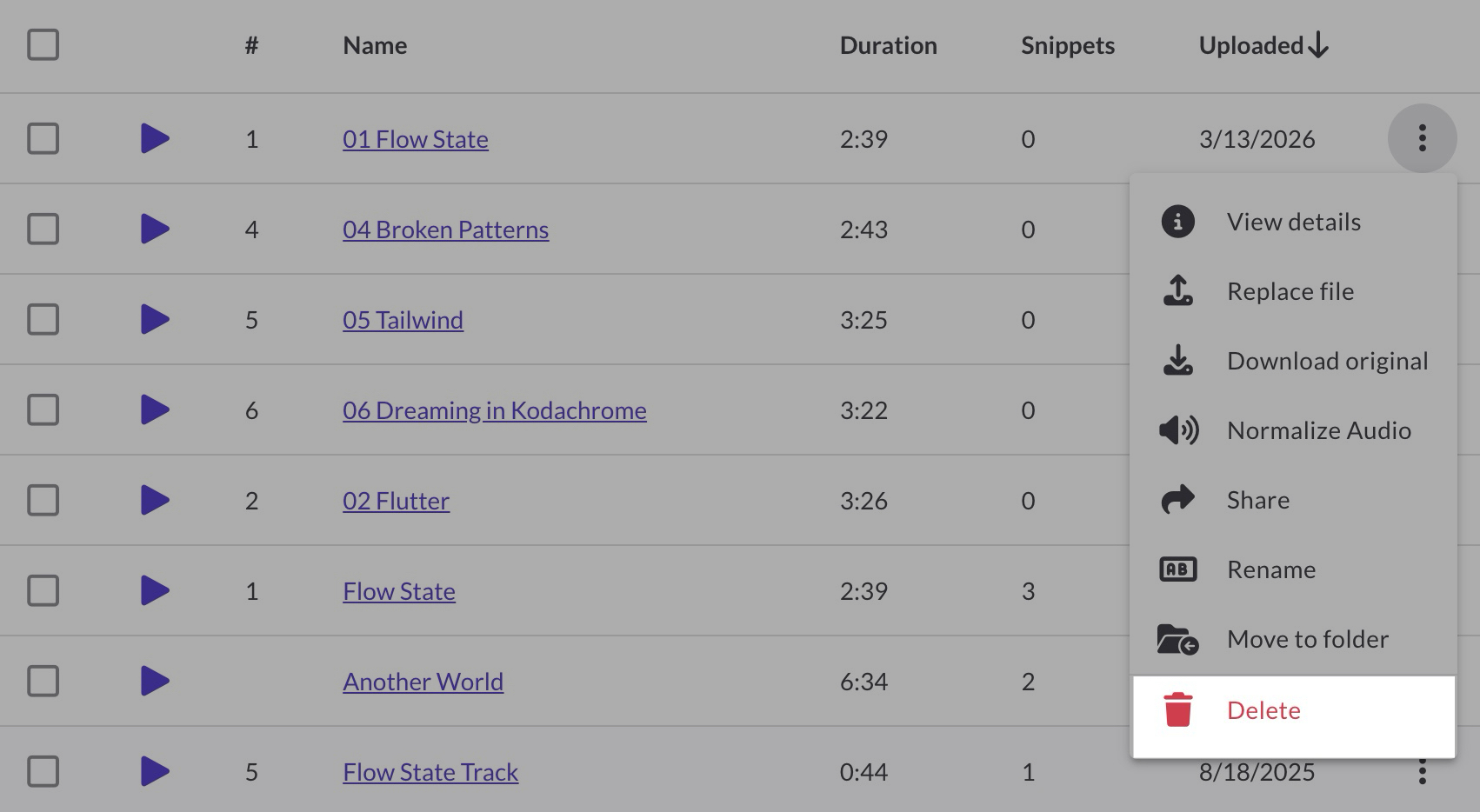
Deleting from a detail page
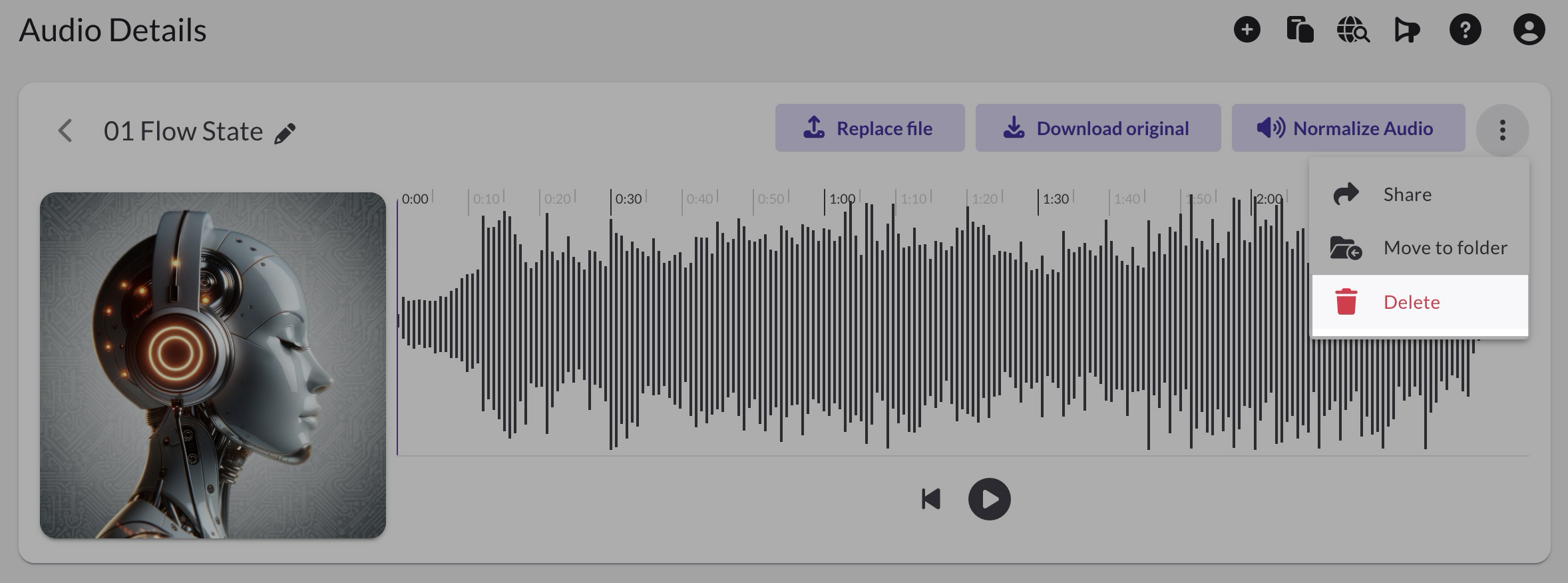
You can also delete an item from its detail page. Click the item in your library to open it, then use the three-dot menu at the top of the page and select Delete. The same confirmation dialog appears.
Deleting multiple items at once
- Go to the library that contains the items
- Select items using the checkboxes (hold Shift and click to select a range)
- Click the Trash icon in the toolbar that appears. If you don’t see it, check the three-dot menu in the toolbar.
- Confirm the deletion in the dialog
To select all items in the current view, click the checkbox in the header row. 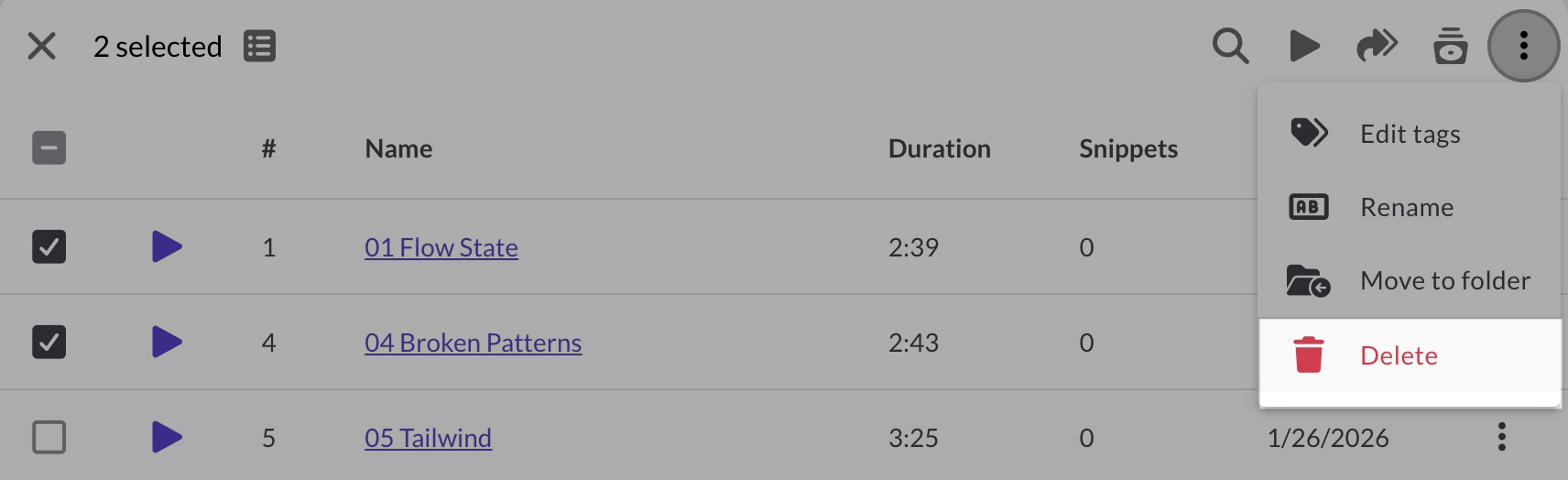
What happens when you delete
Some effects kick in right away, even before the 30-day Trash window expires:
- Reels and playlists: All share links stop working immediately. Recipients can no longer access them.
- Audio tracks: Removed from all reels and embedded players immediately, including any snippets made from that track.
- Videos, images, and files: Removed from all reels immediately.
Good to know
- Folders don’t go to Trash. When you delete a folder, the folder is removed, but its contents move to the parent folder or “Unfiled.”
- Snippets are permanently removed when their source track is deleted. They can’t be restored separately.
- Share links are removed immediately and don’t go to Trash. There’s no undo.
- Restoring a reel may not reactivate its share links. You’ll need to check that links are set to Active after restoring.
- Restoring media (tracks, images, videos, and files) doesn’t add them back to reels. You’ll need to re-add them manually.
For details on restoring items, permanently deleting from Trash, and common questions, see Trash and recovery.