
Fonts in your reel
In the Fonts tab of Edit Theme, you can change the heading and body fonts used in your reel. Pick a preset to change both at once, or customize each font individually.
All plans can apply a free preset. Pro presets and the Customize Fonts section require the Professional plan.
Jump to: Where to find it · Using a preset · Customizing fonts · Pairing warnings · Publishing your changes · Common questions
Where to find it
Open a reel in the Reel Builder, then click Edit theme (palette icon) in the Action Bar at the top of the page. In the dialog that opens, select the Fonts tab.


The dialog has a live preview on the right (or below the controls on narrow screens) that updates as you make changes.

Using a preset
The Font Preset dropdown at the top of the Fonts tab is the quickest way to change your fonts. Each preset pairs a heading font with a body font.
There are two groups:
- Free presets: Clean, Modern, Editorial, Bold, Minimal, Vintage
- Pro presets (Professional): Signature Serif, Studio Modern, Dramatic, Broadcast, Orbital
 On the Professional plan, if you change an individual font in Customize Fonts after selecting a preset, the dropdown label flips to Custom. Your fonts still apply, the preset label just no longer matches.
Customizing fonts
Available on the Professional plan.
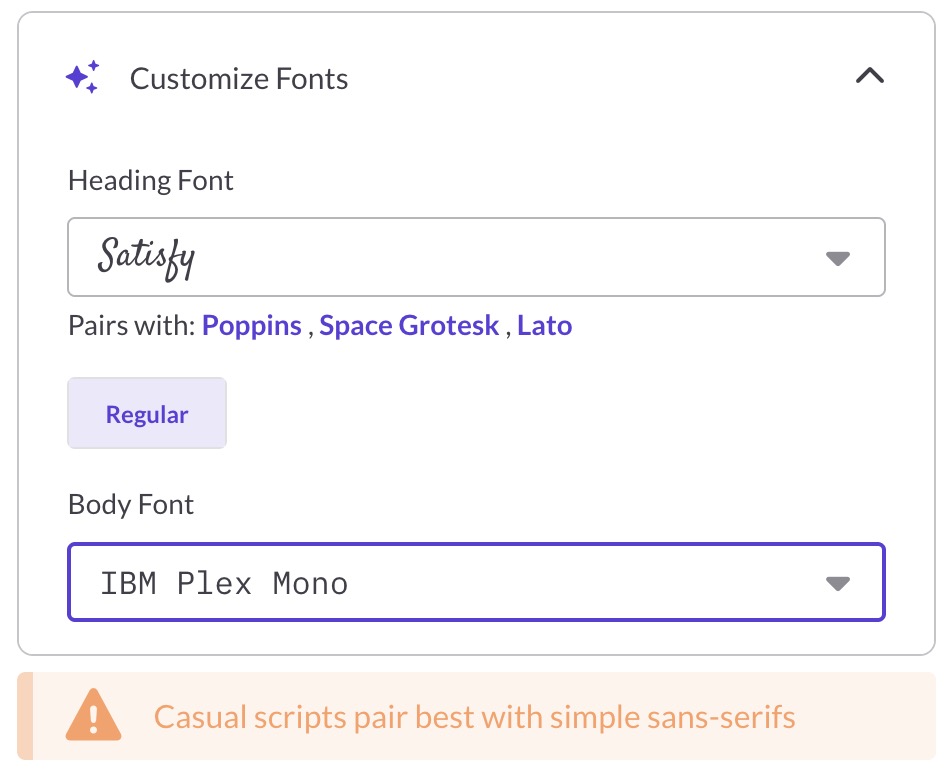
Below the preset dropdown, expand the Customize Fonts accordion to pick your heading and body fonts individually.
 This section has three controls:
- Heading Font: searchable dropdown, grouped by category (Sans-Serif, Serif, Slab Serif, Impact, Monospace, Futuristic, Script)
- Heading Weight: segmented buttons showing the weights the selected font supports (commonly Regular, Bold, ExtraBold, or Black). Only appears if the font has multiple weights.
- Body Font: searchable dropdown, same categories as Heading Font
When you pick a heading font, a Pairs with hint appears below it listing recommended body fonts. These pairings are curated to look good together.
Pairing warnings
Some heading and body combinations don't pair well visually. When this happens, a yellow warning appears below the controls. Warnings are advisory, you can still save the combination.
Each warning describes what that heading style pairs best with, so you can swap your body font if you want a safer match.
Warnings trigger for three heading font types:
- Bold display fonts: "Bold display fonts pair well with most body fonts"
- Futuristic fonts: "Futuristic fonts pair best with modern sans-serifs"
- Casual script fonts: "Casual scripts pair best with simple sans-serifs"
Publishing your changes
Clicking Save changes in the Edit Theme dialog saves your fonts to the reel's draft. These changes don't appear on live share links until you publish the reel.
To push font changes live, close the dialog and click Save and publish in the Action Bar.
Common questions
Can I upload my own fonts?
No. The font library is curated.
Why doesn't my heading font show a weight selector?
The Heading Weight control only appears when the selected font supports multiple weights. If you don't see it, the font is single-weight.
Why did my preset label change to "Custom"?
On the Professional plan, presets match a specific heading and body font combination. If you change either font in Customize Fonts, the match breaks and the dropdown flips to Custom. Your fonts still apply as you've set them.
Can I preview Pro presets on the Free or Starter plan?
Yes. Select a Pro preset from the dropdown to see it in the live preview. The preview shows a dimmed overlay with a Pro Fonts badge, and the Save changes button is disabled until you upgrade. The Customize Fonts section is locked entirely on Free and Starter.
Will my recipients see font changes right away?
Only after you publish. Saving changes in Edit Theme updates your draft. To push updates to live share links, click Save and publish in the Action Bar.