
Cropping and rotating images
The Image Cropper lets you crop and rotate any image in your library. Cropping always creates a new image, so your original stays exactly as you uploaded it.
Jump to: Opening the cropper · Using the cropper · Saving as a new image · What it can and can’t do · Common questions
Opening the cropper
There are three places you can open the cropper:
- Image detail page: click Edit image in the action strip.
- Image library: open the ⋯ menu on any image tile and choose Crop.
- Reel Builder: when picking an image for certain blocks (like the Banner block), you can crop the image inline as you add it.
The Crop action stays disabled until the image has finished processing after upload. If you don’t see it yet, give it a moment.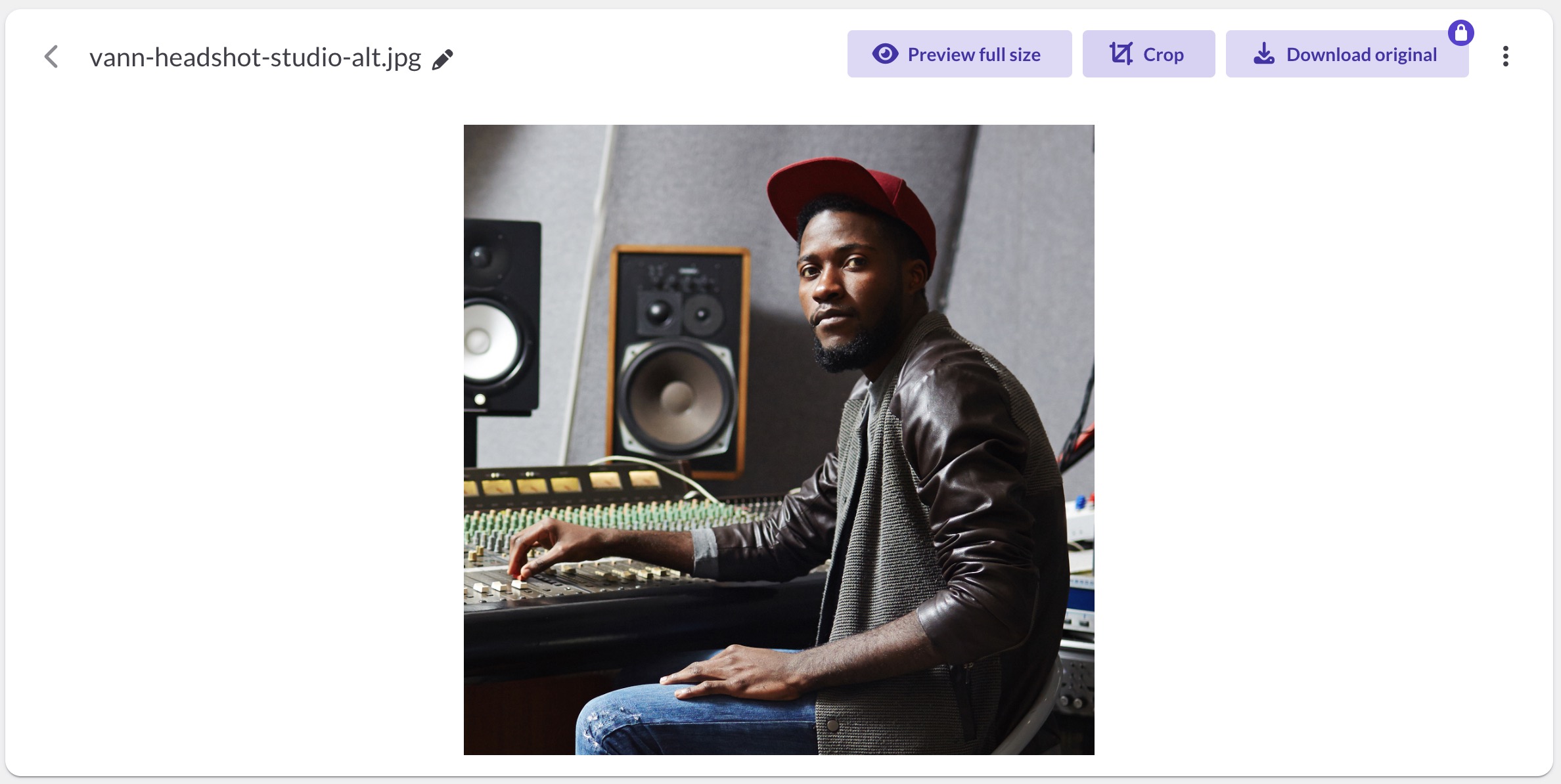
Using the cropper
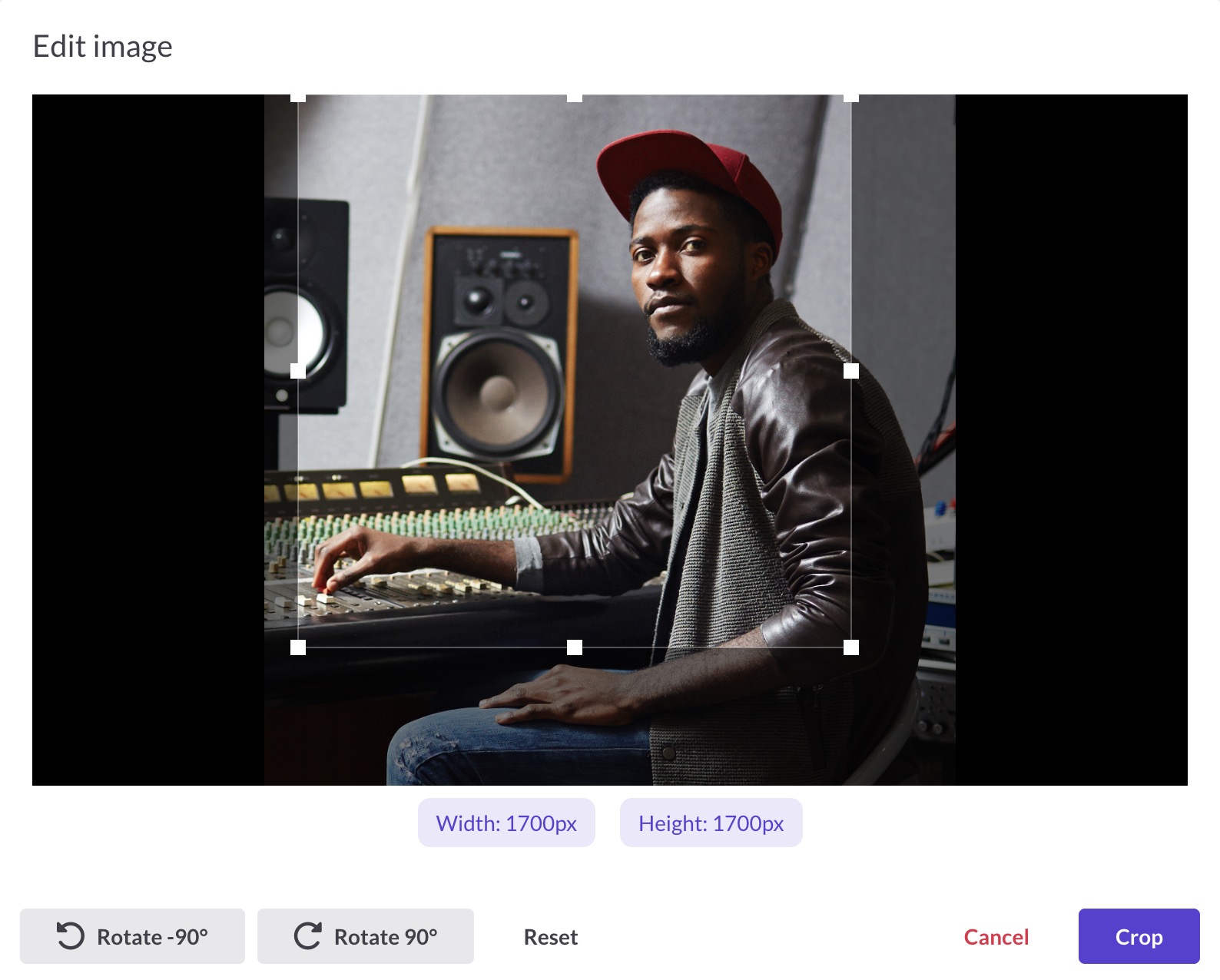
When the cropper opens, your image loads with a percentage indicator. Once it’s ready, you can adjust the crop:
- Drag the edges or corners of the crop box to set the area you want to keep. The current Width × Height in pixels updates live as you adjust.
- Use Rotate -90° or Rotate 90° to spin the image in 90-degree increments.
- Hit Reset at any time to undo all of your changes and start over.
- When you’re happy, click Crop.
Saving as a new image
After you click Crop, you’ll see a preview under the heading Save as new image. From here you have three options:
- Save: creates the new cropped image and takes you to its detail page.
- Back to editor: returns to the cropper if you want to keep adjusting.
- Discard: cancels and throws the crop away.
You can rename the image before saving, or keep the auto-generated name ( original-name-cropped-timestamp). The new image lands in the same folder as the source.
What it can and can’t do
The cropper is intentionally simple. Here’s what it covers:
- Freeform crop with live pixel dimensions (any size or rectangular/square shape)
- Rotate in 90-degree increments
- Reset all transforms in one click
- Preview before you commit
- Rename the output
A few things to know:
- Cropping is non-destructive. Your original image is never altered.
- There are no filters, drawing tools, or layers. Crop and rotate only.
- SVGs aren’t editable in the cropper. They’re treated as static uploads.
Common questions
Does cropping change my original image?
No. Cropping always creates a new image and leaves the original untouched. You can crop the same image as many times as you want without losing the source.
Where does the cropped image go?
The new image is saved in the same folder as the source image. From there you can move it, rename it, or use it in any reel.
Why is the Crop button disabled?
The cropper isn’t available until an image has finished processing after upload. Give it a few seconds and the option should appear.
Can I crop an SVG?
No. SVGs are treated as static uploads and can’t be edited in the cropper. If you need a cropped version, edit the SVG in your design tool and re-upload it.
Can I undo a crop after saving?
The cropped image is its own file, so there’s nothing to undo on the original. If you don’t need the cropped version, delete it from the Image library. Your original is still there.
What to do next
Curious what dimensions to aim for? See our image size guidelines.