
Setting up your account
The best thing you can do before making your first reel is set up your defaults. This takes about 5 minutes and saves you from re‑entering the same information every time you create a reel.
Most defaults sync automatically across all reels that are set to use them. Update your bio once here, and it updates everywhere you haven’t overridden it. Setting these up first saves time later.
Jump to: Personal Information · Biography · Logo & Headshot · External Links · Representation · Design Defaults
Go to Reel Settings in the left sidebar (just above Trash).
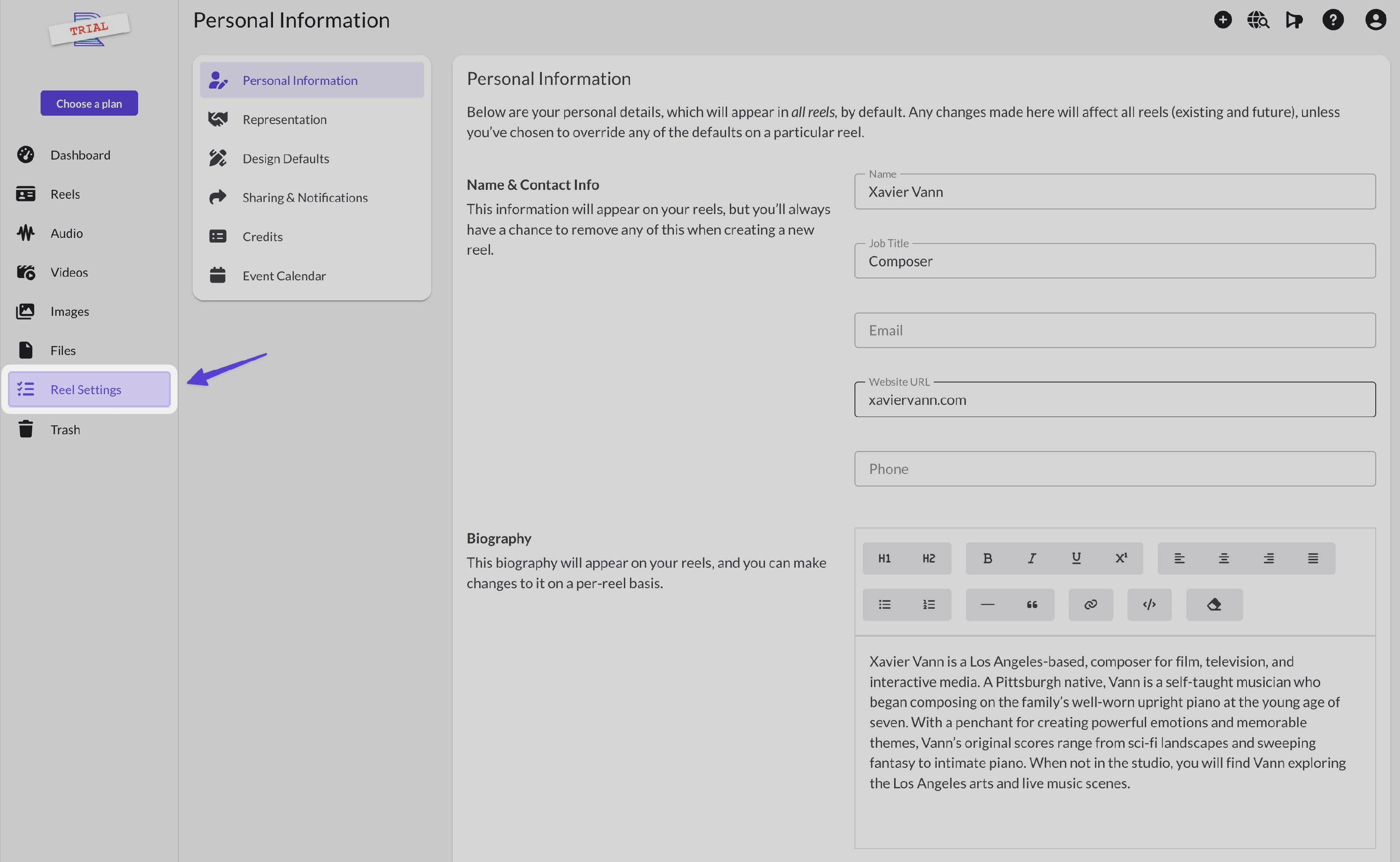
Personal Information
This is what appears on your reels, not your billing or account info.
Add your:
- Name: your artist or professional name
- Job title: composer, sound designer, editor, etc.
- Email, website, phone: optional, only if you want them visible
Changes here automatically update all reels set to use your default contact information.
Biography
Write a short bio. This populates the Bio block when you create reels.
The editor supports formatting (bold, links, bullet points), but keep it concise. You can always write a longer version for specific reels later.
Changes here automatically update all reels set to use your default biography.
Logo & Headshot
Upload your logo and a headshot. Your logo appears in the Logo block, and your headshot appears in the Biography block and Profile block.
Changes here automatically update all reels set to use your default logo and biography.
External Links
Add your social channels and other links, which will appear as icons on your reels.
Supported platforms include: Spotify, Apple Music, YouTube, Instagram, TikTok, Bandcamp, SoundCloud, IMDb, LinkedIn, Facebook, X, Vimeo, Threads, Bluesky, Mastodon, Linktree, Twitch, Behance, hosted PDFs, and more.
The order here is the order they’ll appear on your reels, but you're able to easily drag to change the order. You can show or hide individual links on each reel.
Changes here update across all reels showing any of these links.
Tip: Add a description to any link. It shows as a tooltip when visitors hover over the icon.
Representation
Add contacts for your agent, manager, publicist, or team members. You can also add yourself as a contact if you want your info displayed in the same format as your other contacts.
Each contact can include: name, job title, company, email, phone, and website.
You can show or hide individual contacts on each reel, and drag to reorder them.
Changes here update across all reels showing any of these contacts.
Design Defaults
Set your preferred colors and options for new reels:
- Default template: If you've created reel templates with your own preferred layout and contents, you can set the default template here.
- Color palette: The default primary, background, text, and link colors used when creating new reels.
- Reel options: Options that affect how your reel appears, such as show/hide logo block, bio block, waveforms, and lyrics.
Note: Unlike the sections above, these only apply to new reels. Existing reels keep their current colors and settings.
That’s it for the essentials
The remaining sections (Sharing & Notifications, Credits, Event Calendar) are useful but optional. You can set them up later.
Before you build a reel
To create a reel, you’ll need at least one audio, video, or image file in your library. You can upload now, or add files while building your first reel.
What to do next
Once your defaults are in place, you’re ready to build something real. Most users create their first reel right away.