
Loudness Match: Play every track in a playlist at the same level
Loudness Match keeps every track in a playlist playing at about the same volume, so listeners can enjoy your work without reaching for the volume knob between songs. Your audio files stay exactly as you uploaded them, and the adjustment only happens while people listen in ReelCrafter’s web player.
Available on the Professional plan. Currently in early access, so you may not see it in your account yet.
Jump to: How it works · Turn on Loudness Match · Choose a target level · How we measure your tracks · Loudness Match vs. Peak Normalization · Common questions
How it works
Tracks are mastered at different levels, especially when they come from different projects. In a playlist, a delicate underscore cue might sit right next to a trailer cue that’s mastered loud, and that jump can be jarring. Loudness Match turns each track up or down the second it starts playing, so the whole playlist lands at the level you choose.
Nothing gets re-encoded, and your files are never touched. Anyone who downloads a track still gets your original master at its original loudness.
The setting lives on each playlist, so you can give every playlist its own target or leave it off wherever you’d rather people hear your tracks as they are. It works the same way for standalone playlists and for playlists inside a reel’s Media block.
Turn on Loudness Match
- Open the playlist, either from your Playlist Library or inside a reel.
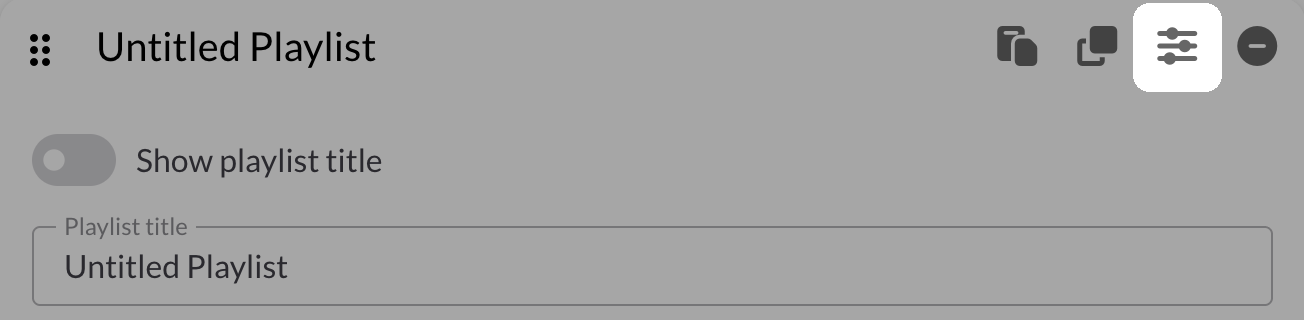
- Click the Playlist settings button (the sliders icon).
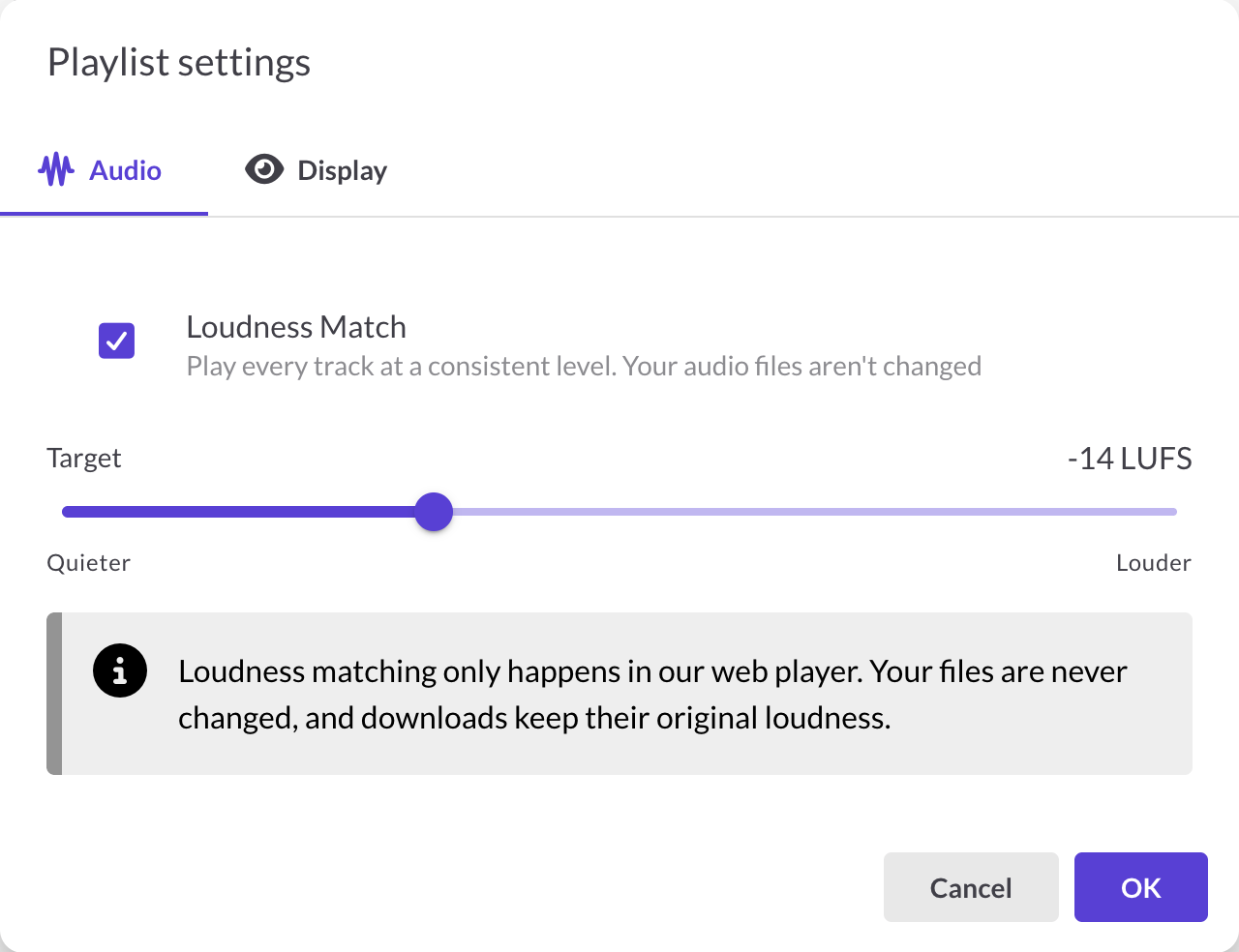
- On the Audio tab, check Loudness Match.
- Use the Target slider to pick your level, or leave it at the default of -14 LUFS. (More on that below.)
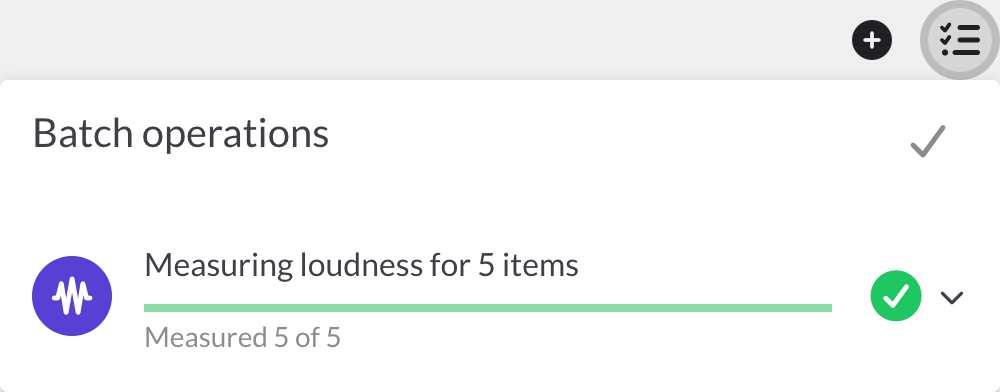
- Click OK. We’ll start measuring any tracks in the playlist that haven’t been measured yet, and you can watch the progress in the Batch operations tray.
- When measuring finishes, save and publish your reel or playlist so your listeners hear the change. Tracks that haven’t been measured yet play at their original level, so it’s worth the short wait.
To turn Loudness Match off, open Playlist settings again, uncheck Loudness Match, and save and publish.
Choose a target level
The target is the volume every track in the playlist will play at. It’s measured in LUFS, the same unit streaming services use for perceived loudness, which is how loud a track actually sounds to a listener rather than how high its peaks go.
For most playlists, the default of -14 LUFS is a great choice. It’s the level many music platforms default to, so your playlist will sound about as loud as what people hear on those services.
If you’d like something different, the slider runs from -19 LUFS ( Quieter) to -4 LUFS (Louder), in 1 LUFS steps:
- -19 LUFS matches Spotify’s “Quiet” setting, which suits gentle, dynamic material like underscore or ambient work.
- Louder settings go past Spotify’s “Loud” setting (-11 LUFS), so if your masters are hot (often somewhere between -9 and -4 LUFS), you can set a louder target and they’ll play without being turned down.
Why a track might stay a little quieter than the target
When we turn a quiet track up, we stop before its loudest peaks would distort. The boost tops out at a -1 dBTP true-peak ceiling, so a quiet track with big peaks (like a cue with sudden percussion hits) may land a little under your target. That’s on purpose: a slightly quieter track sounds much better than a clipped one.
How we measure your tracks
Before Loudness Match can adjust a track, we need to know how loud it is. We take care of that for you, and each track only gets measured once.
New tracks get measured as soon as you upload them. Older tracks that haven’t been measured yet get measured the first time they’re in a playlist with Loudness Match on: when you turn it on, or when you add them to a playlist that already has it on (including pasting tracks, moving them in from another playlist, or switching between a snippet and the full track). You can watch the progress in the Batch operations tray at the top of the screen, where you’ll see something like “Measuring loudness for 5 items.”
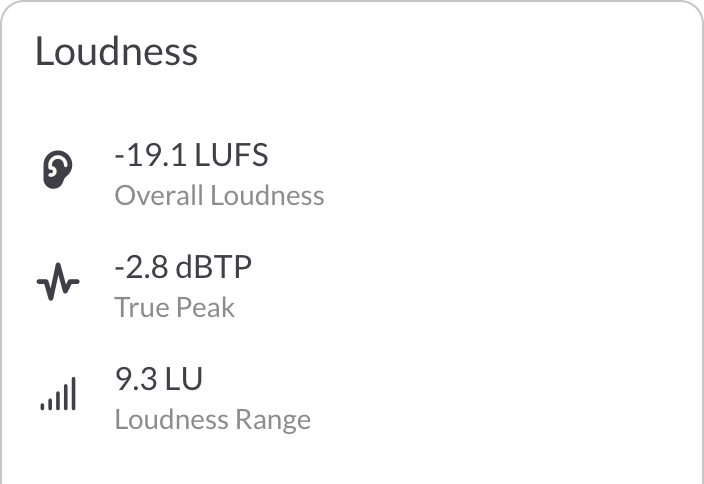
Curious how loud a track is? Open it from your Audio library and click the Details tab on the audio detail page. The Loudness section shows its Overall Loudness in LUFS and its True Peak in dBTP. (If you see an orange warning there, see What does the True Peak warning mean?)
Loudness Match vs. Peak Normalization
ReelCrafter also has Peak Normalization, and it’s not always obvious which one to use when. Peak Normalization permanently changes the audio file itself, while Loudness Match only changes how loud a playlist plays.
| Loudness Match | Peak Normalization | |
|---|---|---|
| What it changes | Playback level in the web player | The audio file itself |
| Based on | How loud the track sounds (LUFS) | The loudest peak (dBFS) |
| Applies to | One playlist | One track, everywhere it’s used |
| Downloads | Keep their original loudness | Get the new level |
If you just want a playlist to feel even from track to track, Loudness Match is the one you want, and you can change your mind any time without touching your masters.
Common questions
Does Loudness Match change my audio files?
No. Your files are never edited or re-encoded. The volume change only happens during playback in our web player.
Will downloads be louder or quieter?
No. Downloads always keep your original loudness, whatever target you’ve set.
Can each playlist have its own target?
Yes. The setting is saved per playlist, so a trailer playlist can play at -9 LUFS while your underscore playlist sits at -16 LUFS.
Does it work in embedded players?
Yes. An embedded player plays your tracks at the same level as your reel, so visitors to your website hear the same even playlist. If you change the setting, save and publish the reel and the embed picks it up too.
Why is one track still quieter than the rest?
It’s probably a quiet track with loud peaks. We only turn a track up as far as it can go without distorting, so it may land a little below your target. It could also be a track that hasn’t finished measuring yet, so check the Batch operations tray.
I don’t see Loudness Match. Why not?
It’s in early access right now, so it may not be turned on for your account yet. It’s also a Professional plan feature: on other plans you’ll see the option locked, and clicking it shows you how to upgrade.
What happens if I change plans?
If your account no longer includes Loudness Match, your playlists keep their saved target, but listeners hear your tracks at their original levels. If you move back to the Professional plan, your saved settings start working again with no setup needed.