
Custom Domains
Custom Domains lets you serve your reels from your own web address, like supertunes.com or music.supertunes.com/drama, instead of a play.reelcrafter.com link. The reel is exactly the same. Only the address changes.
Requires a domain you already own. ReelCrafter doesn't sell or register domains. Your domains stay with the registrar you bought them from (like Namecheap or GoDaddy), and the Custom Domain Pack lets your reels appear on them.
Just want a custom link? For something like play.reelcrafter.com/yourname/demo, you don't need a domain or a pack. Choose ReelCrafter Domain under Personalized URL on any share link (Starter plan or higher). See Share link basics.
Custom Domains requires a Custom Domain Pack add-on. Each pack includes 5 domains, and every root domain (yourname.com) or subdomain (music.yourname.com) you add counts as one. Packs are billed monthly and can't be purchased during a free trial. Add a pack from Account → Custom Domains and see the app for current pricing.
Jump to: How it works · Add your domain · Set up your DNS · Verify your domain · Connect your domain to a reel · Manage your domains · Common questions
How it works
Using a custom domain has two parts, and the order is important. You set the domain up in your account first, then point a reel at it.
- Set it up in your account. Under Account → Custom Domains, add a Custom Domain Pack if you don't already have one, then add and verify your domain.
- Set the URL on a reel. Open one of the reel's share links, go to URLs, and point it at your verified domain.
You can't set a custom URL on a share link until the domain is added and verified in your account. If you choose Custom Domain on a share link before that's done, you'll see a prompt to set one up first.
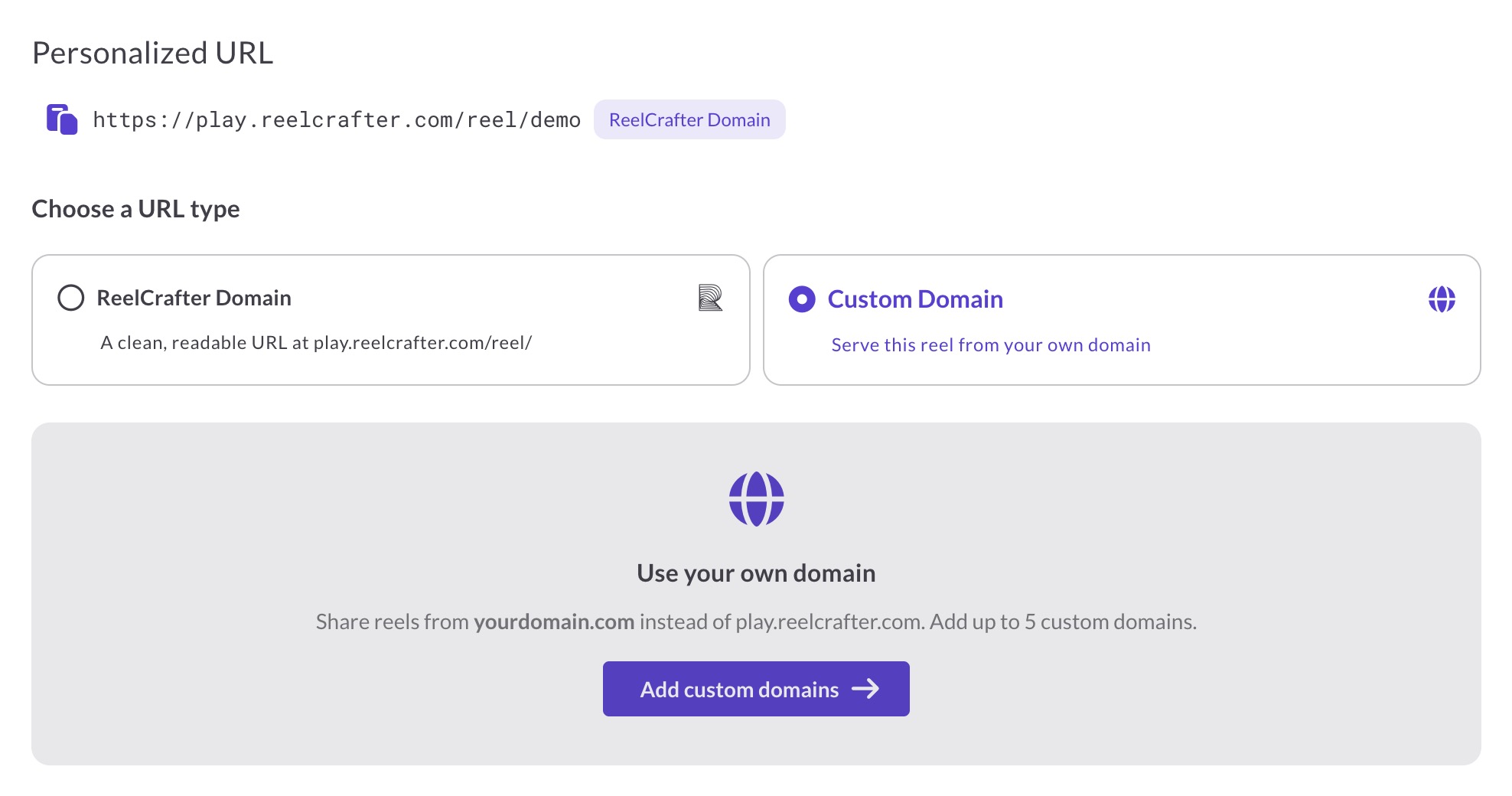
You verify a domain once, then reuse it across as many reels as you like. You can point a reel to a domain a few ways:
- Use your root domain (yourname.com) so it works as your website
- A subdomain like music.yourname.com or reels.yourname.com
- A path on any domain or subdomain, like yourname.com/demo
Subdomains make it easy to organize your reels by category, like music.yourname.com, reels.yourname.com, or horror.yourname.com.
Add your domain
Don't have a domain yet? You'll need to register one first with a domain registrar. We like Namecheap, but any registrar works. Once you own the domain, come back here to connect it.
- Go to Account → Custom Domains.
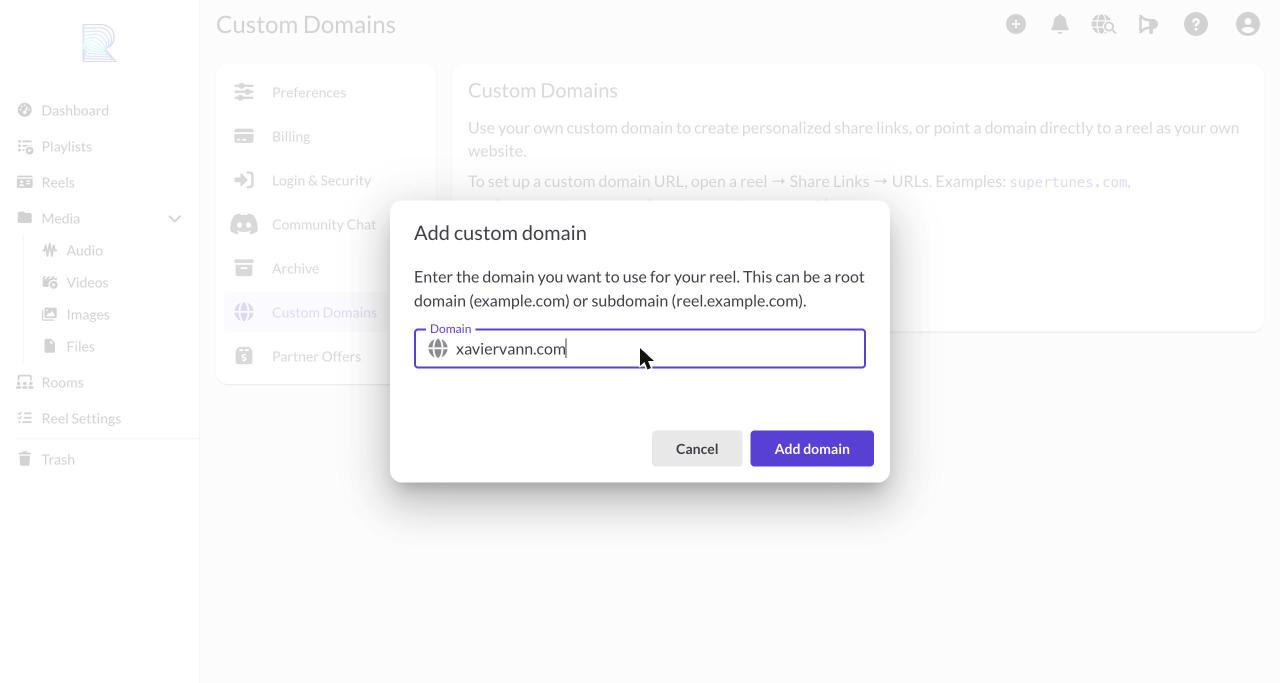
- Click Add domain.
- Enter your domain. This can be a root domain (example.com) or a subdomain, which adds a label in front like music.example.com. Multi-level subdomains like a.b.example.com aren't supported.
- Click Add domain.
Your domain appears in the list marked Pending Verification. The next step is to point it at ReelCrafter using your DNS settings.
Set up your DNS
In your domain's settings, click Setup instructions. You'll add one DNS record at your domain registrar (the company where you bought your domain, such as GoDaddy or Namecheap).
In most cases you'll add a CNAME record:
- Type: CNAME
- Host: your subdomain (for example, music), or @ for a root domain
- Points to: proxy.reelcrafter.com
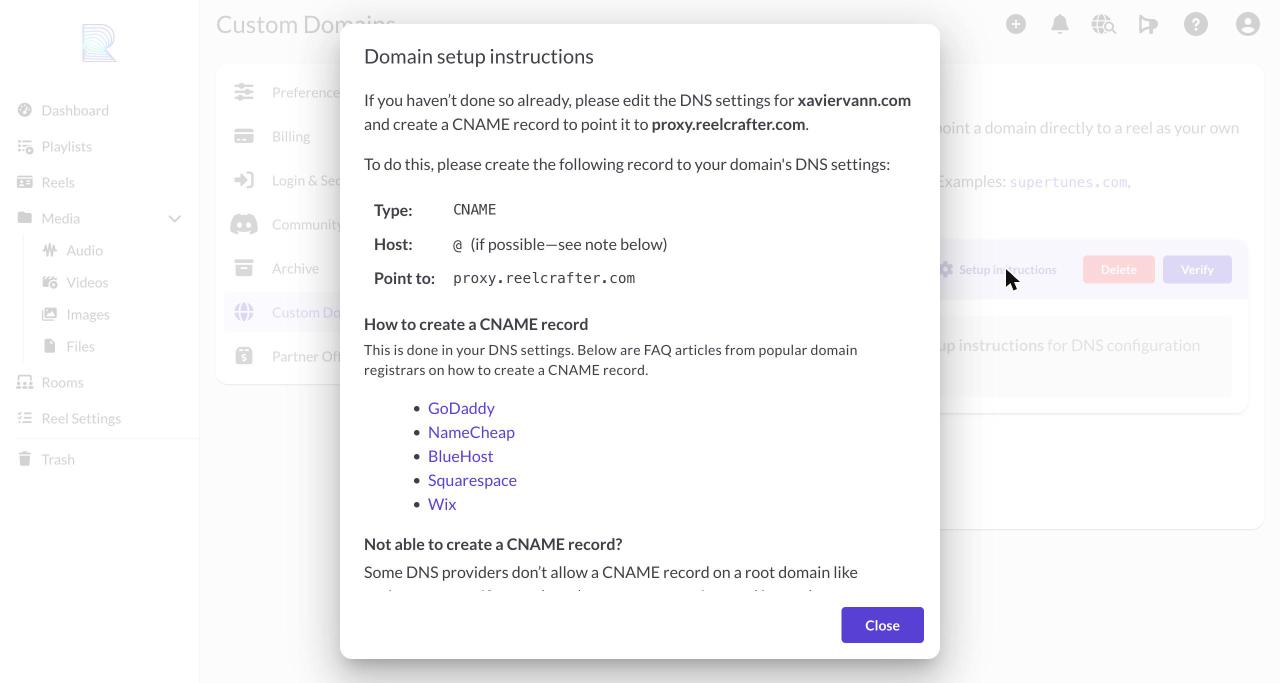
Some registrars don't allow a CNAME record on a root domain. If yours doesn't, click Alternative instructions using A records and add this instead:
- Type: A
- Host: your subdomain, or @ for a root domain
- Points to: 137.66.8.152
The setup instructions also link to step-by-step DNS guides for popular registrars, including GoDaddy, NameCheap, BlueHost, Squarespace, and Wix.
Verify your domain
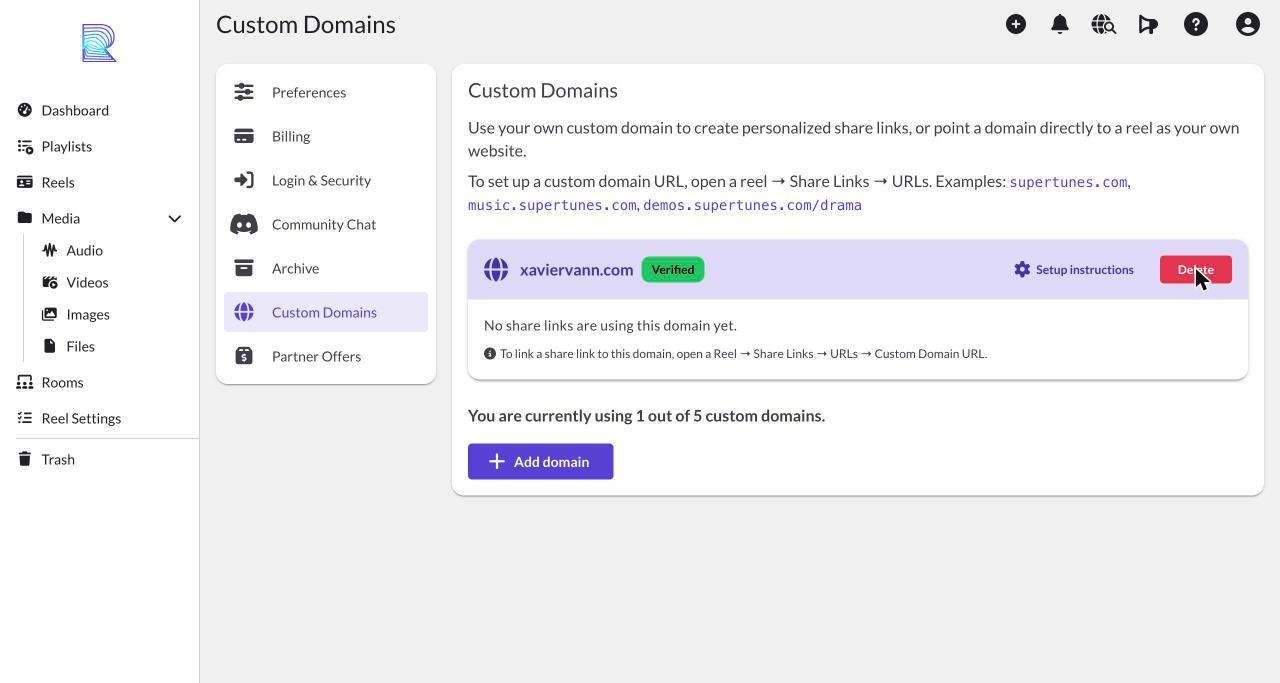
Once you've added the DNS record, return to your domain's settings and click Verify. ReelCrafter checks your DNS settings and, if they're correct, marks the domain Verified.
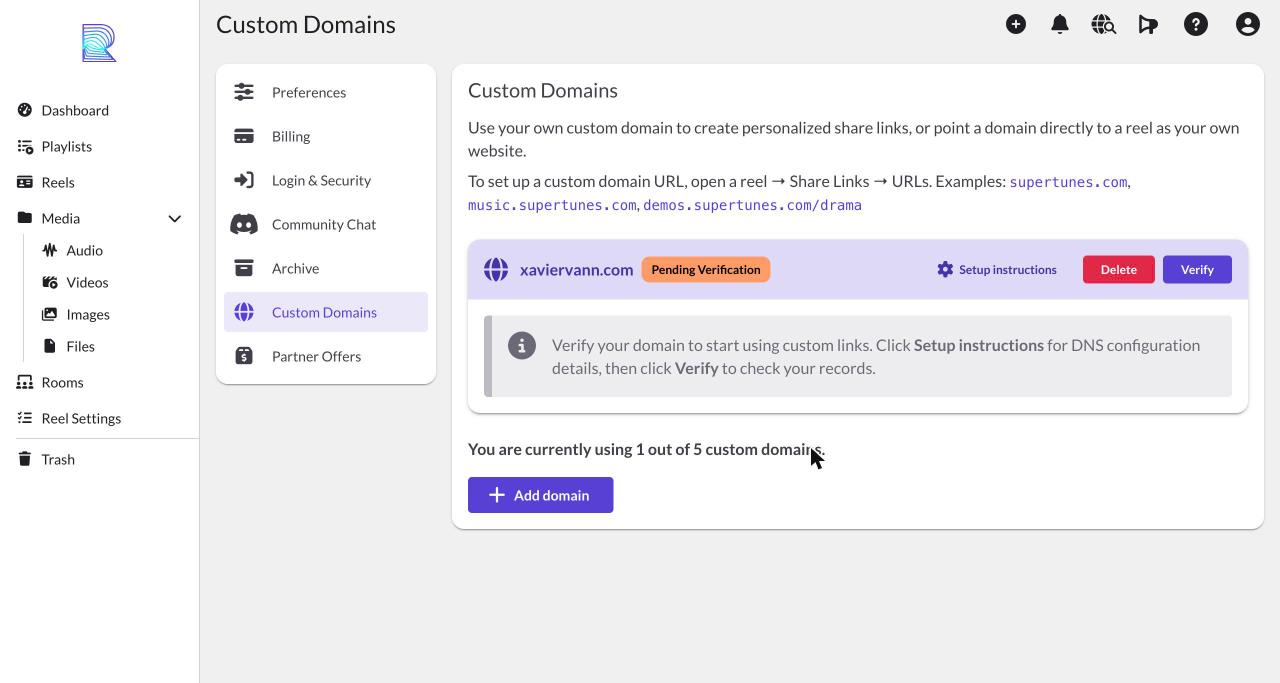
Verification runs when you click Verify. There's no automatic retry, so you'll always confirm it yourself with the button. DNS changes can take up to 24 to 48 hours to take effect, though they're often much faster. If verification fails right after you add the record, wait a bit and click Verify again.
If your domain still won't verify after 48 hours, confirm the DNS record is set up correctly and check with your registrar to make sure everything is correct on their end. If it all checks out and the domain still won't verify, email support@reelcrafter.com and we'll help.
HTTPS is set up automatically. You don't need to buy or configure an SSL certificate. Your reels are served securely once the domain is verified.
Connect your domain to a reel
A verified domain doesn't point at anything until you connect it to a reel. Domains connect to a share link, so you'll need at least one share link on the reel first.
- Open the reel and create a share link, or use an existing one.
- Expand the share link and open the URLs tab.
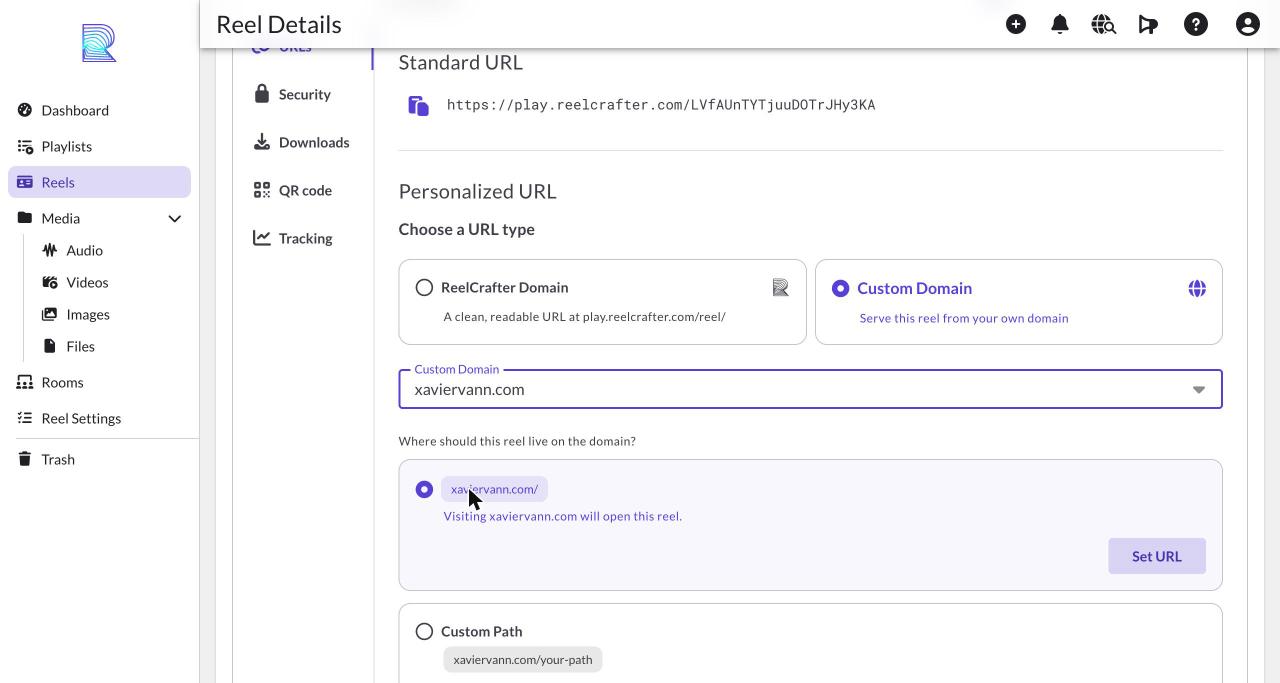
- In the Personalized URL section, select Custom Domain under Choose a URL type.
- Choose your verified domain from the Select a custom domain menu.
- Choose where the reel should live on the domain (see below), then click Set URL.
You have two options for where the reel lives:
- Root: visiting your domain on its own (example.com) opens this reel. Only one reel can use the root of a given domain.
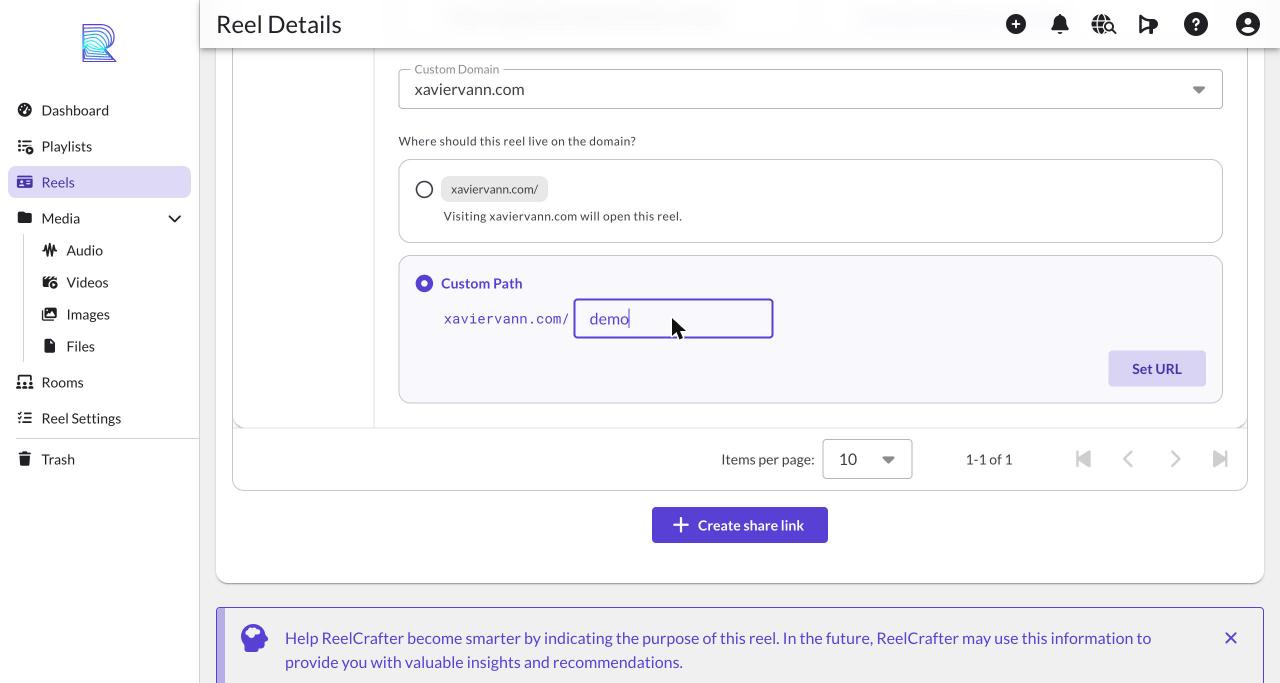
- Custom Path: the reel lives at a path you choose, like example.com/drama. You can host many reels on one domain this way, each at its own path.
Pointing your root domain at a reel effectively makes that reel your website. Make sure the reel includes your contact information and anything else visitors should find there.
Using ReelCrafter as your website? Check with your registrar or current web host so you're not paying for website hosting you no longer use. Before you cancel anything, make sure the other services you rely on, like email, aren't part of that plan. ReelCrafter only serves your reels and doesn't provide email or other services for your domain. If you're using a subdomain (like reels.yourname.com) and keeping your website somewhere else, keep your hosting as it is.
After you click Set URL, the reel is served at your custom address. To undo it later, open the same share link and click Remove URL.
Manage your domains
Your Custom Domains page shows how many domains you're using out of your total, for example “You are currently using 1 out of 5 custom domains.” Each Custom Domain Pack includes five domains and is added from Account → Custom Domains. Check the app for current pricing. Manage all your add-ons, including your Custom Domain Pack, from Billing → Add-ons, and see the pack on your Subscription tab. To stop paying for the pack, click Cancel add-on on the Add-ons tab.
Once a domain is in use, its settings list every share link and reel connected to it, each with its own Remove link so you can free up an address without deleting the domain.
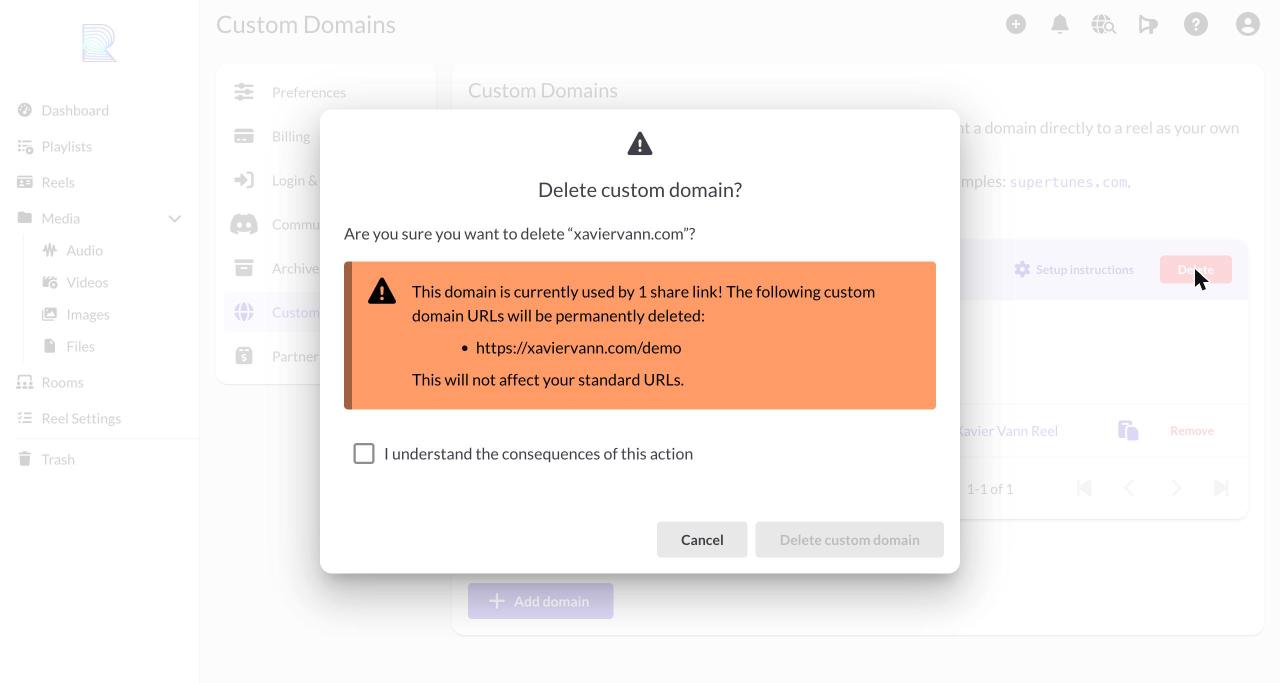
To delete a domain entirely, click Delete in your domain's settings. If the domain is connected to any reels, ReelCrafter warns you that those custom domain URLs will be permanently deleted and lists them. Your standard play.reelcrafter.com links are not affected. Check I understand the consequences of this action, then click Delete custom domain.
Common questions
Do I buy my domain through ReelCrafter?
No. ReelCrafter doesn't sell or register domain names. You buy and keep your domain with a registrar like Namecheap or GoDaddy. The Custom Domain Pack is what connects that domain to ReelCrafter so your reels can appear on it.
Do I need a Custom Domain Pack to get a custom link?
Only if you want the link on your own domain, like yourname.com/demo. For a branded ReelCrafter link like play.reelcrafter.com/yourname/demo, choose ReelCrafter Domain under Personalized URL on a share link instead. That's included on the Starter plan and higher, with no add-on needed.
Will connecting my domain affect my email?
No. Connecting a domain only changes where your web address points, meaning what visitors see when they go to it. Email runs on separate DNS records and keeps working through your email provider. ReelCrafter doesn't provide email. If you cancel old website hosting, just make sure your email isn't part of that plan first.
What's the difference between a root domain and a subdomain?
A root domain is your domain on its own, like example.com. A subdomain adds a label in front, like music.example.com or demos.example.com. Each root domain or subdomain you add counts as one of the domains in your Custom Domain Pack. Hosting several reels on paths of a single domain, like example.com/drama and example.com/action, doesn't use any extra domains.
How long does it take for my domain to work?
DNS changes can take up to 24 to 48 hours to take effect, but it's usually much faster. Verification only runs when you click Verify, so if it fails right after you add your DNS record, wait a bit and click Verify again.
What if my domain won't verify?
DNS changes can take up to 24 to 48 hours, so give it time first. If it's still failing after that, confirm your DNS record is set up correctly and check with your registrar that everything is correct on their end. If it all checks out and the domain still won't verify, email support@reelcrafter.com.
Do I need to set up an SSL certificate?
No. HTTPS is handled automatically once your domain is verified. There's nothing to buy or configure.
Can I use one domain for multiple reels?
Yes. Using the Custom Path option, you can host many reels on a single domain, each at its own path like example.com/drama and example.com/action. The root of a domain can only point to one reel.
My DNS provider won't let me add a CNAME record. What do I do?
This is common for root domains. Open the setup instructions and click Alternative instructions using A records, then add the A record shown there instead.
Why don't I see the Custom Domain option on my reel?
Custom domains connect to a share link, so the reel needs at least one share link first. Create a share link, expand it, and open the URLs tab to find the Personalized URL options. Also make sure you have a domain pack with a verified domain to point to.
Can I add a Custom Domain Pack during my free trial?
No. Add-ons can't be purchased while you're on a trial. Once your trial ends and your plan starts, you can add a pack from Account → Custom Domains.
How do I move a domain from one reel to another?
Open the share link that's currently using the domain and click Remove URL, then connect the domain to the other reel. A domain's root can only serve one reel at a time.
What happens if I delete a domain that's in use?
The custom domain links pointing to your reels are permanently deleted, so anyone who visits one will get a 404 page. You'll need to send them a new standard or personalized link instead. Your standard play.reelcrafter.com links keep working. The exception is if you've since pointed that domain somewhere else, like setting your root domain up with a new host, in which case visitors will see whatever is there now.
How is a Custom Domain Pack billed?
You're charged when you add the pack (prorated for your current billing period), then monthly until you cancel it. Packs are billed monthly even if your ReelCrafter plan is annual.
How do I cancel my Custom Domain Pack?
Go to Billing → Add-ons and click Cancel add-on. The pack stays active until the end of the current monthly period, then stops. Canceling the pack doesn't affect your ReelCrafter plan.
I added a Custom Domain Pack by mistake. Can I get a refund?
Email support@reelcrafter.com and we'll help. Please reach out to us before opening a dispute with PayPal or your bank. We can usually sort it out quickly, and disputes take much longer to resolve for everyone.