
Fallback links: Send visitors from old links to a reel you choose
Fallback links let you choose where people land when they open one of your old share links that no longer works. Instead of a “not found” page, they see a reel you’ve picked.
Available on the Starter plan and above. Currently in early access, so you may not see it in your account yet.
Jump to: How it works · Set your fallback link · See or remove your fallback link · Which links go to your fallback · If your fallback link stops working · Common questions
How it works
Say you sent a music supervisor a link two years ago, and you’ve since turned that link off or moved the reel to the trash. They come across your old email, click the link, and instead of hitting a dead end, they land on the reel you’ve chosen as your fallback, like your current demo reel or discography.
A note at the top of the page lets them know what happened: “The link you clicked is no longer available. Its creator would like you to see this instead.” They can close the note and carry on listening.
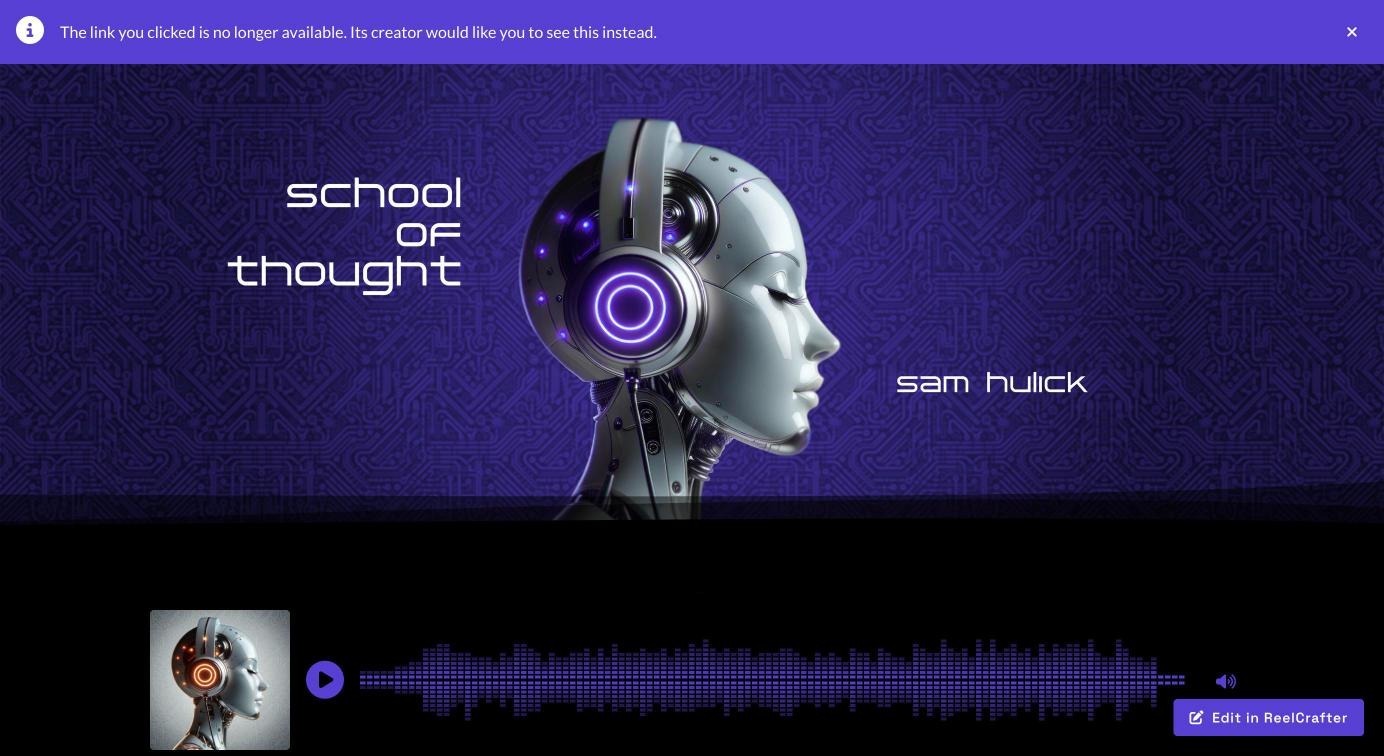
You get one fallback link for your whole account, and it covers links from all of your reels and playlists.
Set your fallback link
Your fallback can be any active share link on any of your reels. If you want to keep those visits separate from the rest of your analytics, create a new share link just for this (naming it “Fallback” works well) and set that one.
- Open the reel you want visitors to see, and find its share links.
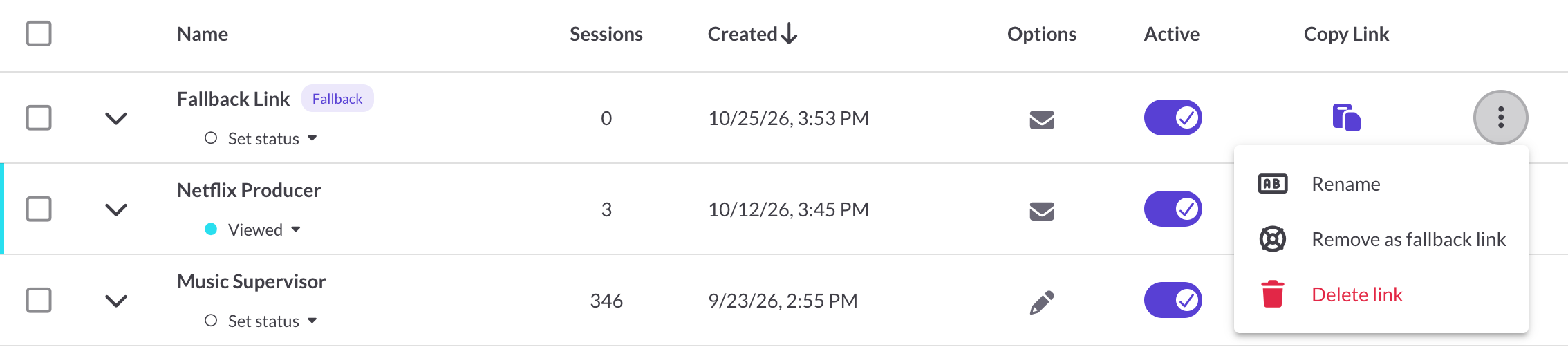
- Click the three-dot menu (⋮) on the link you want to use.
- Choose Set as fallback link.
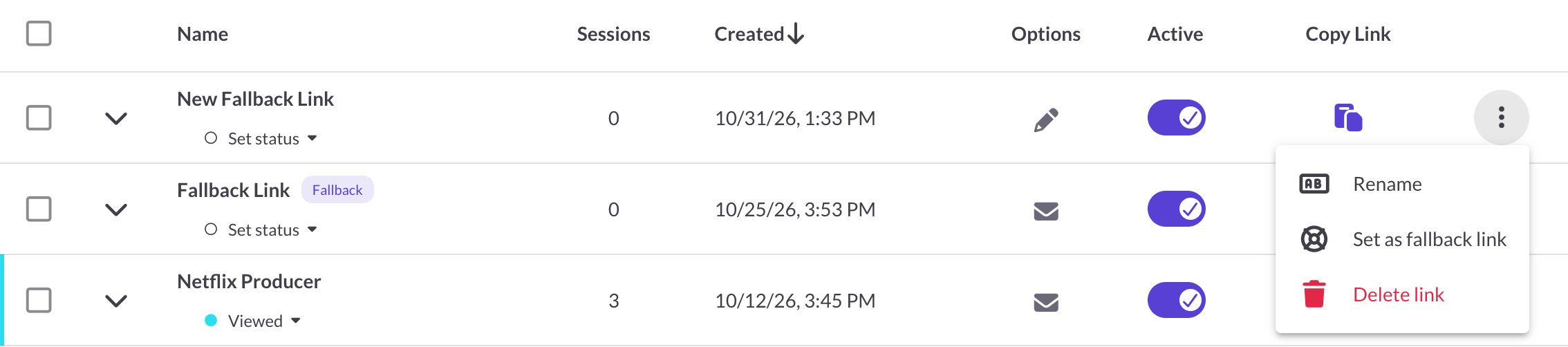
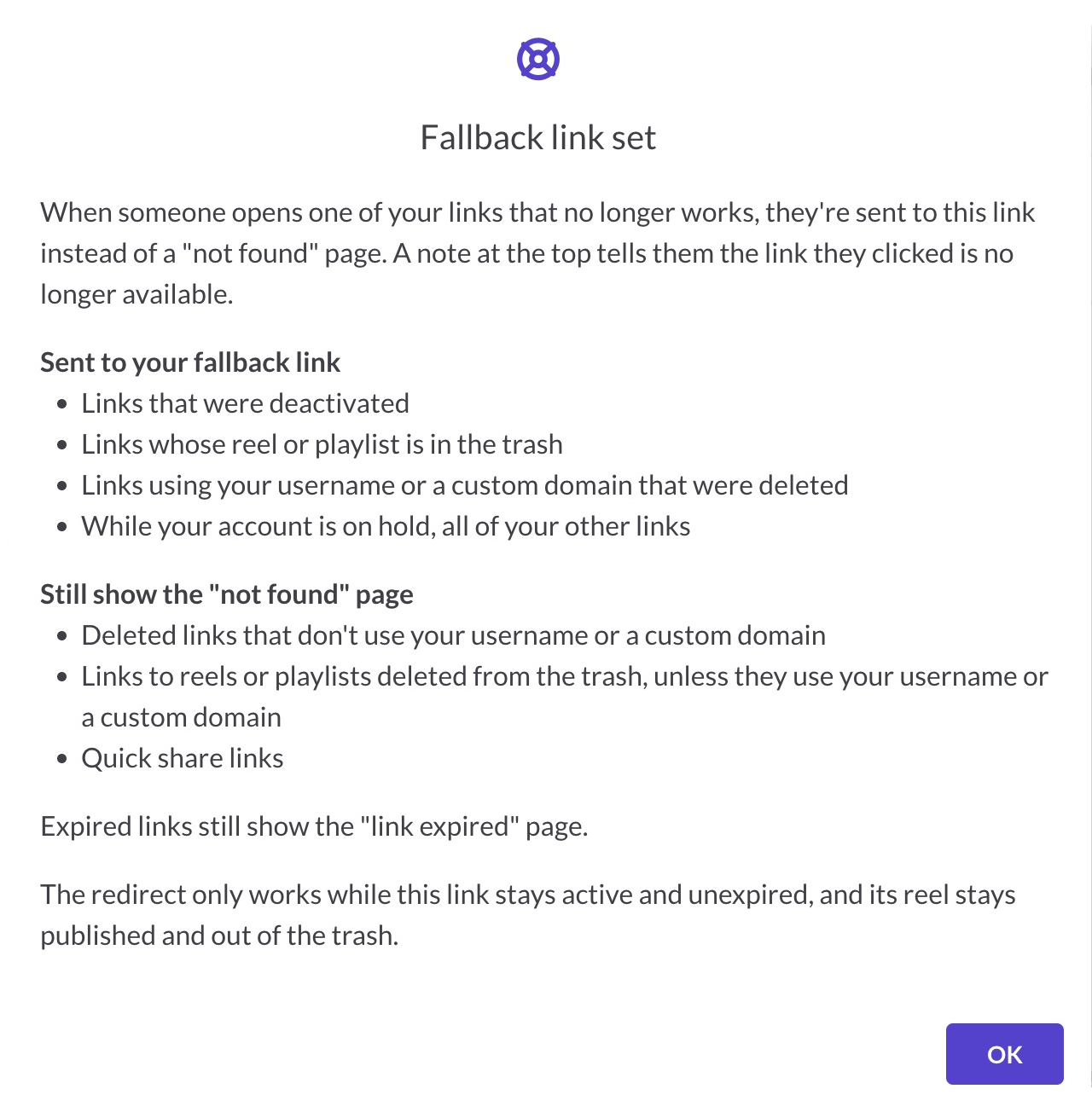
Once it’s set, you’ll see a small Fallback label next to the link’s name, so it’s easy to spot later.

Changing to a different link
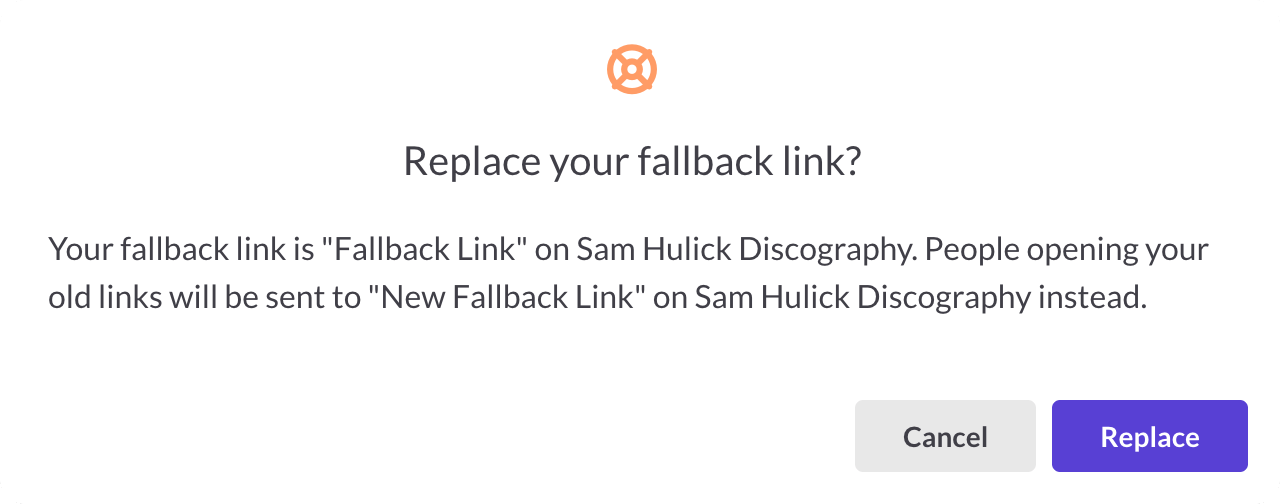
Just follow the same steps on the new link. If you already have a working fallback, we’ll ask before swapping it out, and the message tells you which link you’re replacing and which one visitors will see from now on. If your current fallback has stopped working, the new one simply takes its place.
Why don’t I see the option?
Set as fallback link only shows up on reel share links that are turned on and haven’t expired. You won’t see it on a link whose Active toggle is off, on an expired link, or on playlist links. Fallback links are also in early access right now, so they may not be turned on for your account yet.
See or remove your fallback link
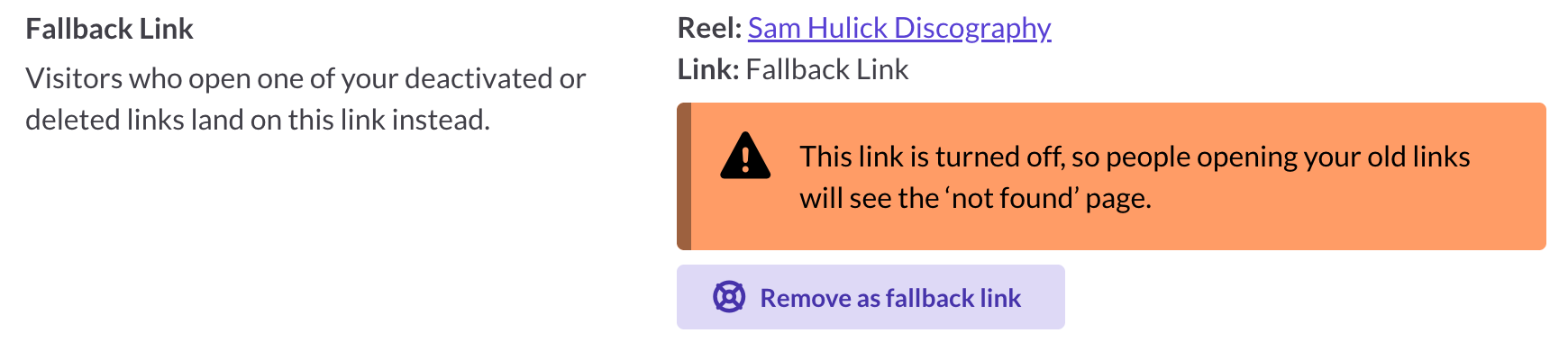
To check which link you’ve chosen, go to Reel Settings → Sharing & Notifications and scroll to Fallback Link. You’ll see the reel and link you picked, with a link straight to that reel.

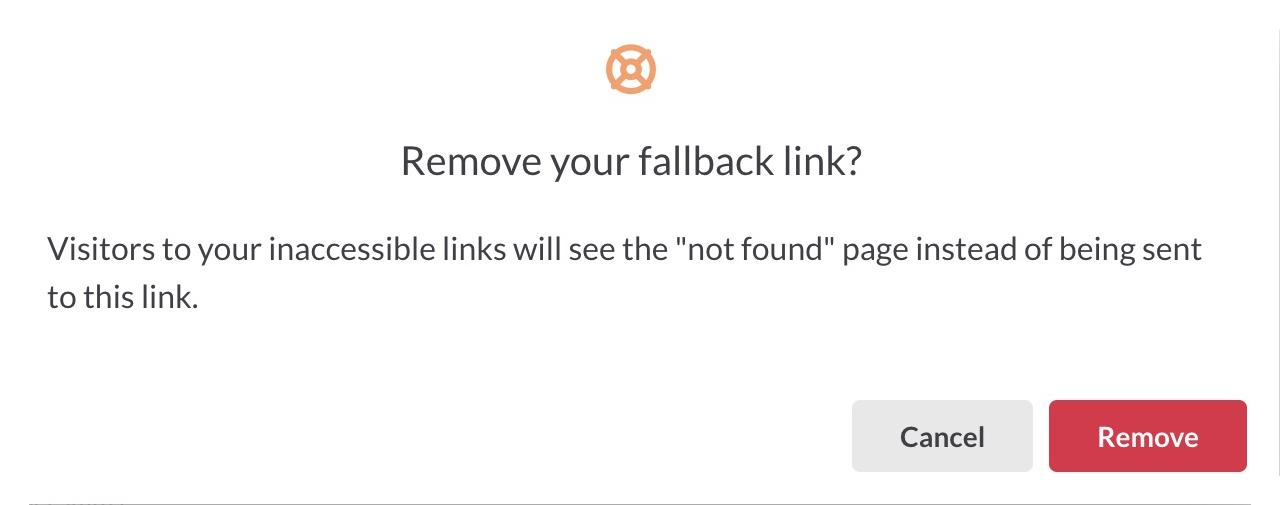
To turn it off, click Remove as fallback link there, or open the link’s three-dot menu on the reel and choose Remove as fallback link. We’ll ask you to confirm, and once it’s removed, visitors to your old links will see the “not found” page again.
Which links go to your fallback
Most of your broken links will send people to your fallback, but not all of them. Here’s the breakdown.
These go to your fallback link
- Links you’ve turned off with the Active toggle
- Links to a reel or playlist that’s in the trash
- Deleted links that use your username (a personalized URL) or a custom domain
- If your account is on the Hold Plan: all of your other links
These still show the “not found” page
- Deleted links that don’t use your username or a custom domain
- Links to reels or playlists you’ve permanently deleted from the trash, unless they use your username or a custom domain
- Quick Share links
Expired links are a separate case. Visitors still see the “link expired” page, so the expiration date you set keeps doing its job. (More on expiration in Share link security.)
Why the difference? A standard link like play.reelcrafter.com/f85E73… is a random code. Once it’s deleted, nothing in it says the link was yours, so we can’t tell where to send people. A link that uses your username or your own domain still points back to you, so we know to send visitors to your fallback. If there’s a chance you’ll delete a link someday, give it a personalized URL so it stays covered.
If your fallback link stops working
Your fallback only does its job while that link is turned on, hasn’t expired, and belongs to a published reel that isn’t in the trash. If any of that changes, the Fallback Link section in Sharing & Notifications shows a warning so you know to fix it, and the Fallback label disappears from the link until it’s working again.
- If the link was deleted: “Your fallback link was deleted, so people opening your old links will see the ‘not found’ page.” Click Clear fallback link and then set a new one.
- If the reel is in the trash: “This link’s reel is in the trash, so people opening your old links will see the ‘not found’ page.” Restore the reel or pick a different link.
- If the link is turned off: “This link is turned off, so people opening your old links will see the ‘not found’ page.” Turn its Active toggle back on.
- If the link expired: “This link has expired, so people opening your old links will see the ‘link expired’ page.” Change or remove its expiration date, or pick a different link.
Once the problem is fixed, your fallback picks right back up on its own. There’s no need to set it again.
Heads up: If your account is on the Hold Plan, your fallback link is the one link that keeps working. Removing it means that link stops opening too, and we’ll remind you of that before you confirm.
Common questions
Can I have more than one fallback link?
No. You get one fallback link for your whole account, and it covers broken links from all of your reels and playlists.
Can a playlist link be my fallback?
Not right now. Your fallback has to be a reel share link. Broken playlist links can still send people to it, though.
Will visitors know they were redirected?
Yes. A note at the top of the page tells them the link they clicked isn’t available anymore and that you’d like them to see this instead. Nothing else about your reel changes.
Do visits from old links show up in my analytics?
Yes. Visitors land on your fallback link, so their visits show up as sessions on that link, just like any other visit. Your analytics won’t tell you which old link they clicked, though. That’s why a share link set aside just for this is handy: every session on it came from an old link.
Why did my old link show “not found” instead of my fallback?
It was probably a standard link that was deleted, or a Quick Share link. See Which links go to your fallback for the full list. Also check that your fallback link itself still works in Sharing & Notifications.
What if someone mistypes my personalized URL?
If the address uses your username but doesn’t match any of your links, they’ll land on your fallback too, so a typo doesn’t leave them stuck.