
Reel Settings overview
Reel Settings is where you set up default information that pre-populates on every new reel you create. Set it up once, and you won't have to re-enter your bio, logo, contact info, or other details each time.
To access Reel Settings, click Reel Settings in the left sidebar.
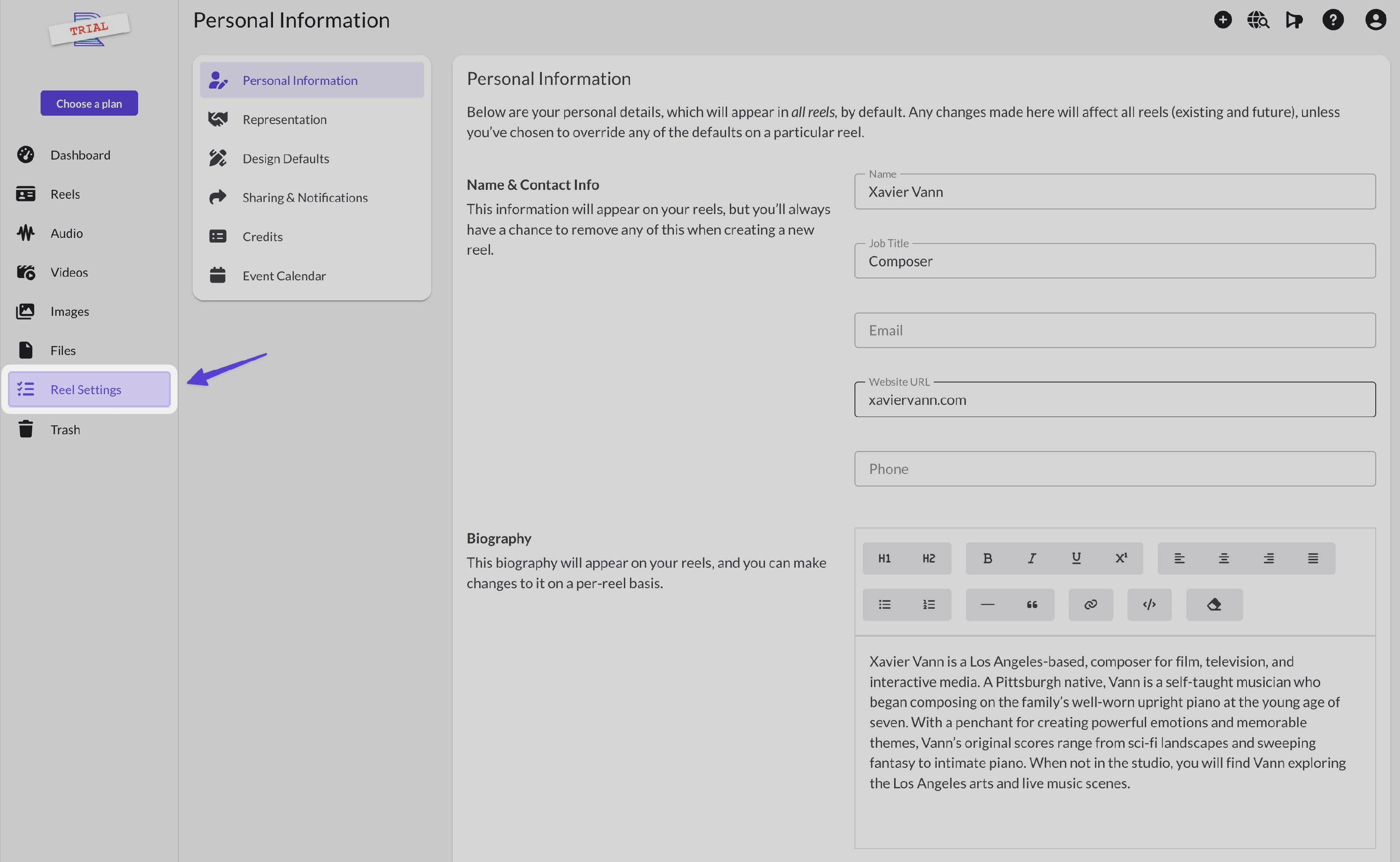
Sections
Reel Settings is organized into six sections:
Personal Information
Your name, job title, contact details, biography text, external links, and social following counts. This information appears in Contact Info, Biography, and External Links blocks on your reels.
- Contact Info: Your name and contact details
- Biography: Your headshot and bio
- External Links: Your social and web links
Representation
Contact information for your agents, managers, publicists, and other representatives. You can add multiple reps and choose which ones to display on each reel.
Design Defaults
Default template, color palette, display options, logo, and headshot. These settings control how new reels look when you create them.
- Design Defaults: Templates, colors, and display options
- Logo: Your logo image
- Biography: Your headshot and bio
Sharing & Notifications
Default settings for share links, email notification preferences, and your username for personalized URLs.
Credits
Your project credits (films, TV shows, games, albums, etc.). Add them here, then select which ones to display on each reel.
Event Calendar
Upcoming events like performances, screenings, or appearances. Add them here, then choose which ones to display on each reel.
How defaults work
When you create a new reel, it pulls your default information from Reel Settings. If you change a default later, the change applies to all reels that are using that default.
You can override any default on a specific reel. Once overridden, that reel won't be affected by future changes to the default.
For more details, see Defaults and overrides explained.